FeaturesBuildVisual builder
A visual builder for people who build websites for a living
Native AI is a complete visual builder first. Drag elements onto the page, arrange them in the layer tree, style them per breakpoint and state, and publish. The canvas shows the real page — your header, footer, fonts and data — and what you publish is clean HTML and CSS.
- More than 120 elements in 13 categories
- Desktop, tablet, mobile and your own breakpoints
- Undo, history, published versions and autosave
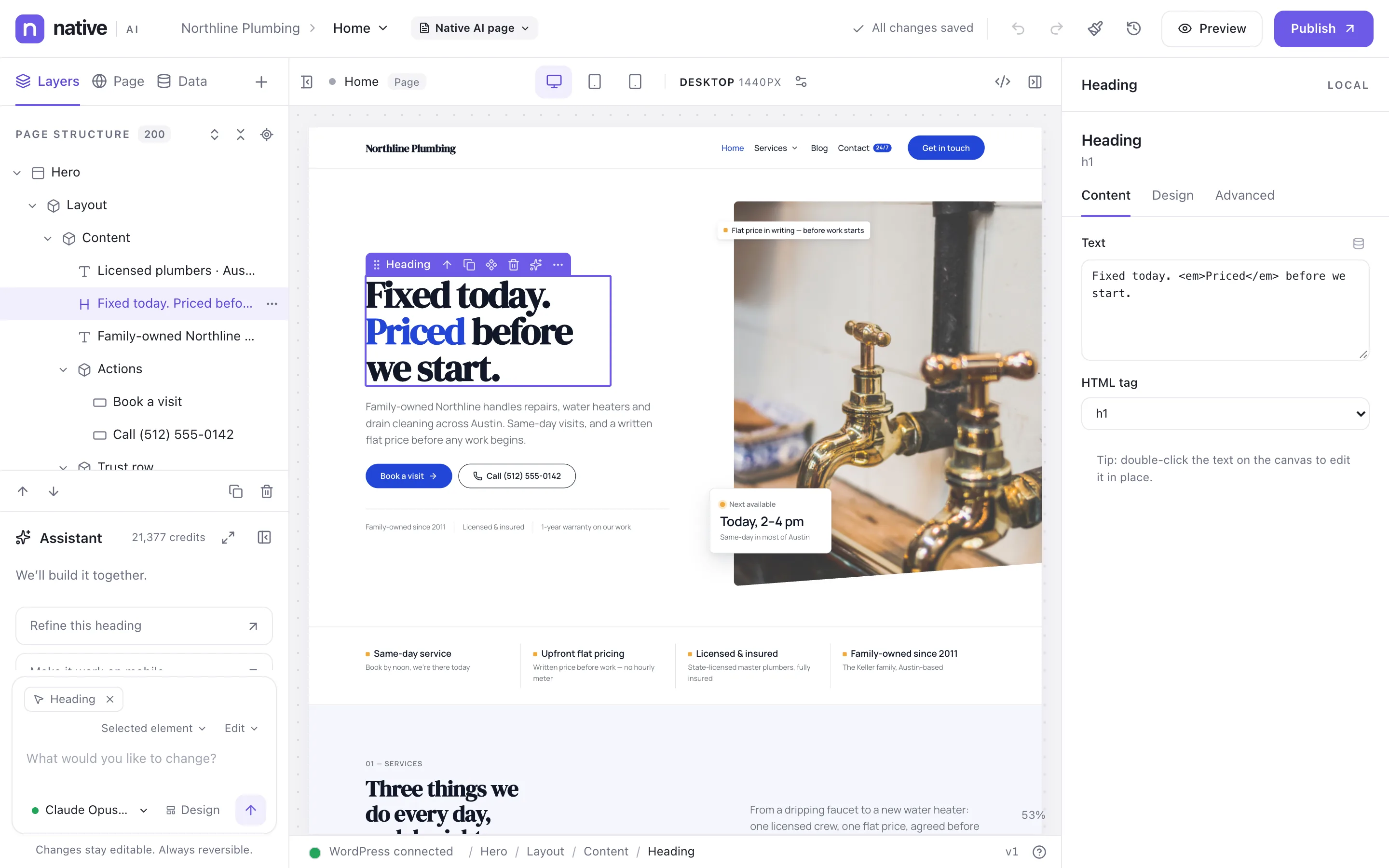
Everything on one screen
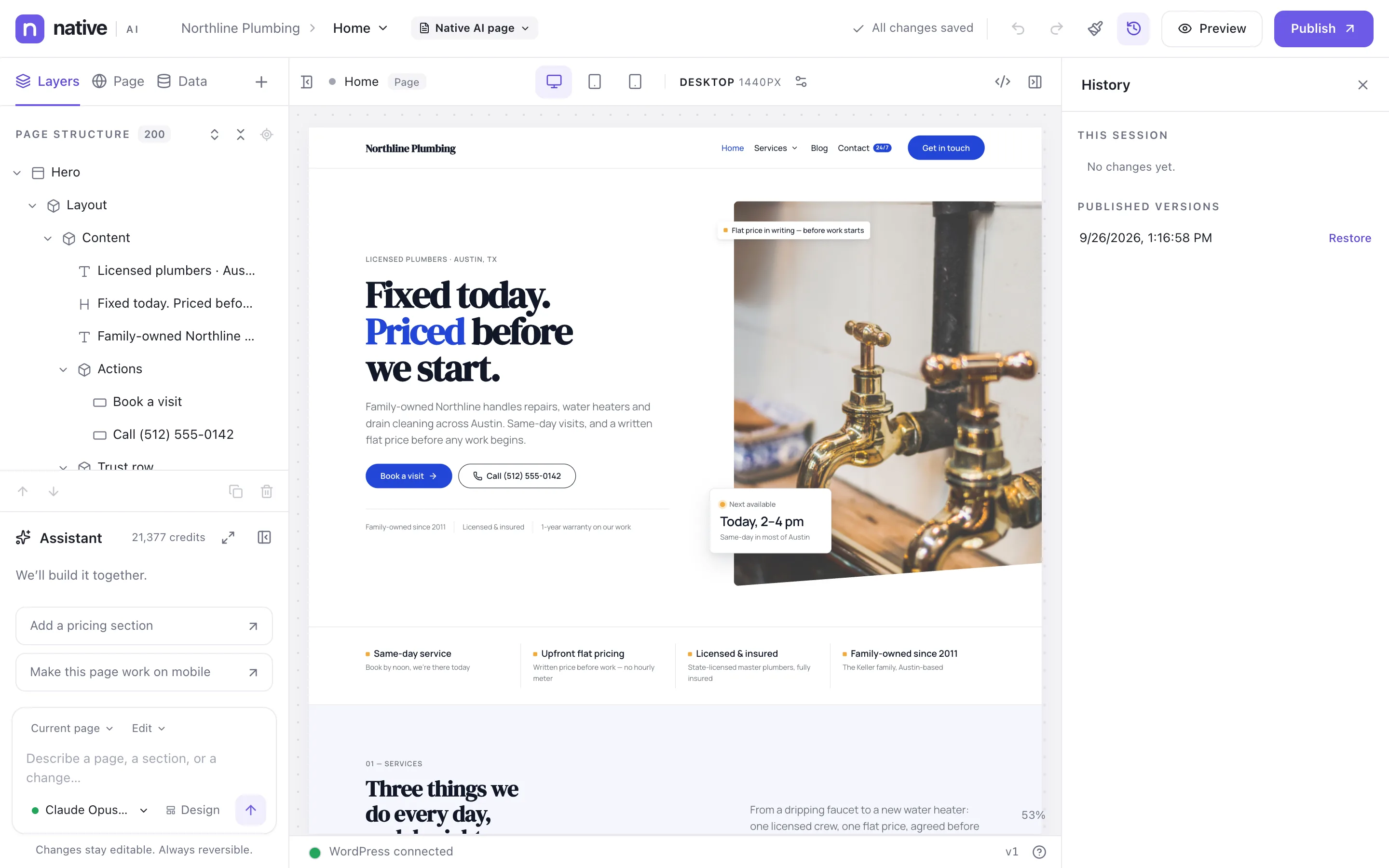
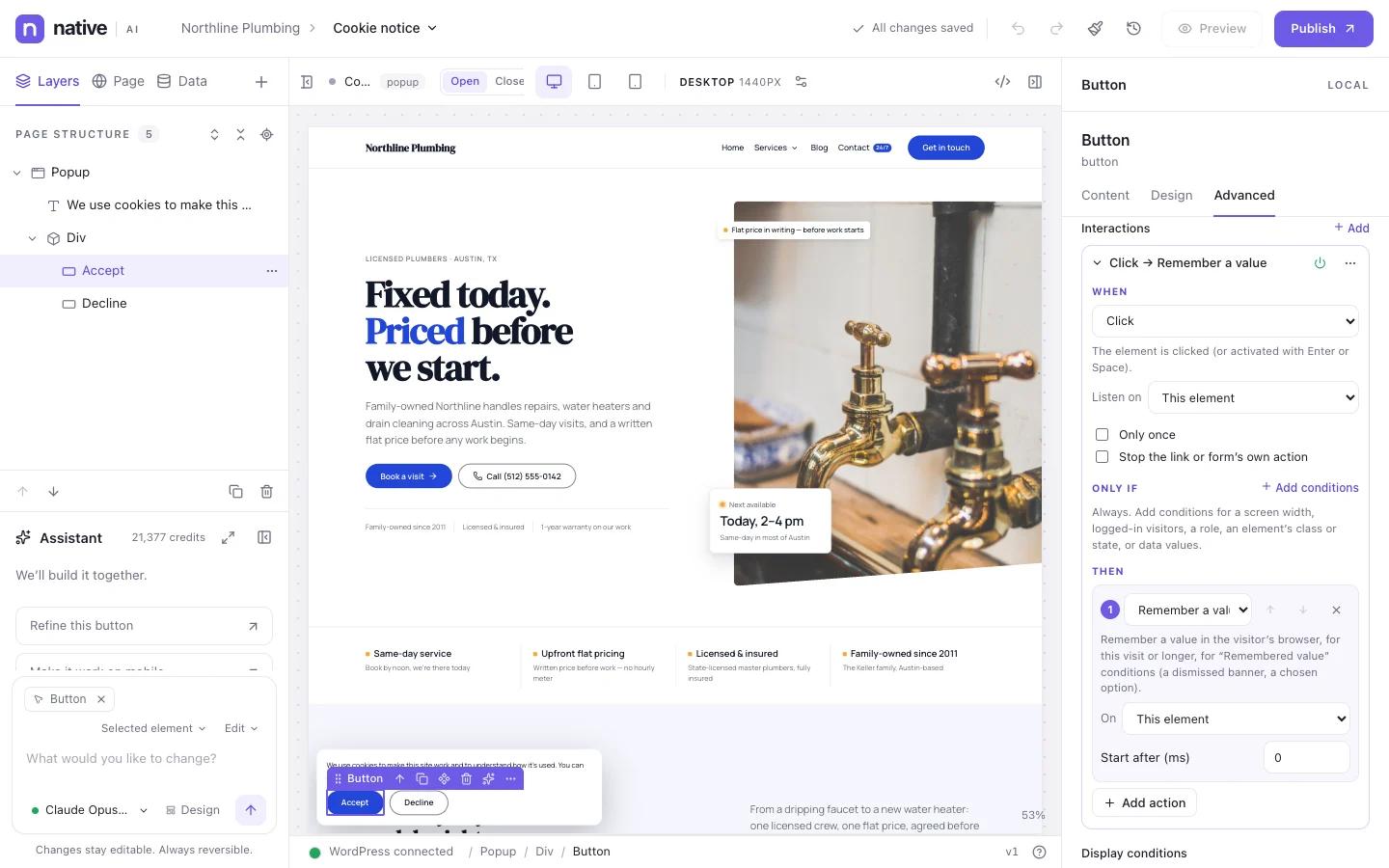
Layers, Page and Data on the left with the assistant below them; the page in the middle with the breakpoint switcher; the selected element’s Content, Design and Advanced tabs on the right. Click any element on the canvas, or in the layer tree, and edit it. Double-click text to edit it in place.
The status bar shows where you are (Hero / Layout / Content / Heading) — click any part of the path to select a parent.
- Canvas with the real header, footer, fonts and data
- Layer tree with drag and drop, rename, hide and lock
- Inline text editing, copy and paste, keyboard shortcuts, context menu
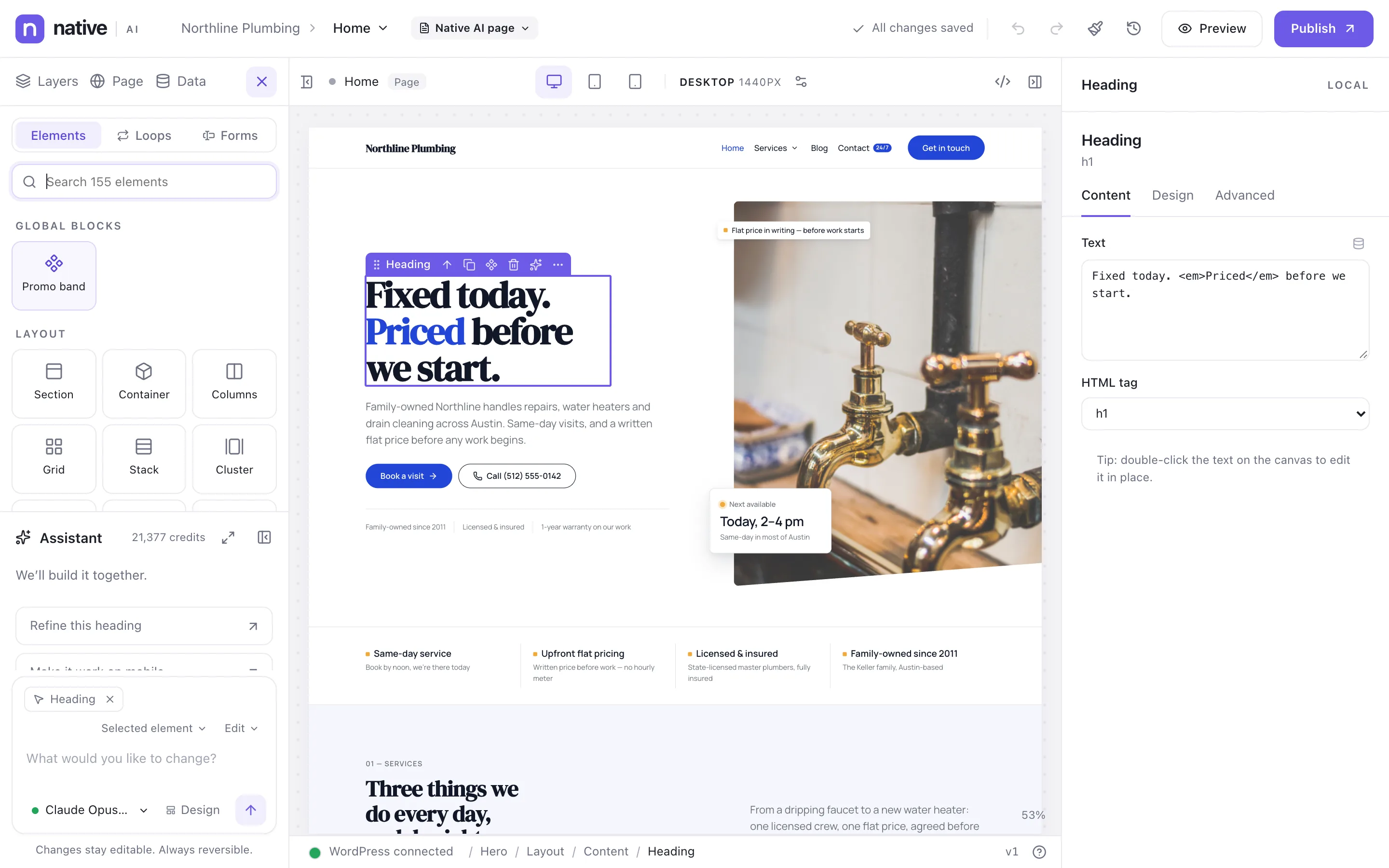
More than 120 elements
Layout (sections, containers, columns, grids, stacks), text and media, navigation, interactive elements (tabs, accordions, sliders, modals), content blocks (features, steps, pricing tables, FAQs, testimonials, counters), marketing, social, 20 dynamic elements for templates and 21 form elements. Search finds any of them.
Loops and forms have their own tabs, with starting points you insert and then edit like anything else. Global Blocks appear at the top: design once, reuse anywhere.
- 13 categories, searchable
- Starting points for Query Loops and forms
- Global Blocks reused across pages
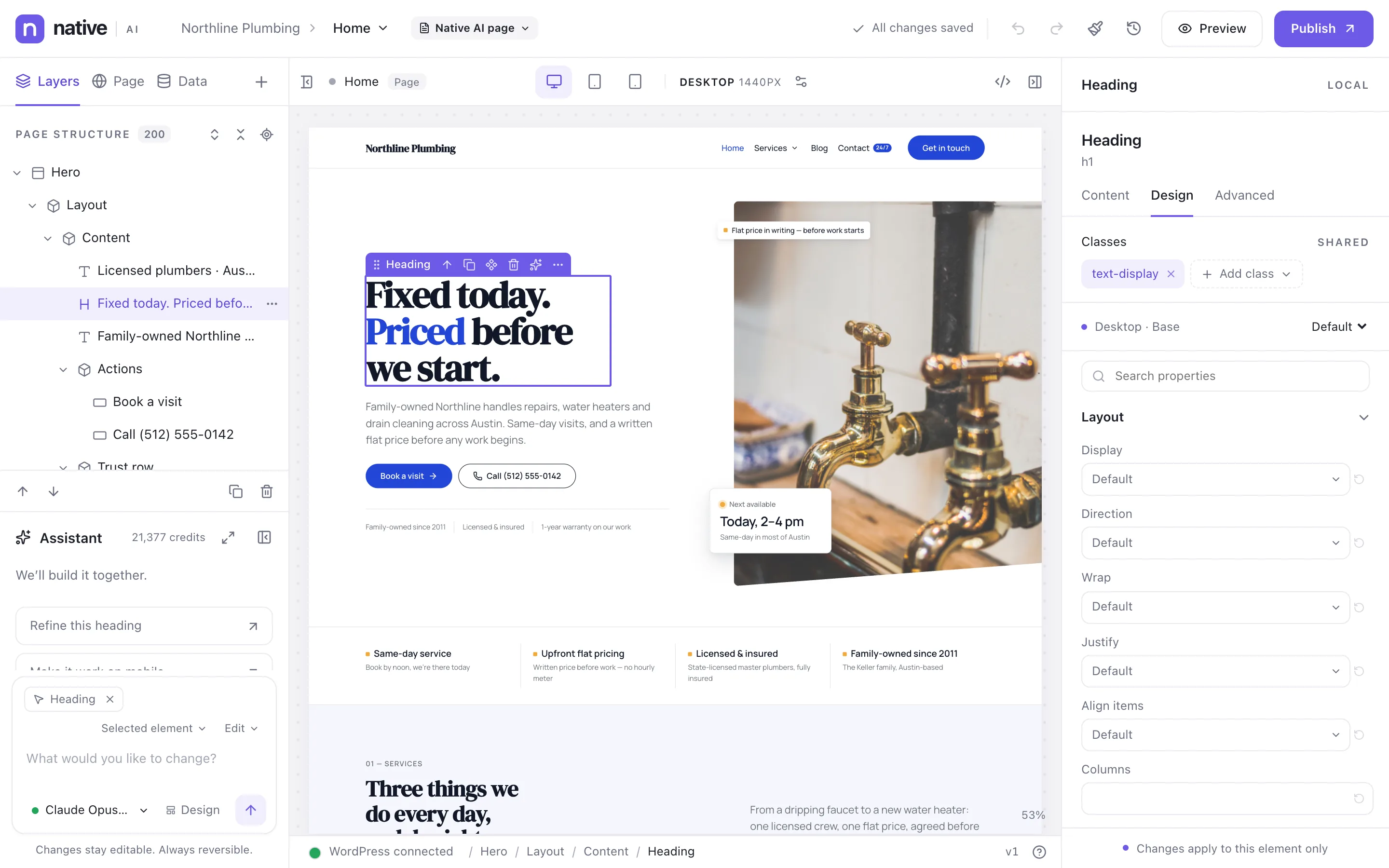
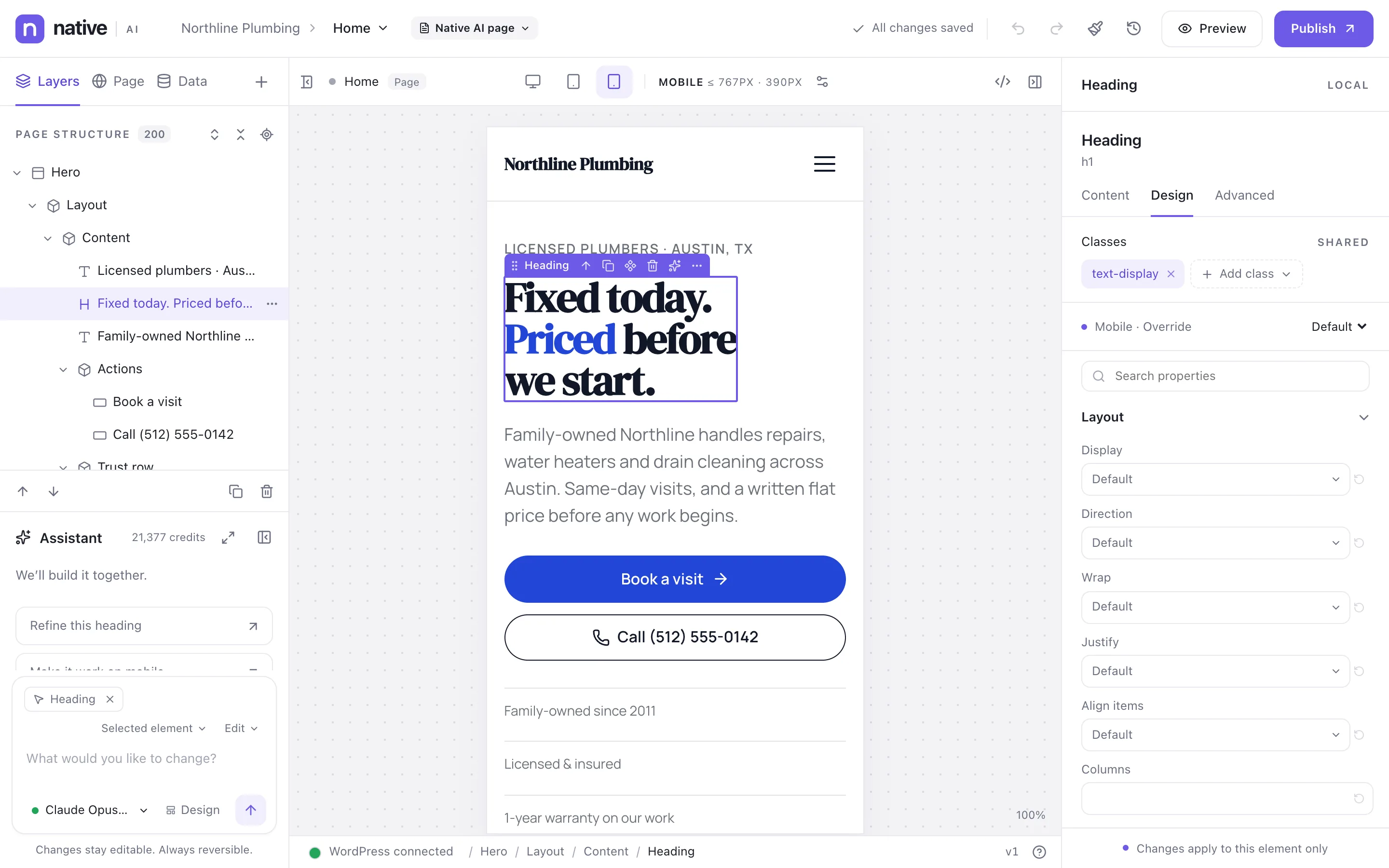
Style every element, every breakpoint, every state
The Design tab edits layout, spacing, size, typography, backgrounds, borders, effects and position — for the element itself or for a shared class that styles many elements at once. Styles apply per breakpoint: desktop, tablet (up to 1023 px), mobile (up to 767 px), and any breakpoints you add.
Style states too — hover, focus, active, and more — and search properties by name.
- Per-breakpoint styles with a live canvas at each width
- States: hover, focus, focus-visible, focus-within, active, visited, checked, disabled
- Classes with a Local / Shared switch
History, versions and clean code
Every change is a step you can undo, whether you made it or the AI did. Changes save automatically; publishing makes a version you can restore later.
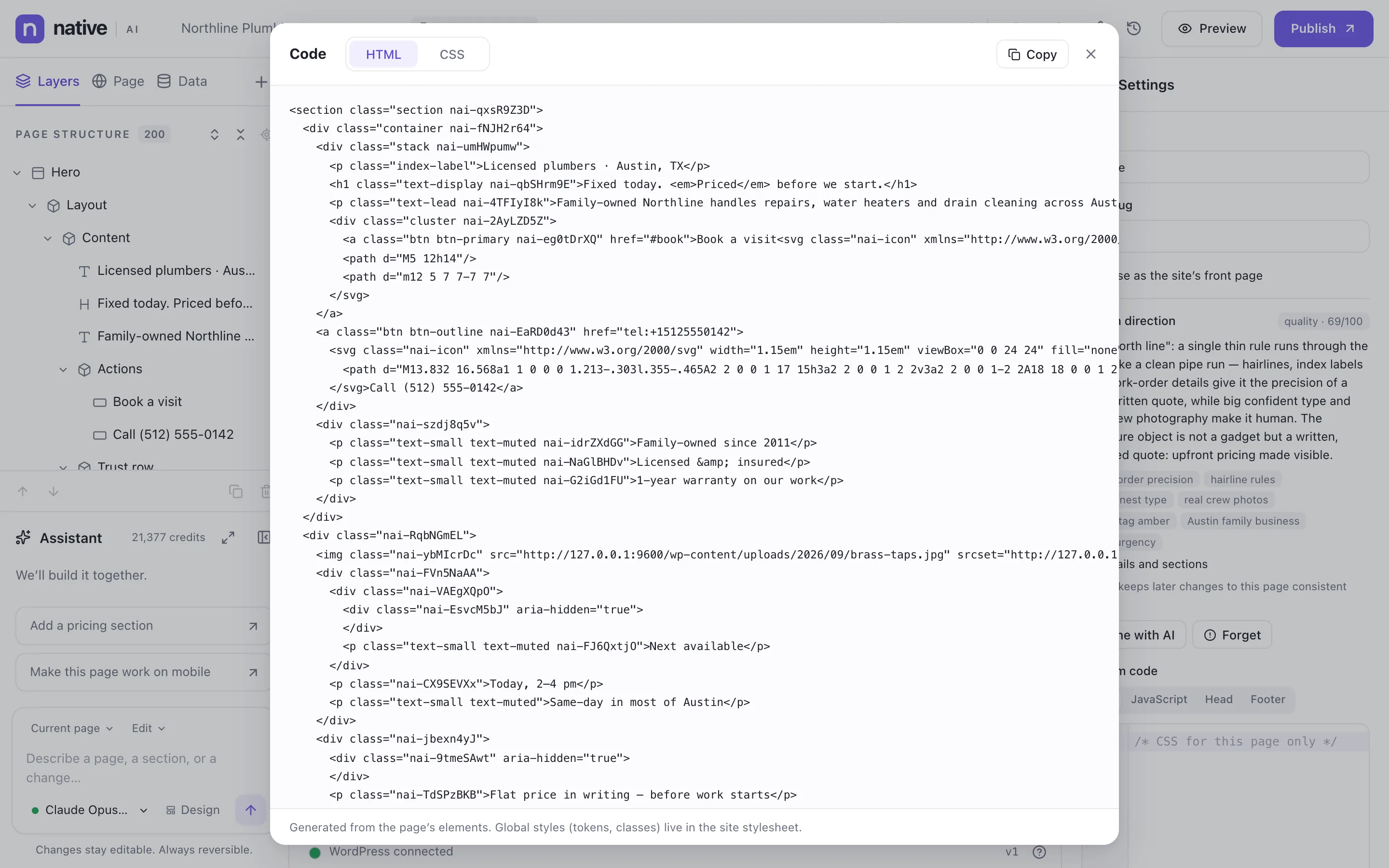
The code view shows the HTML and CSS the page produces: semantic tags, class names from your design system, no inline style soup. Page-level custom CSS, JavaScript, Head and Footer code are there when you need them.
- Autosave, undo and redo
- Published versions with restore
- HTML and CSS view
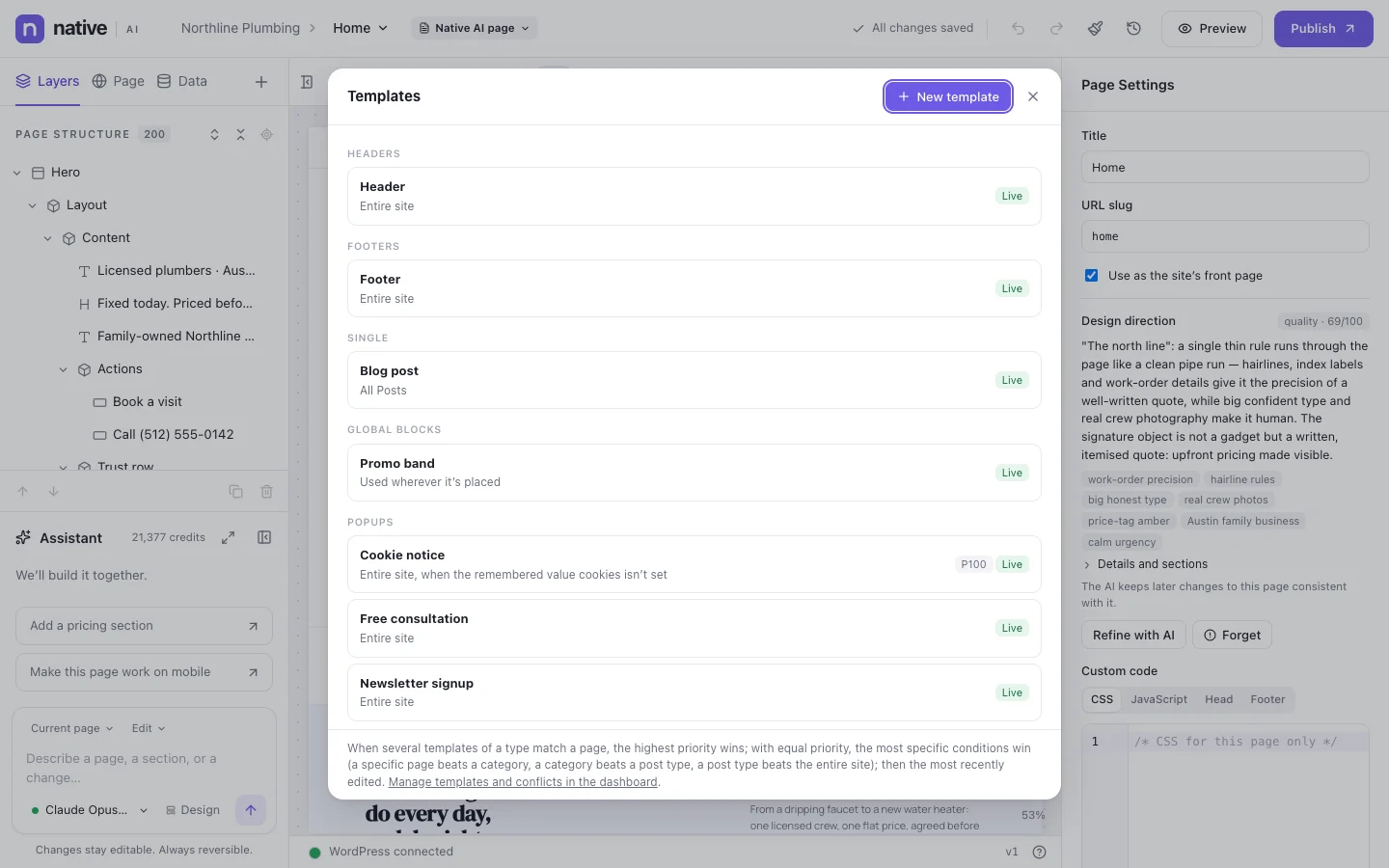
- Custom CSS, JavaScript, Head and Footer per page (with permission)
Visual builderEverything included
Everything in visual builder
Editing
- Drag and drop on the canvas and in the layer tree
- Inline text editing
- Copy, paste and duplicate across pages
- Keyboard shortcuts and a context menu
- Rename, hide and lock elements
- Selection path in the status bar
Styling
- Layout, spacing, size, typography, background, border, effects, position
- Per-breakpoint styles, custom breakpoints
- State styles (hover, focus, active …)
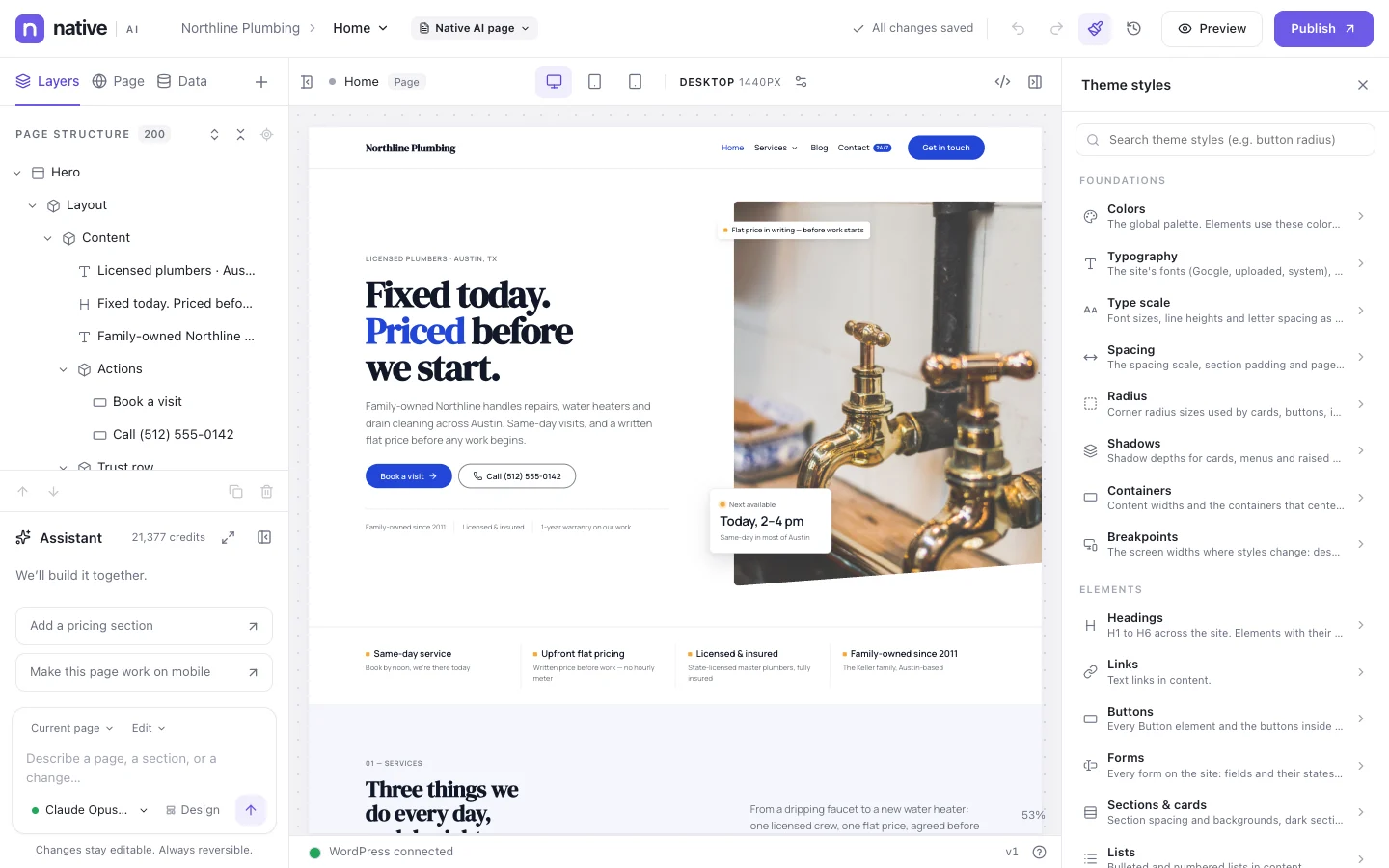
- Global classes and design tokens
- Property search
Elements
- Layout: section, container, columns, grid, stack, cluster
- Media: images, video, galleries, icons (2,000+), maps
- Interactive: tabs, accordions, sliders, modals, toggles
- Content: features, steps, pricing, FAQ, testimonials, counters
- Dynamic elements for templates
- Form elements
Safety
- Autosave
- Undo steps you choose to keep
- Published versions with restore
- Warnings before leaving with unsaved changes
Questions about visual builder
Does it work with my theme?
Yes. Native AI renders the pages and templates you build with it, with its own header and footer if you make them. Everything else keeps using your theme. You can stop the theme’s styles from loading on Native AI pages in Settings → Performance.
Can I use it next to another page builder?
Yes. Pages built with another builder keep working; Native AI only renders what you build with it. Try it on a staging copy of your site first.
What happens to my pages if I remove the plugin?
Pages keep their last published content. Designs, templates and settings are only deleted if you turn that on in Settings → Advanced before deleting the plugin.
Works well with
Build your next WordPress site with AI you can edit.
Native AI is in early access. Tell us about your sites and we’ll set you up with a license.