FeaturesBuildTheme Styles & design system
A design system that keeps every page consistent
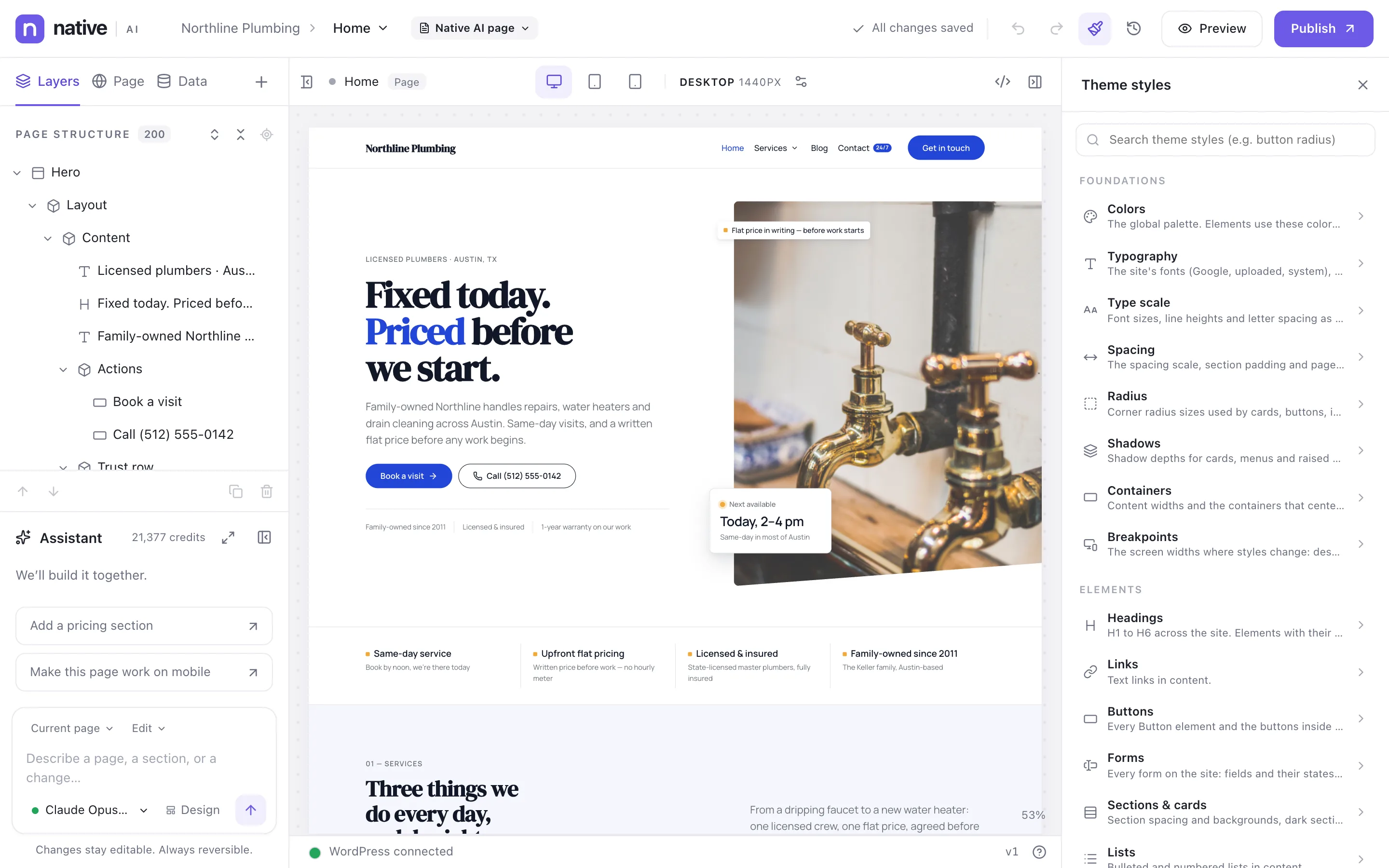
Theme Styles hold the site’s foundations — colors, typography, type scale, spacing, radius, shadows, containers, breakpoints — and the default look of every element: headings, links, buttons, forms, sections and cards, lists. Tokens and classes make the system reusable: change one and every page that uses it follows. The AI builds with the same system.
- Foundations and element defaults in one panel
- Tokens and classes with usage counts
- The full Google Fonts library, system fonts or your own
Foundations first
Colors are named by purpose — primary, accent, ink, muted text, surfaces, lines, dark sections — so a new color scheme is a few edits, not a hunt through pages. Typography sets the fonts; the type scale sets sizes, line heights and letter spacing for every level.
Spacing, radius, shadows and containers finish the foundation: section padding, content widths, card corners.
- Colors, typography, type scale, spacing, radius, shadows, containers, breakpoints
- Search Theme Styles by name (“button radius”)
- Fonts: 1,900+ Google Fonts, system fonts, or uploaded fonts
Tokens and classes, with their uses
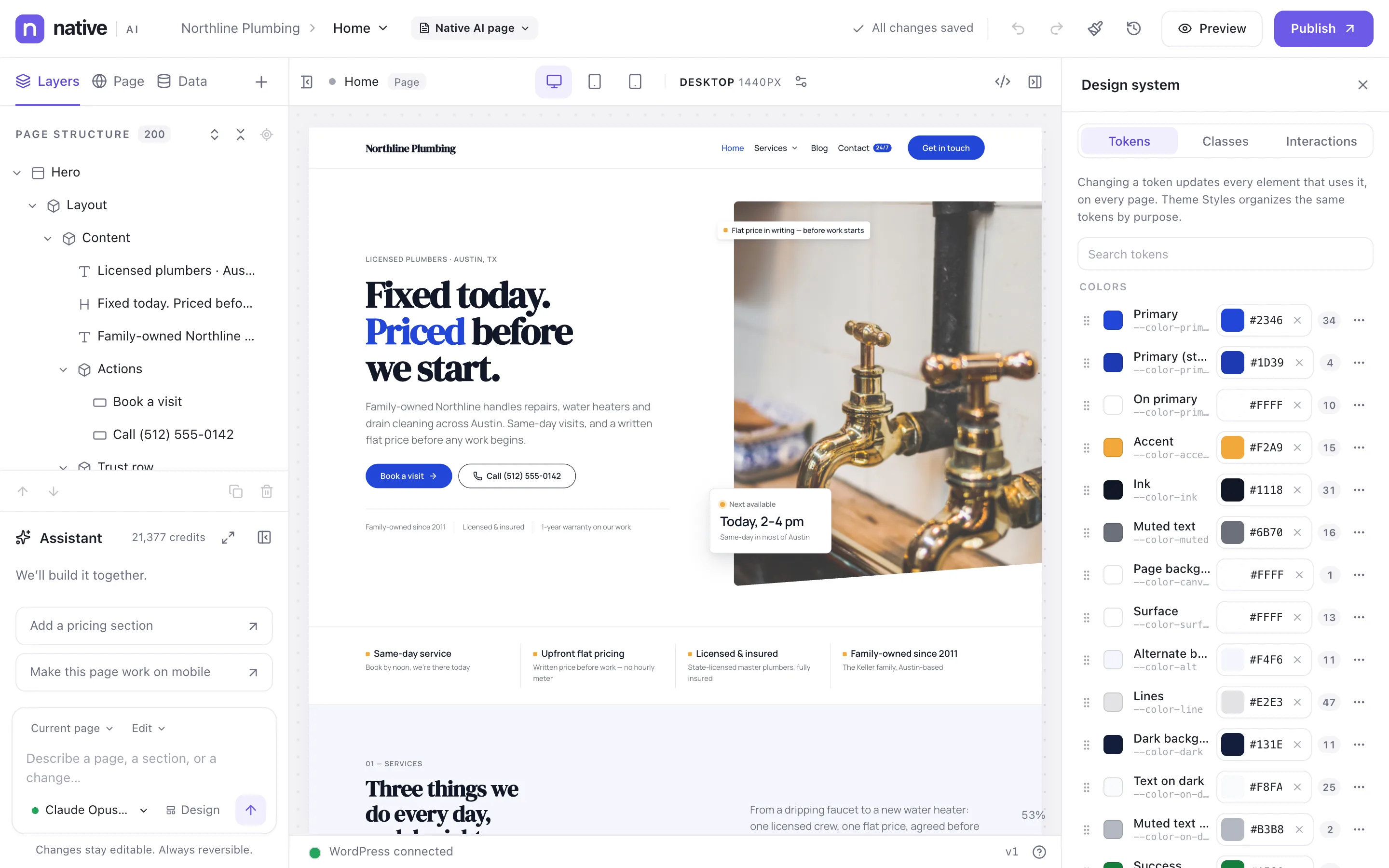
The design system panel lists every token with its value and how many places use it — so you know what a change will touch before you make it. Classes bundle styles into reusable names like .section, .eyebrow or .card, and elements can use several.
Changing a token updates every element that uses it, on every page. Interaction presets live here too.
- Usage count on every token
- Shared classes with a Local / Shared switch in the Design tab
- Interaction presets
Element defaults that stay out of your way
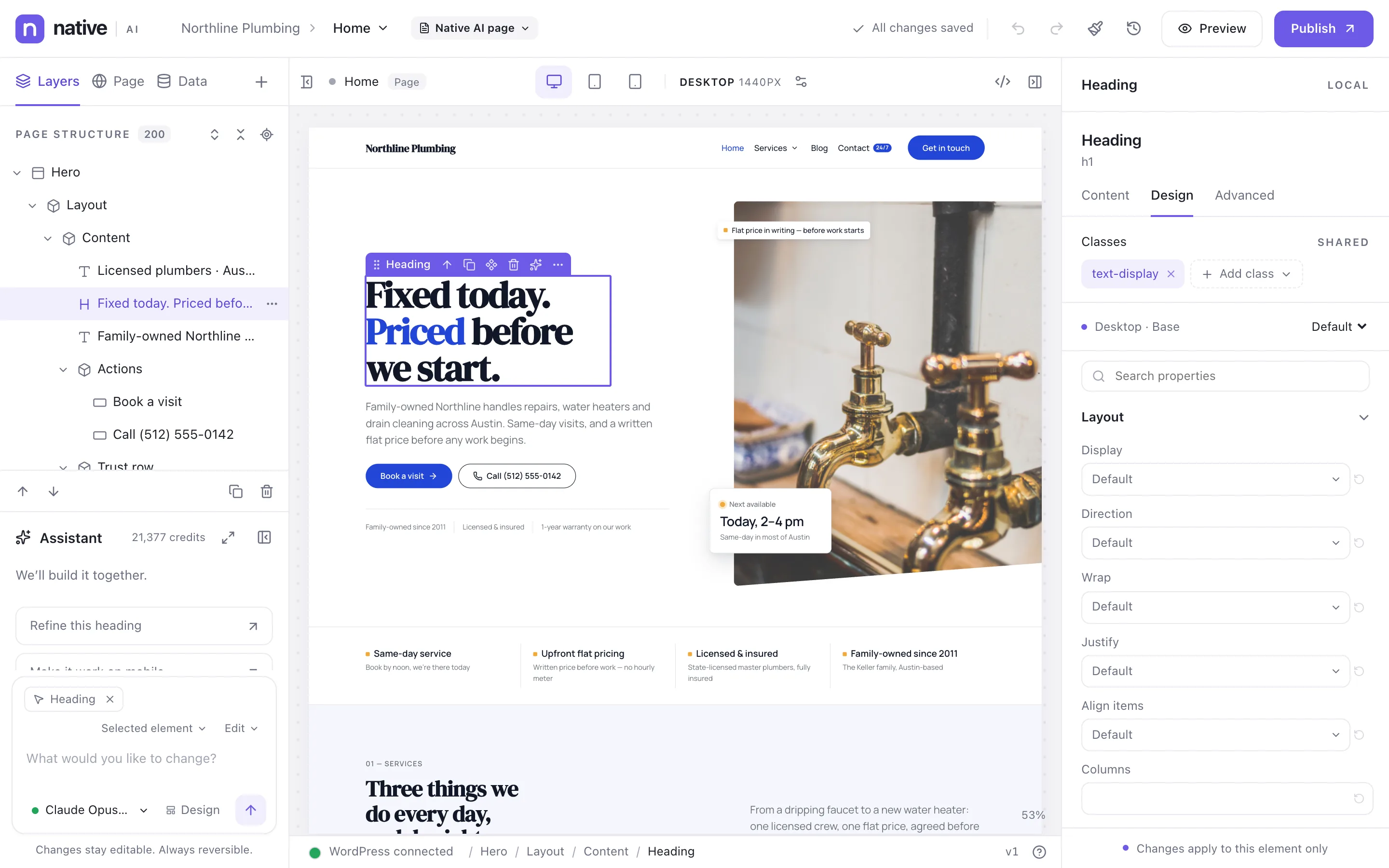
Set how headings, links, buttons, form fields, sections and cards, and lists look across the site. Elements start from these defaults, so a new button already looks like your buttons.
Dark sections adapt automatically: text, muted text, links and eyebrows switch to their on-dark colors inside a dark section.
- Headings H1–H6, links, buttons, forms, sections and cards, lists
- Defaults per element type
- Dark sections adapt text and links
Theme Styles & design systemEverything included
Everything in theme Styles & design system
Foundations
- Named color tokens by purpose
- Fonts: Google, system and uploaded
- Type scale with sizes, line heights and tracking
- Spacing scale and section padding
- Radius and shadow scales
- Containers and breakpoints
Reuse
- Design tokens with usage counts
- Global classes
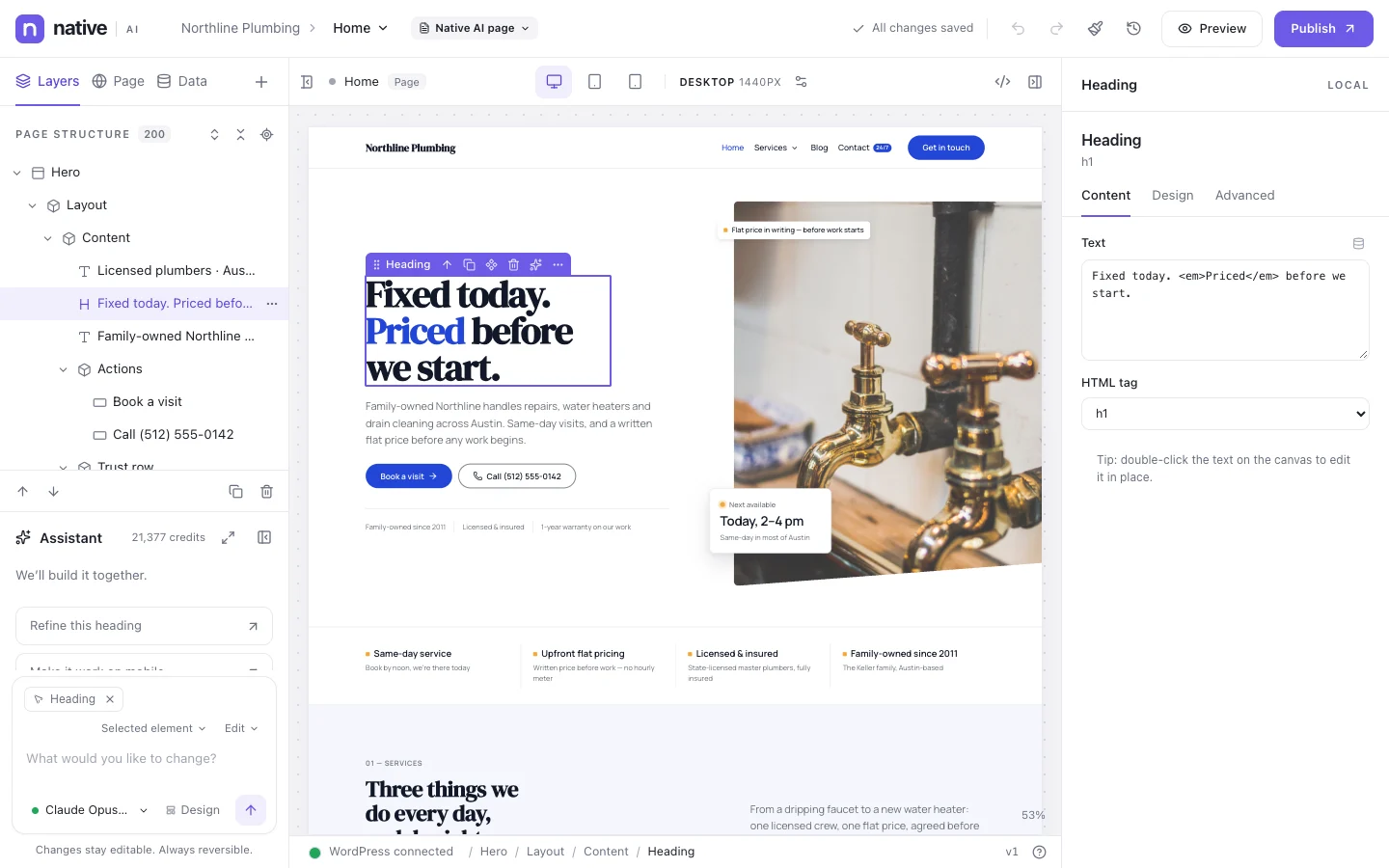
- Element-type defaults (Theme Styles → Elements)
- Interaction presets
- Import and export settings
Working with AI
- The AI uses your tokens and classes
- Site-wide changes made at the Theme Styles or class level
- A design direction the AI keeps consistent
Questions about theme Styles & design system
Can I change the design system after the AI made it?
Of course. It’s your design system: edit tokens, classes and Theme Styles like any other part of the site, and the AI follows your changes in later requests.
Are Google Fonts loaded from Google?
Google Fonts you choose are loaded from Google’s servers. To serve a font from your own site instead, upload the font files in Theme Styles → Typography.
Theme Styles & design systemKnowledge base
How to use it
Step-by-step articles, settings and answers in the knowledge base.
- Theme StylesThe site’s foundations — colors, fonts, type scale, spacing, radius, shadows, containers — and how every kind of element looks by default, in one panel.
- Colors, fonts and the type scaleSet the palette, choose fonts from Google Fonts, your system or your own files, and tune the type scale for every breakpoint.
- Design tokens and classesTokens are named values — colors, sizes, spacing — and classes are named groups of styles. Use them, and a change in one place updates every page.
- Style elements with the Design tabLayout, size, spacing, typography, backgrounds, borders, effects and position — per breakpoint and state, on one element or on a class that styles many.
Works well with
“Build a website for my plumbing business in Austin.”
Plans the pages and writes them in a look of their own, with a header, footer, templates and a design system you can edit.
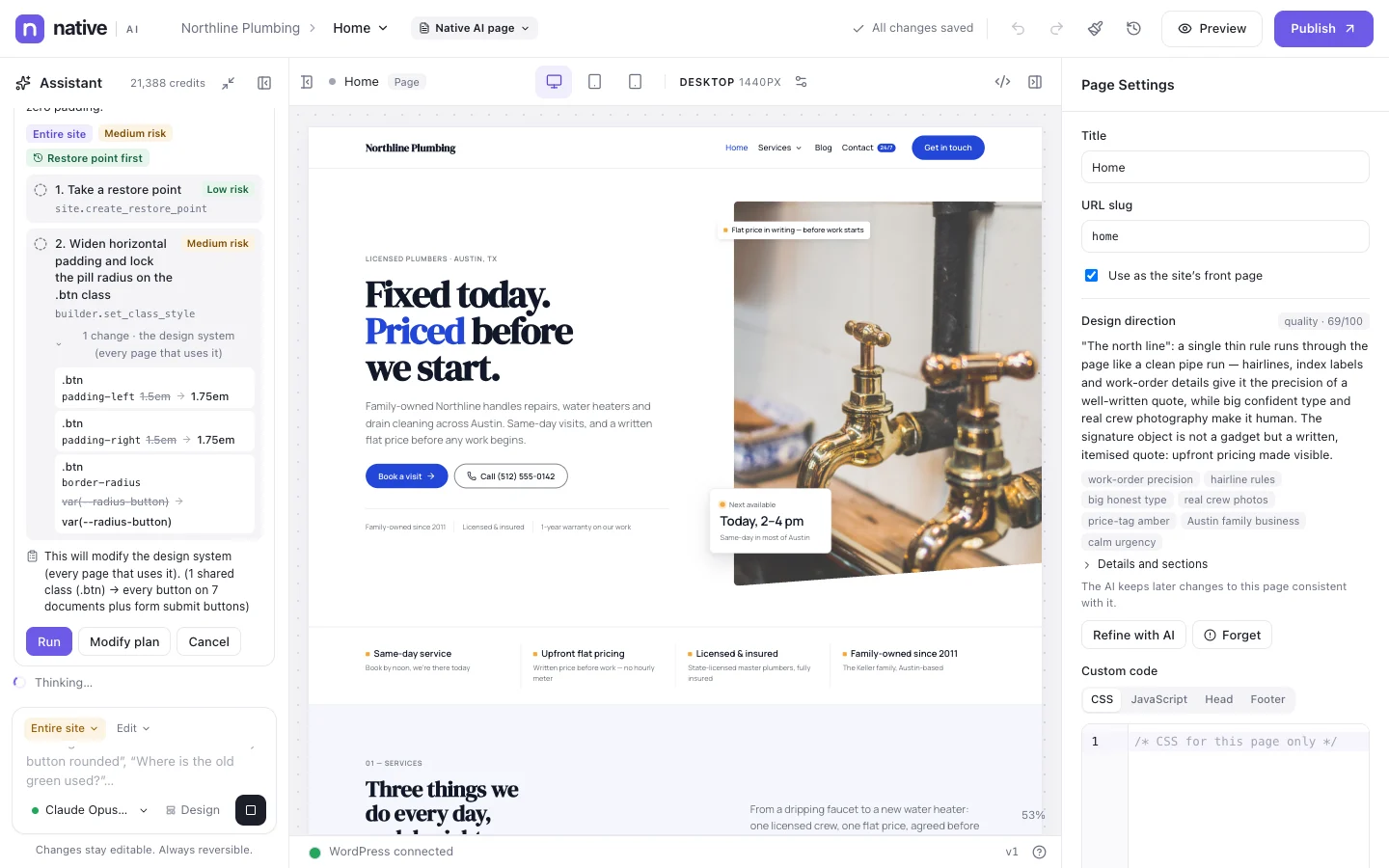
“Make every button on the site pill-shaped.”
Finds the shared class behind every button, shows you the plan, then changes it once.
“Write meta descriptions for every page that doesn’t have one.”
Writes them from each page’s own words in a background job, shows the credits first, and puts each one beside its page for you to approve.
“Add an exit-intent popup offering a free consultation.”
A native popup with its trigger and how often it shows. It starts as a draft.
“Which pages lost visitors this month?”
Compares this month with last, page by page, and checks recent changes to those pages.
“Find unfulfilled orders.”
Lists the paid orders waiting to ship, oldest first.
“Write a six-lesson course on home budgeting with a quiz after each lesson.”
Writes the outline, every lesson and the quizzes as drafts for you to review, and sets who can take it.
“Why was a customer locked out this morning?”
Reads the security log, finds the lockout and its address, and can unblock it for you.
“Which plugins need updates?”
Lists the installed plugins and the ones with an update waiting.
“Use the color scheme of this website: https://…”
Opens the site, reads the colors and fonts it uses most, and sets your design system from them.
“Create a Services post type with Price and Duration fields.”
Its own menu in WordPress and custom fields — in ACF when it’s active — ready for a template.
“Add the prices from this PDF to the Services page.”
Reads the attached price list and builds it into the page in your design.
“Count quote requests as a conversion.”
Adds a conversion goal for the form, so Analytics counts every request.
“Show me low-stock products.”
Reads stock from WooCommerce and lists what’s running low or out, with how many are left.
“Refund order 1042 and put the items back in stock.”
Prepares the refund with the amount and how it’s paid back, and waits for your confirmation.
“When someone buys the course bundle, enroll them and tag them in the CRM.”
Builds the automation — the purchase, the enrollment, the CRM tag — as a draft, and asks before switching it on.
“What happened on the site this week?”
Reads the activity record, updates, errors and health checks, and sums them up.
“Add a snippet that turns off comments on pages.”
Writes and checks the code, and saves it as a draft that you switch on.
One plugin. One agent. Your whole site.
Start free: a license for one website and AI credits to build with, no card needed. Describe your business and watch Native WP AI design your home page.