Blog
Replace a Plugin a Week #1: Do You Still Need a Security Plugin?
Week one of our Replace a Plugin a Week series: what Native WP AI's built-in security actually covers, from the learning firewall to two-factor and the malware scan, and how to switch without drama.
On this page
Welcome to Replace a Plugin a Week. Every week we pick one plugin that a typical WordPress site stacks up, look at what Native WP AI does in its place, and tell you honestly whether it's worth switching. One plugin at a time. No big, scary migrations.
We're starting with the one most people are nervous to touch: the security plugin. The one you installed on day one and haven't thought about since, mostly because you didn't want to.
Totally fair. Let's talk about it.
First, a real thank you to security plugin makers#
Before anything else: the teams behind WordPress security plugins have done a huge amount of good. Plugins like Wordfence have helped protect millions of WordPress sites and taught a whole generation of site owners that security isn't optional.
If you run one today and it's doing its job, nothing in this post says you did anything wrong. This is simply a different way to get the same peace of mind: security that lives inside the same plugin as your builder, forms, SEO, CRM, and everything else, instead of being one more license, one more settings screen, and one more update to keep an eye on.
What "built in" actually covers#
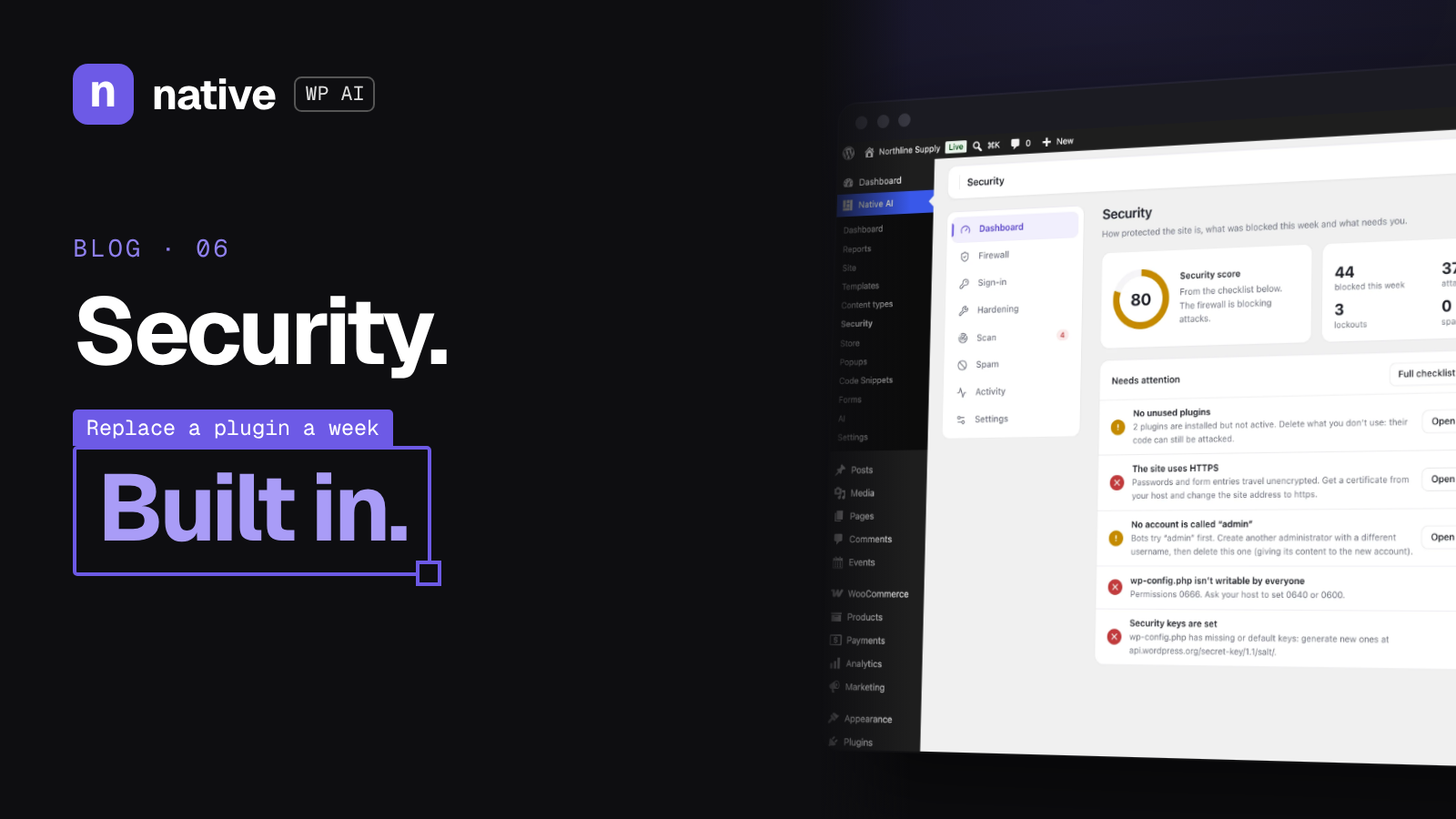
Native WP AI has an optional Security feature. Switch it on and here's what you get, straight from the security page.
A firewall that learns first, then blocks#
Every request is checked for the usual suspects: SQL injection, cross-site scripting, path traversal and file inclusion, PHP code and object injection, shell commands, attack tools, and requests for files that should never be public, like .env files, wp-config backups, and .git folders.
The nice part is how it starts. For its first week, the firewall only logs. It learns what your editors legitimately do so it never gets in their way, and then it starts blocking. If it still flags something that's fine, you add an exception right from the log.
After that, it handles the noisy stuff for you. An address that keeps attacking gets blocked for an hour, bots probing for missing pages get blocked, and fake "Googlebots" get caught with a DNS check. You can block addresses or ranges yourself, and if you're behind Cloudflare, whole countries. There's also extended protection, which runs the rules before WordPress even loads, for every PHP file on the site.
Sign-in that bots can't guess#
Wrong passwords lock an address out of signing in for a while, and for longer if it keeps trying. Usernames bots love, like admin and root, lock out right away. And error messages never reveal whether a username exists.
You can give your sign-in page an address of your own, so wp-login.php just answers "not found." Two-factor sign-in works with an authenticator app or email codes, with backup codes and trusted devices, and you can require it for administrators or anyone else. On top of that you get a CAPTCHA (Turnstile or reCAPTCHA), strong password rules, refusing passwords that showed up in data breaches, signing out idle editors, and an email when someone signs in from a new device.
A malware scan that finds and fixes#
The scan compares WordPress's own files, and every WordPress.org plugin, with the originals for your exact versions. It looks through themes, other plugins, and uploads for malware signatures. It also checks updates, plugins that were closed on WordPress.org, scripts injected into posts, and new administrators. Add a free WPScan key and it checks for known vulnerabilities too.
When it finds something, you can restore a changed file from WordPress.org in one click, move a suspicious file to quarantine (and back again), delete it, or ignore it. The scan runs every day by itself, and serious findings are emailed to you.
Hardening and spam, in a few switches#
A hardening checklist scores your site and fixes what it can in one click: turning off the file editor, hiding the WordPress version, making usernames impossible to look up, adding security headers, blocking PHP in uploads, and limiting XML-RPC.
Spam blocking covers comments and registrations, both WordPress's and WooCommerce's, using a hidden trap, timing, link limits, StopForumSpam, and throwaway email checks. It protects Native WP AI forms too.
And everything blocked lands in a security log, with alerts by email.
The parts that make it easy to live with#
Security tools have a reputation for locking out the very people they're meant to protect. A few details here are aimed right at that worry:
Locking yourself out is hard to do. Your own address is allowed when you switch Security on, and a lockout only stops signing in, not reading the site. If you ever do get stuck, one line in wp-config.php switches Security off until you remove it.
The AI agent helps, but asks first. The agent can read the security status and log, run scans, and block addresses. It asks before changing settings or files.
It shows up in your reports. Site Reports can include a security section, along with health checks like HTTPS and WordPress and PHP versions, plus failed sign-ins and user changes. Handy if you send monthly care reports to clients.
It doesn't touch your AI credits. According to the pricing page, security is one of the features that doesn't use credits at all.
Can you run it alongside Wordfence?#
You can, but there's no need to run two firewalls. The answer on the security page is simple: pick one. Extended protection won't switch on while another firewall already runs before WordPress.
So this isn't a "stack one more plugin on top" situation. It's a "choose your security setup" situation.
What about cost?#
On the What It Replaces page, Wordfence Premium is listed at $149 a year for one site, based on prices as each plugin's website listed them in October 2026, before tax. That premium tier includes real-time firewall rules and malware signatures.
Native WP AI doesn't sell security as an add-on. Every plan includes every feature. Pro is $99 a month for 3 websites and 3,000 AI credits every month, and Agency is $249 a month for unlimited websites and 10,000 AI credits every month.
So the honest comparison isn't security plugin versus security plugin. It's whether one plugin can replace a whole stack of them. Security is just week one.
How to switch without drama#
If you want to try it, here's a calm way to do it:
Start on a staging copy of a live site, which the get started guide recommends anyway.
Install Native WP AI and turn on Security.
Let the firewall's learning week run, then check the log for anything that needs an exception.
Set up two-factor for administrators and give your sign-in page its own address.
Run the scan and work through the hardening checklist.
When you're happy with what you see, pick one firewall and retire the other.
Who should keep their current setup (for now)#
Honestly? If your current security plugin is doing its job and you're not changing anything else on the site, there's no rush. And if there's a specific feature in your current plugin's premium tier that you rely on, check it against the full security feature list before you switch.
Where built-in security really shines is when you're already simplifying: builder, forms, SEO, CRM, and the rest in one plugin, with one activity log, one set of permissions, and one update instead of a dozen that can conflict.
Check your security setup free for 14 days#
Here's the offer: start a free 14-day trial of Native WP AI on one site, with 500 AI credits and no card needed. Turn on Security, let the firewall learn for a week, run the scan, and see your security score and exactly what it flags. Every feature is included in the trial, so feel free to poke around the builder while you're in there.
Start your free trial and check your security setup
See you next week for Replace a Plugin a Week #2.
Was this post useful?
Comments
No comments yet. Start the conversation.