Blog
Replace a Plugin a Week #2: Do You Still Need a Chatbot Plugin?
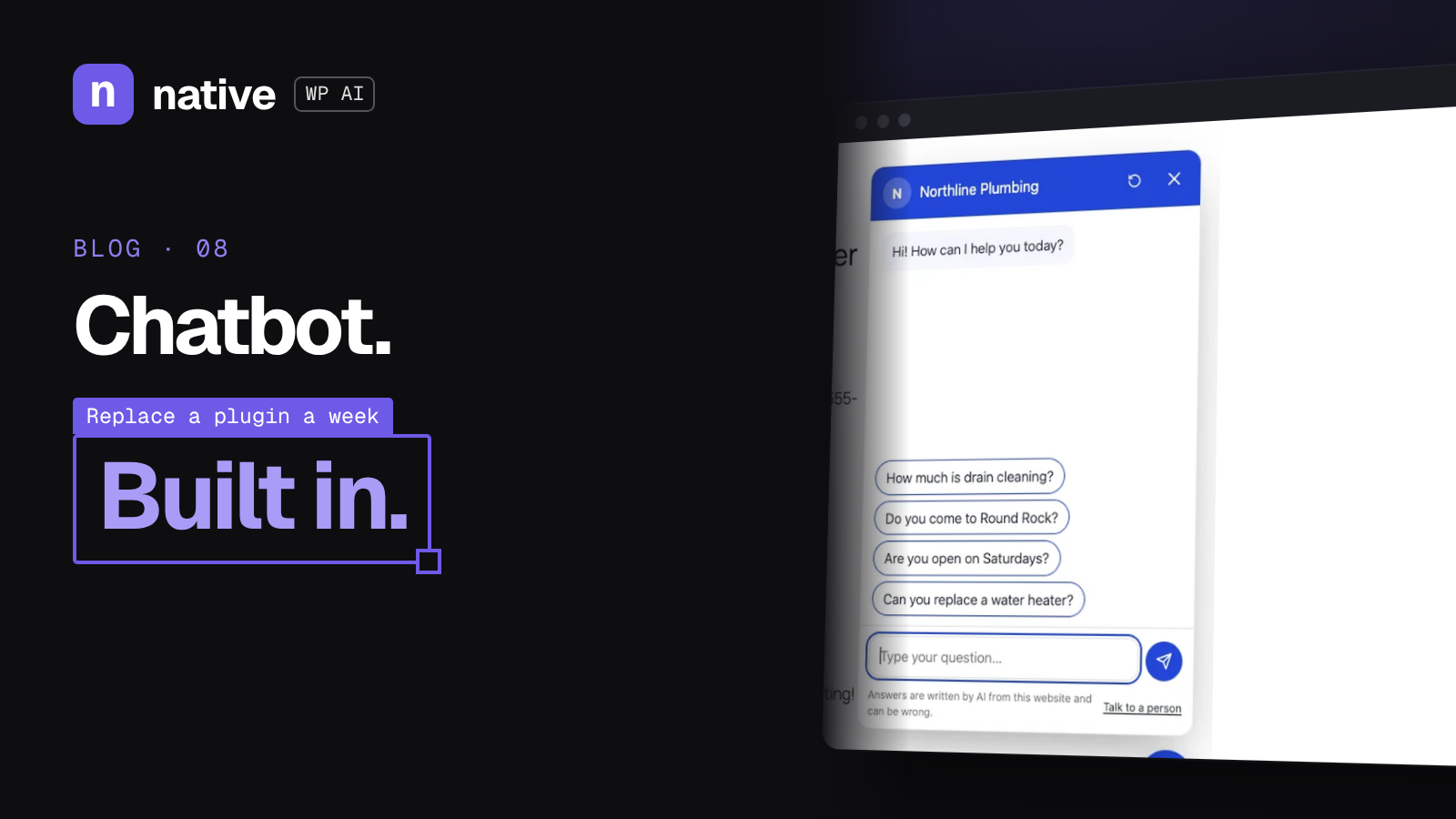
Week two of Replace a Plugin a Week: the new Native WP AI Chatbot answers visitors from your own site in their language, turns unanswered questions into CRM leads, and runs on AI credits with a daily limit. Here's what it covers, what it doesn't, and how to try it calmly.
On this page
Welcome back to Replace a Plugin a Week. Each week we pick one plugin a typical WordPress site stacks up, look at what Native WP AI does in its place, and tell you honestly whether it's worth switching. One plugin at a time. No big, scary migrations.
Last week was security. This week it's the chat bubble in the corner of your site, because Native WP AI 0.12.0 just added a Chatbot. Native WP AI now replaces 22 plugins, and this is the newest one on the list.
Let's look at what it does, and just as important, what it doesn't.
First, respect to the chatbot plugin makers#
Tools like Tidio, Intercom and Chatbase have done a lot to make it normal for a small business site to answer questions at 11pm. They proved that visitors want quick answers, and plenty of teams run them really well.
If yours is working, nothing here says you made a bad call. This is just another way to get there: a chatbot that lives inside the same plugin as your builder, forms, SEO and CRM, instead of one more account, one more script and one more bill.
What the Native WP AI Chatbot does#
The docs describe it like a helpful person at the front desk. It answers the things visitors actually ask: what you offer, prices, opening hours, delivery, how to book or buy, and where things are on the site.
It answers from your own site#
The Chatbot reads your published pages, posts and products, including product prices, stock, SKUs, categories and attributes. It also reads your site's name and description, your main pages, and the page the visitor is on.
It does not read drafts, private or password protected pages, members only content, or things like orders, customers and form entries. You can also leave out any page you don't want it to use.
Every answer comes in the visitor's language, with a link to the page that answers the question.
You fill in what your pages don't say#
Under Chatbot → Knowledge you write the stuff that isn't on your pages yet: questions and answers, policies, opening hours, delivery areas. You can also tell it how to answer, like its tone, what to suggest, and what it should never say.
There's a handy check here too. Knowledge → Check what it finds lets you type a question and see the passages it would read, for free, with no AI involved.
It makes leads out of the questions it can't answer#
This is the really handy part. When the Chatbot doesn't know something, it says so. With Offer a person switched on, it shows a short form for the visitor's name, email and question. You get an email with the whole conversation, and you just reply to it.
If you also use the Native WP AI CRM, that visitor is added as a lead tagged Chatbot, with their question on their timeline. They are not subscribed to your emails, though. They asked a question, not for your newsletter.
It shows you its gaps#
Chatbot → Conversations lists every conversation, with the pages each answer read. Filter by Couldn't help, click Add the answer, write it, and save. Then ask again in Try it to check. You can even ask the AI agent something like "What couldn't the chatbot answer this week?"
It looks like your site#
Under Chatbot → Look & words you set its name, first message, up to four suggested questions, its color (your design system's primary color unless you pick one) and which side it sits on. Any link to #chat opens it, so a "Chat with us" button in your design just works.
What it is not: live chat with your team#
Let's be straight about this one, because it matters.
The Native WP AI Chatbot is not live chat. There's no inbox where your team jumps into conversations in real time. When it can't help, it takes the visitor's details and emails them to you so you can reply.
The FAQ puts it plainly: you don't need Tidio, Intercom or Chatbase for answering visitors from your website and collecting the questions it can't answer. But it doesn't do live chat with your team.
So if live chat with real people is a core part of how you sell or support, keep that tool. If what you really need is "answer the common questions and catch the rest," the built in Chatbot covers it.
Credits and limits, explained simply#
Every answer uses AI credits, like any AI request, and how many depends on the model. A failed answer gives its credits back.
You pick the model under Chatbot → Settings → Model. A fast model such as Claude Haiku 5.5 answers sooner and uses fewer credits per answer, which suits a chat. Larger models write more carefully but take longer and cost more. Left alone, it uses your Content writing model.
To keep things predictable, there's an Answers a day limit, set to 300 to start. Past it, visitors are offered the contact form until the next day. Each visitor's network can send 40 messages an hour, and it only answers from your own site, so other websites can't use your chatbot.
Like any AI, it can get things wrong. The chat tells visitors its answers are written by AI, so keep your knowledge current and read the conversations now and then.
What about cost?#
Native WP AI doesn't sell the Chatbot as an add on. Every plan includes every feature. Pro is $99 a month for 3 websites and 3,000 AI credits every month. Agency is $249 a month for unlimited websites and 10,000 AI credits every month.
So the real question isn't chatbot versus chatbot. It's whether one plugin can cover a stack of them, and the Chatbot is now part of that stack.
How to try it without drama#
Go to Native WP AI → Settings → Features and switch on Chatbot.
Set Settings → Show the chat bubble to → Only managers so only you see it at first.
Fill in Knowledge with your hours, policies and common questions.
Ask it real questions in Try it. Each answer shows the pages it read, the model and the credits used.
Set your Answers a day limit and turn on Offer a person.
When you're happy, show it to everyone, and mention the chatbot in your privacy policy.
And if you switch it off later, nothing is deleted. Your settings, knowledge and conversations are waiting when you turn it back on.
Who should keep their current chatbot (for now)#
If your team relies on live chat, or your current tool does something specific you lean on every day, there's no rush. Compare carefully first.
Where the built in Chatbot shines is when you're already simplifying: one plugin for the site, the forms, the CRM and now the chat, with leads landing in the same place as everything else.
Try the Chatbot free for 14 days#
Here's the offer: start a free 14 day trial of Native WP AI on one site, with 500 AI credits and no card needed. Switch on the Chatbot for managers only, fill in a few knowledge answers, and ask it the questions your customers actually ask. Every feature is included in the trial, so you can hook it up to the CRM while you're in there.
Start your free trial and try the Chatbot
See you next week for Replace a Plugin a Week #3.
Was this post useful?
Comments
No comments yet. Start the conversation.