DocsAI
Use the AI assistant
Describe what you want in plain words. The assistant builds or changes it on the canvas with real elements, checks its work, and one undo reverts it.
The assistant sits in the builder’s left column, below Layers. Press ⌘K (Ctrl+K) to jump to it, or click Ask AI about this element on an element’s toolbar.
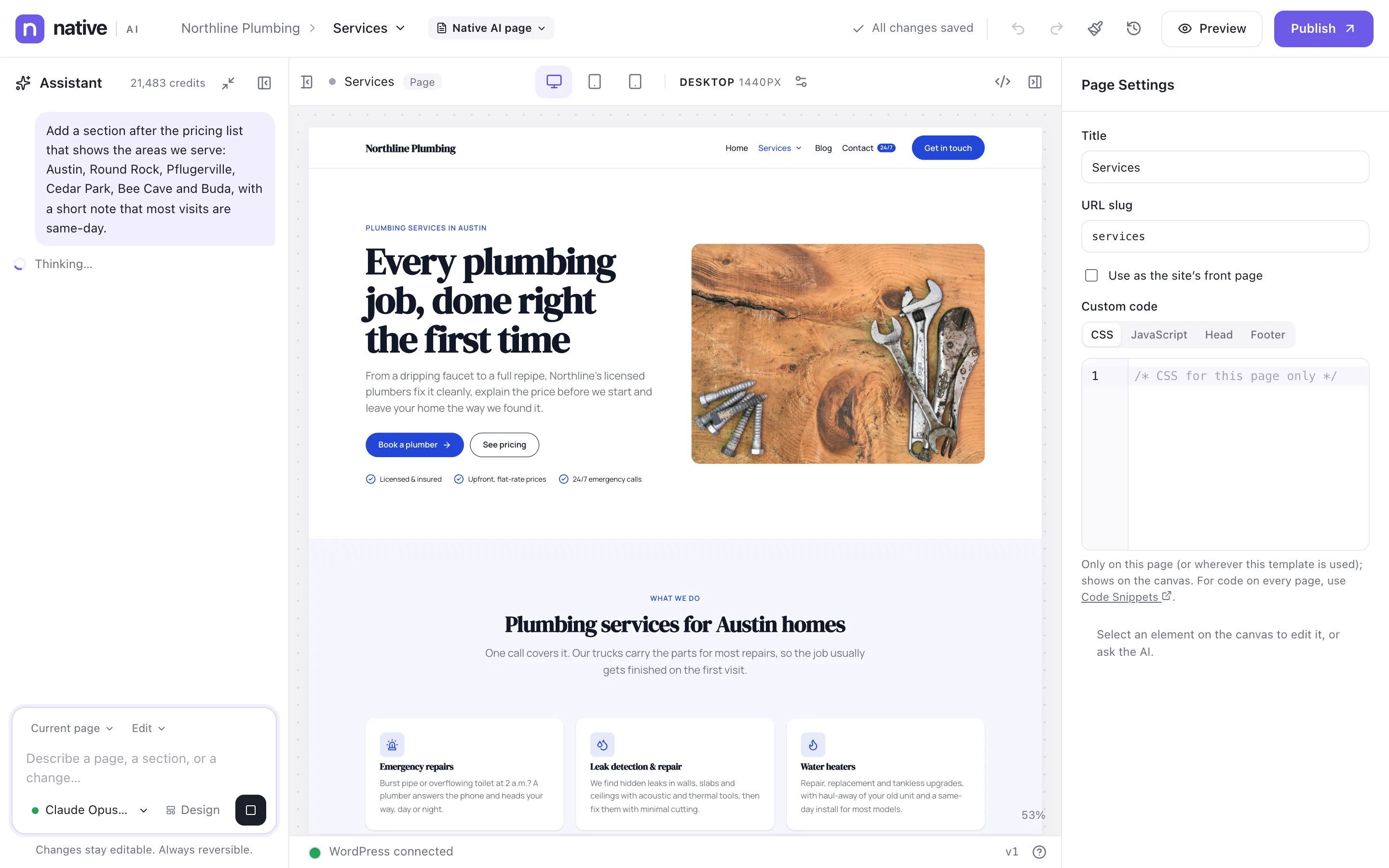
Ask for something#
- Point at it (optional)Select an element or a section if your request is about it. The composer shows it as a chip — “The assistant changes this unless you say otherwise.” Clear the chip to talk about the page.
- Describe itWrite the way you’d brief a designer: “Add a section after the pricing list that shows the areas we serve, with a map and a booking button.” Facts you give — phone numbers, prices, hours — are used exactly.
- Send itPress Enter. The assistant plans the change and builds it on the canvas while you watch. Stop halts it.
- Check the resultIt tells you what it did in a few sentences, what it changed, the checks it ran and what it cost.
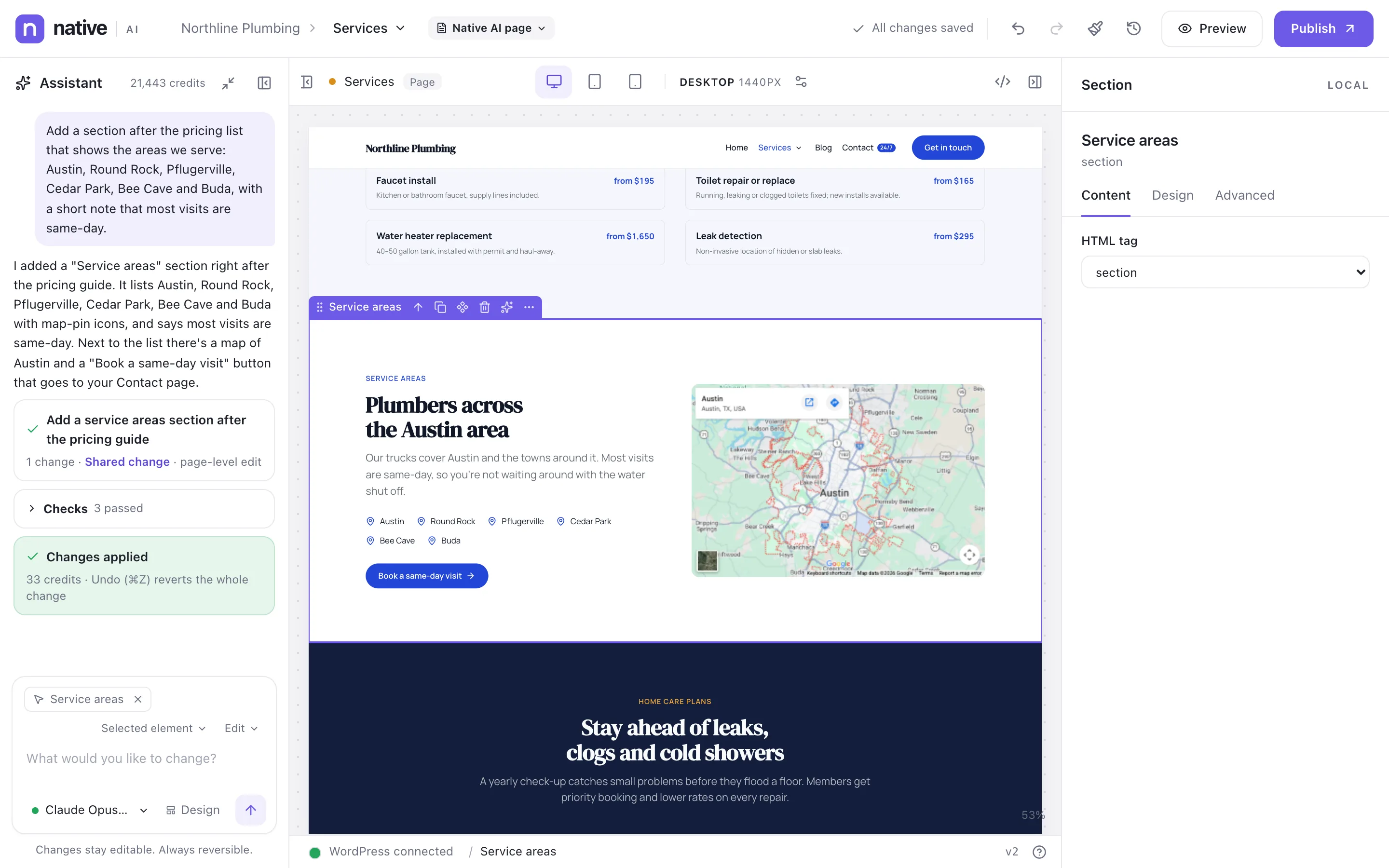
Suggestions above the composer match what you’ve selected — “Refine this heading”, “Make it work on mobile” — and the conversation stays with the page while you work.
Scope, mode and model#
Under the text box are the request’s scope (what it may change: the selected element, the current section, page, template, Global Block or the entire site) and mode (Edit, Refactor, Redesign or Generate). The defaults follow what you’re looking at. See Scopes and modes.
The model menu lists the AI models available to you, each with a description and its relative cost ($ to $$$). Claude Opus 5.5 is the default. The Design switch turns on Design mode for designing whole pages.
What it builds with#
- The same elements you use: headings, images, forms, Query Loops, menus — never a block of pasted HTML.
- Your design system: your tokens, classes and Theme Styles. It creates new classes and tokens sparingly.
- Your Media Library first, then free stock photos, and generated images where they fit. See Images.
- Dynamic data where content comes from WordPress — a blog post template shows each post’s own title and image.
It checks its work#
After changing things, the assistant checks what it changed: accessibility and quality rules, the layout measured at every breakpoint, contrast, and whether each planned change is really in place. It fixes what it can (twice by default — Settings → Agent) and tells you about anything left.
Changes that reach other pages#
If a change would affect other pages — a shared class, Theme Styles, a template — the assistant previews it on the canvas and asks first, with Accept and Reject. Bigger, multi-step or risky requests arrive as a plan to approve. See Site-wide changes and the AI agent.
Undo#
A whole AI request is one step in History: ⌘Z reverts everything it did, however many elements it touched. Nothing goes live until you publish.
Credits#
Each request shows what it used when it finishes, and your balance is always at the top of the assistant. In our tests with Claude Opus 5.5, a builder edit used 15–122 credits (57 on average). See Plans and AI credits.
Related articles
On the features pages
Still have a question? Email us at support.