DocsAI
Create a website with AI
Describe the business. Native AI proposes a plan — design, pages, templates, forms, blog — with its cost, and builds the whole site with native elements once you approve it.
Start from Native AI → Dashboard (Create Website With AI on a new site), from Native AI → Site, or in the builder from Page → Build a new website with AI.
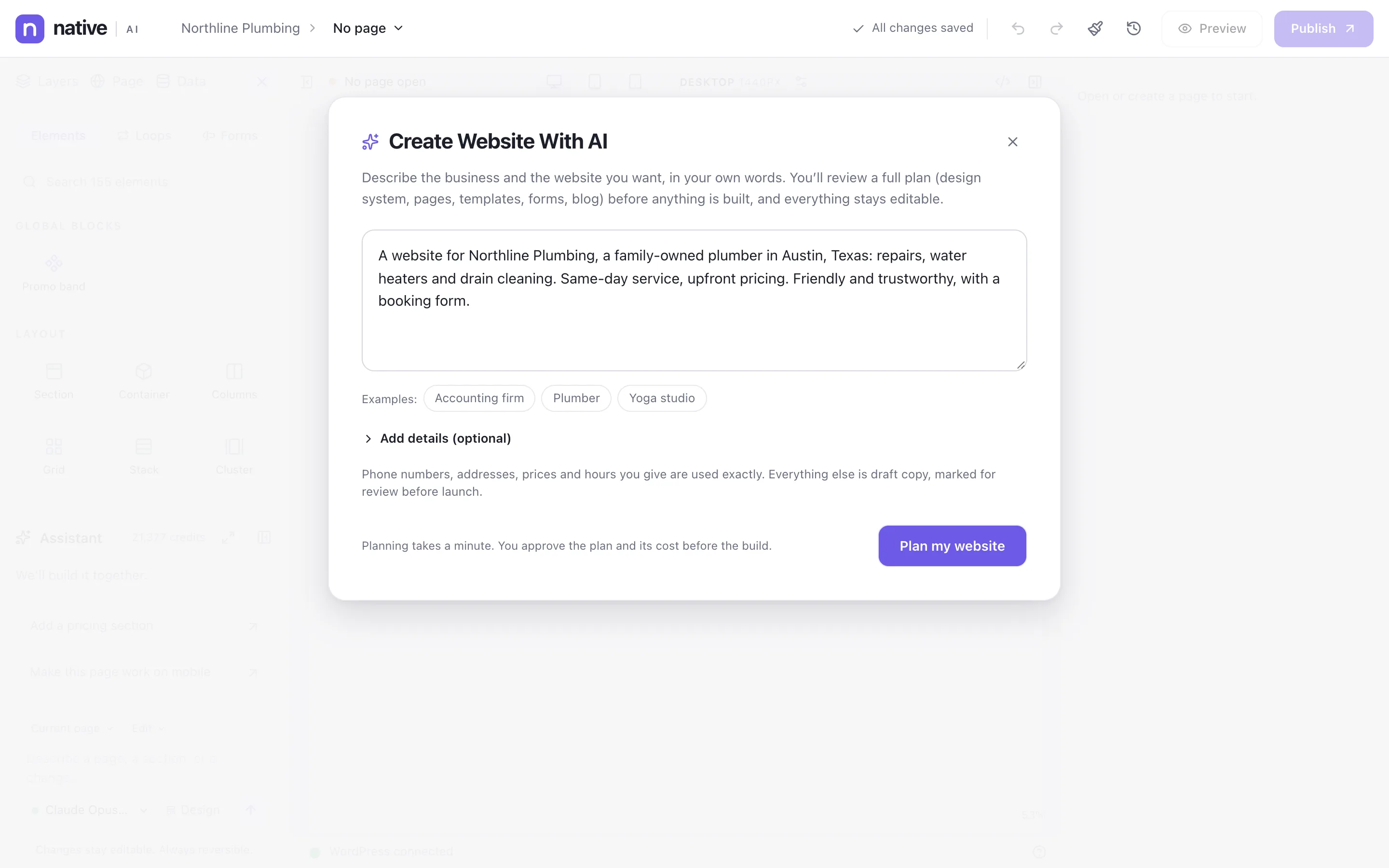
1. Describe the website#
Write a few sentences in your own words: what the business does, where, for whom, the pages you want and the feel. Examples are there to start from. Add details (optional) has fields for the business name, location, customers, tone of voice, pages you need, and look and feel.
Phone numbers, addresses, prices and hours you give are used exactly. Anything else is draft copy, marked for review before launch. Click Plan my website — planning takes about a minute.
2. Review the plan#
First the AI shows what it understood about the business. Then the plan: the design direction (colors, fonts, corners, spacing, buttons, style), the pages and their sections, templates, Global Blocks, forms and what happens when they’re sent, the blog and its categories, images (photos, illustrations or both; free stock, AI-generated, both, or your Media Library only), the header and its button — and what the build will create and roughly cost in credits.
- Edit anything on the plan card directly: rename, reword, add or remove pages, change colors and fonts, forms and their actions.
- Or ask in the chat — “Remove the About page and add a Pricing page” — and a revised plan replaces the old one.
- Nothing is built until you click Build website.
3. The build#
The build runs in eleven stages, each shown as it finishes:
| Stage | What it makes |
|---|---|
| Site architecture | Pages, navigation, templates and content model |
| Design system | Colors, typography, spacing, buttons, radius, shadows, breakpoints |
| Global components | Header, footer and Global Blocks |
| Templates | Single post, archive, search and 404 |
| Pages | Every page, section by section (several at once) |
| Dynamic content | Query Loops, the blog, related and recent posts |
| Forms | Native forms and what happens after a submission |
| Media | Images in the Media Library |
| Interactions | Header behavior, hover states, scroll reveals |
| Responsive pass | Desktop, tablet and mobile |
| Visual QA | Render, inspect and refine important pages |
4. Review and publish#
The review lists every page, template, Global Block and form — with what each form does after a submission, and a warning when a form notifies nobody. It counts images by origin (stock photos to check, AI-generated ones), and lists what still needs a person: sample testimonials, phone numbers, prices, empty images — each opening where it is.
Then Publish everything, review page by page first, or — for a draft site — Preview the draft site.
A draft site first#
On a site that already has pages, the new website can be built as a draft site beside the live one: visitors keep seeing the current site while you review, and it goes live as a whole. See Draft sites, snapshots and regenerating.
Can I generate just one page?
Yes — use Design mode in the assistant.
What if I don’t like the result?
Ask the assistant for changes, edit by hand, or restore the snapshot taken before the build. Nothing is published until you choose to.
Is the generated site a theme?
No. It’s a normal Native AI site: a design system, templates and pages, all editable in the builder.
Related articles
On the features pages
Still have a question? Email us at support.