DocsSite Reports
Site Reports
What happened on your website, and is everything healthy? Site Reports turn the site’s activity into a status, what needs attention and why, health checks, and reports you can export or email.
Open Native AI → Reports. Reports are part of every Native AI site — nothing to switch on — and they start from the moment the plugin was installed or updated. The screen has seven tabs: Overview, Reports, Schedules, Templates, Activity, Deliveries and Settings.
The status#
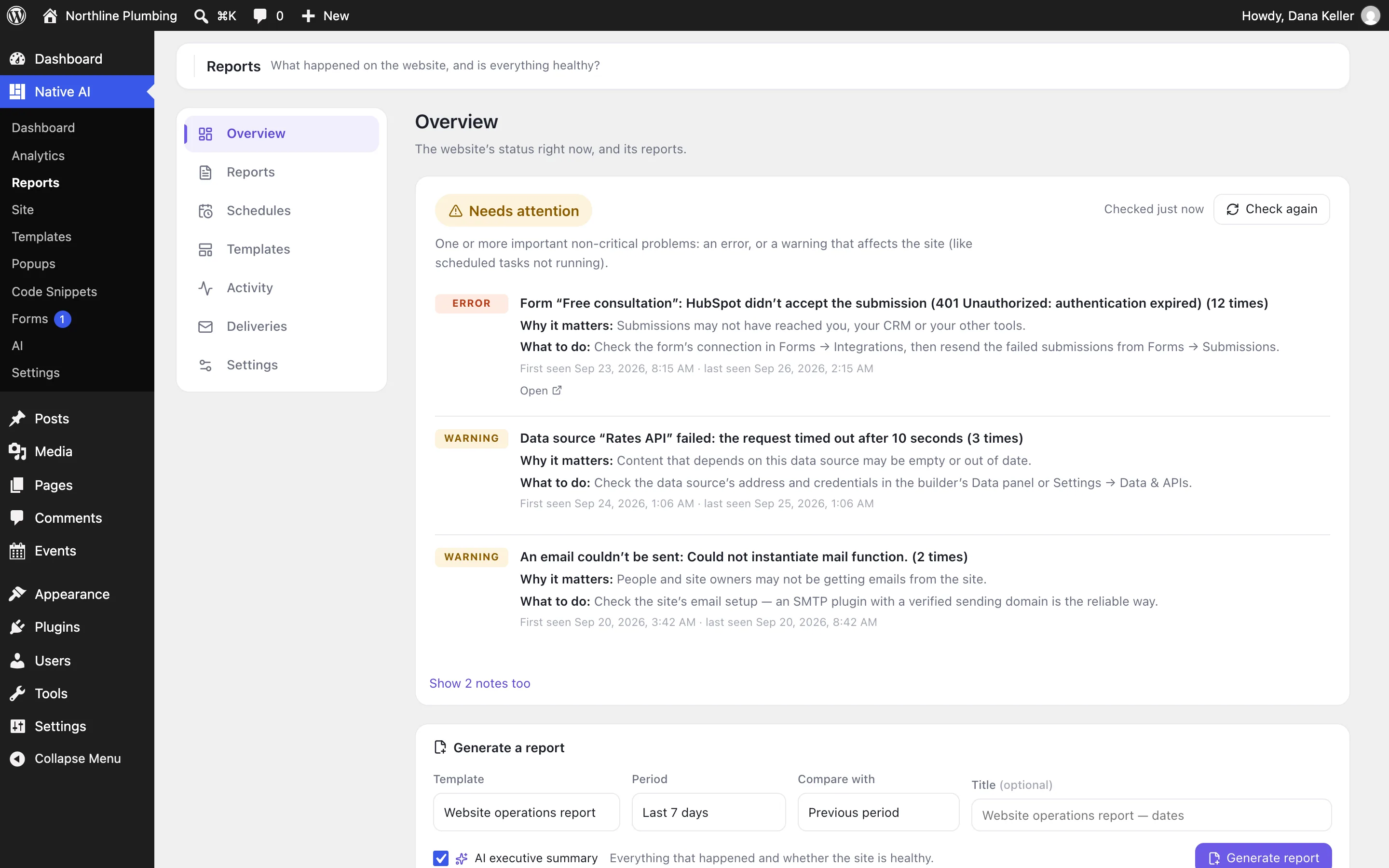
The Overview says whether the site is Healthy, Needs attention or Critical, with the reasons — no score to interpret:
- Critical if any issue is critical — something that takes the site down or loses data, like a PHP fatal error on a visitor’s page or almost no disk space left.
- Needs attention for an error, or an important warning (a warning that repeats five times or more counts).
- Routine warnings, such as an update being available, don’t change the status.
Needs attention#
Every open problem from every area you’re allowed to see, most severe first — grouped, with how many times it happened, why it matters and what to do, and a link to fix it: a CRM rejecting form submissions, an API timing out, emails that couldn’t be sent. Mark resolved when it’s fixed; it reopens if it happens again.
Generate a report#
- Pick a periodToday, Yesterday, This week, Previous week, Last 7 days, Last 30 days, This month, Previous month, or a custom range. Weeks start on your site’s “Week Starts On” day.
- Pick a comparisonPrevious period, Previous week, Previous month, Same period last year, a custom range, or none.
- Pick a templateWebsite operations, Marketing, Maintenance, or your own. See Report templates and sections.
- GenerateThe report is built in the background and opens when it’s ready.
Reading a report#
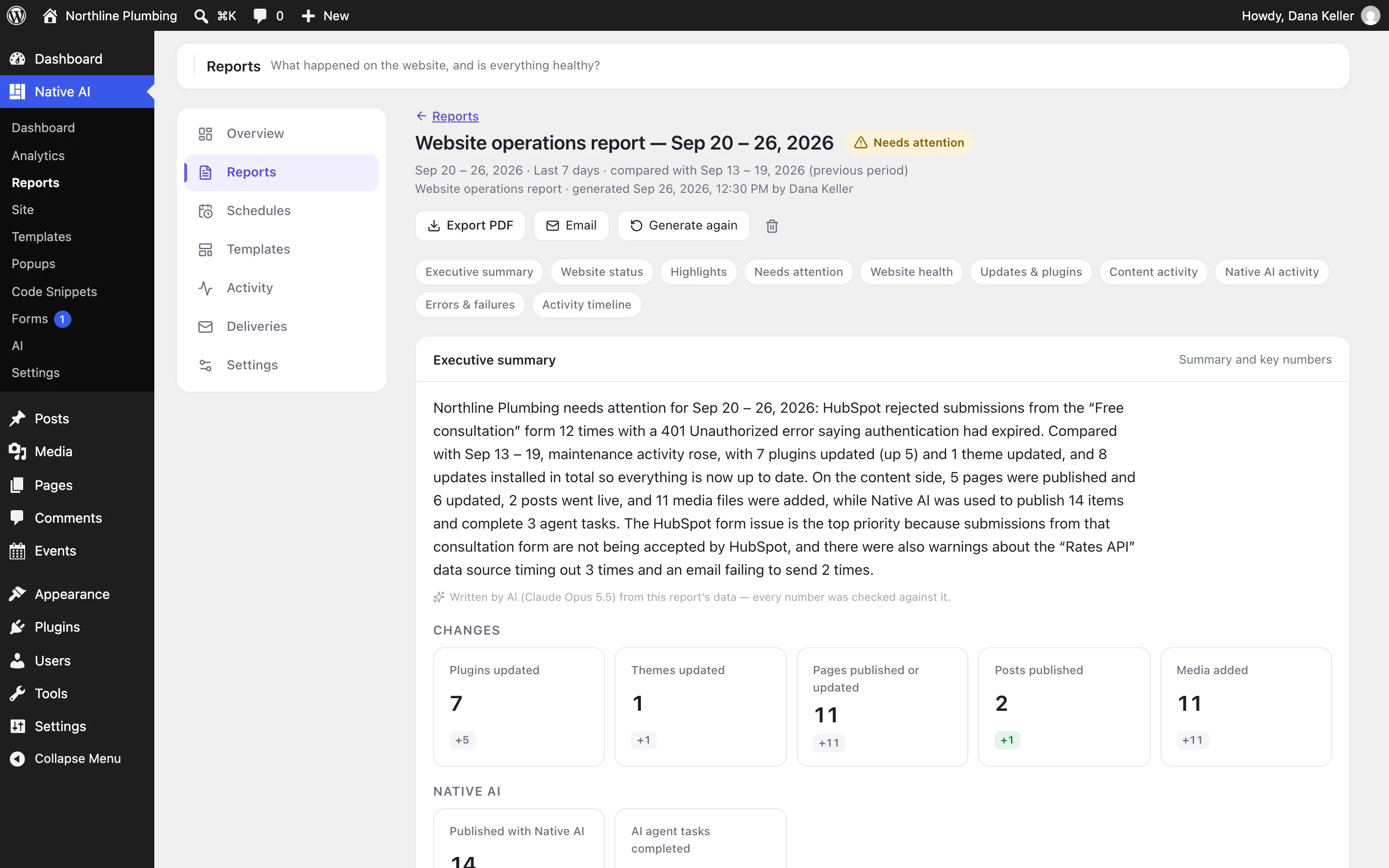
- Changes follow one rule: percentages only when the earlier number is at least 10 (so “+3”, not “+300%”), rates in points (“+2.1 pts”), and “No change”.
- Highlights only come from real comparisons, with thresholds so small numbers don’t make news — traffic up 10% from at least 50 visitors, for example.
- Each report is kept as a snapshot of everything it said, so it stays readable after older activity or analytics are cleaned up.
- From a report: jump to any section, export a PDF, email it, generate it again, and resolve problems.
The executive summary#
An AI-written summary at the top, from the report’s facts only — numbers, titles and statuses, never page content, code or personal data. WordPress checks every number in it against the report; if one doesn’t match, or AI isn’t available, it uses a summary written from the data instead and says so. A summary uses about 5 credits. Turn AI summaries off in Reports → Settings.
Each report shows only what its reader may see#
Health and errors need WordPress’s manage-options permission, user activity needs list-users, and forms, snippets and analytics need their own permissions. Scheduled reports are generated as the person who owns the schedule.
PDF#
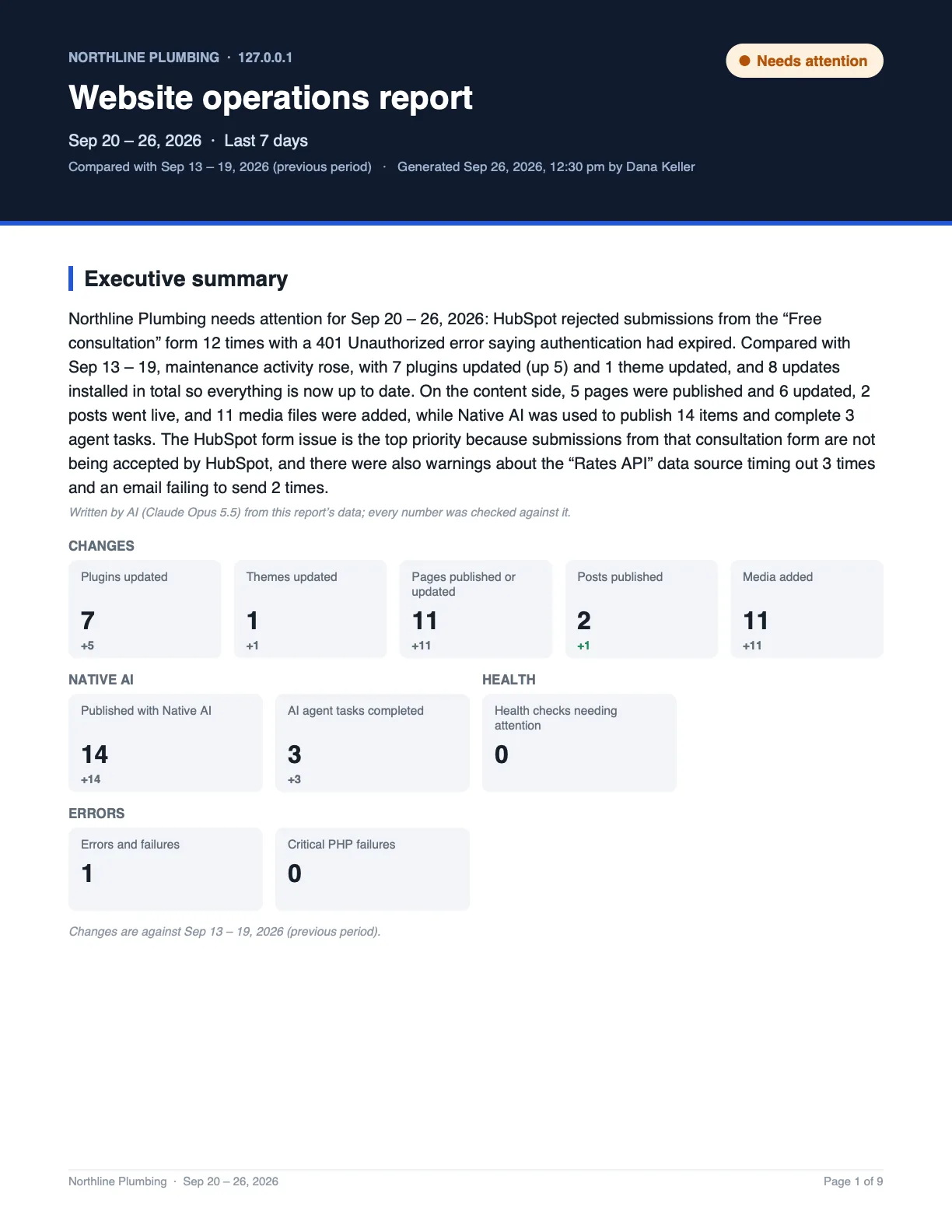
A PDF has a cover with the site, period, comparison and status; the summary and key numbers; highlights; what needs attention; every section with its numbers, charts and tables; and the day-by-day timeline — Letter or A4 (Settings → PDF paper size).
Ask the AI#
With the Use AI permission, ask the assistant “What happened on the website this week?”, “How healthy is the site?”, “Which plugins were updated?” or “Were there any errors?”. It answers from the reports and the activity record, and lays out a timeline without claiming causes it can’t show.
Settings#
| Setting (Reports → Settings) | What it does |
|---|---|
| Name on reports | The site name printed on reports. |
| PDF paper size | Letter or A4. |
| Keep activity for | How long the activity record is kept (400 days by default). |
| Keep reports for | How long generated reports are kept (forever by default). |
| Default recipients | Suggested when you email a report or create a schedule. |
| AI executive summaries | Write summaries with AI (or from the data only). |
| Check the REST API in health checks | Include the loopback REST API check. |
Permissions: See reports, Generate reports, Export reports, Manage reports and Manage report schedules — administrators have them all. See Roles and permissions.
Related articles
On the features pages
Still have a question? Email us at support.