DocsTemplates & site structure
Templates and where they apply
Design headers, footers and templates for posts, archives, search and 404 pages, and decide where each applies with display conditions and priority.
Kinds of template#
Create one from Native AI → Templates, or in the builder from the Templates manager. The New template dialog offers eleven kinds — each is a template type with sensible starting conditions:
| Kind | Applies to, to start with |
|---|---|
| Header, Footer | The entire site |
| Single post, Single page | Every post, or every page |
| Custom post type | Every item of a post type you pick |
| Archive | Blog index, categories, tags, dates, authors and other archives |
| Category, Tag, Taxonomy | The archives of those terms |
| Search results | The search results page |
| 404 | Pages that don’t exist |
Start blank, from a starter layout (native elements already wired to dynamic data), or describe it and let the AI build it. Popups are templates too — see Popups.
Where a template applies#
Every template has display conditions: include rules (“All posts”, “In category News”) and exclude rules (“except anything in Landing Pages”). Rules in a group must all match; any group can match. See Display conditions for every rule.
When several templates match#
- PriorityThe template with the highest priority wins.
- SpecificityWith equal priority, the most specific conditions win: a specific page (40) beats a term or author (20), which beats a post type or kind of archive (10), which beats any archive (5), which beats the entire site (0). A group’s rules add up.
- Most recently editedIf they’re still tied, the one edited last wins — which the Templates screen flags as a conflict.
Native AI → Templates#
Every template by type, with where it applies in plain words, whether it’s in use, drafts and unpublished changes, priority, notes and author.
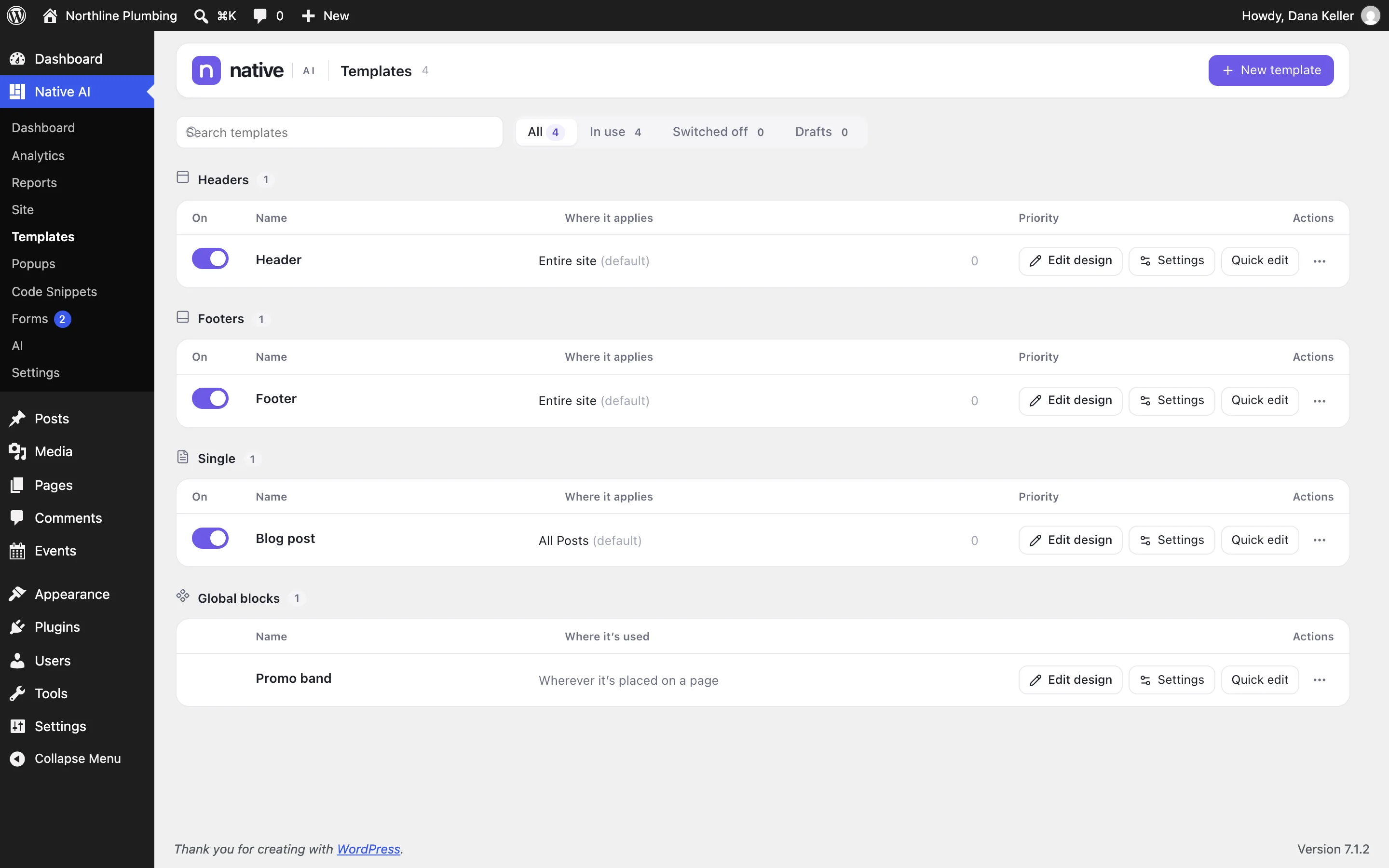
- Edit design opens it in the builder; Settings edits its name, type, conditions, priority and notes, with a live preview of where it overlaps others; Quick edit changes them inline.
- Switch off a template to stop it being used anywhere, whatever its conditions — nothing is deleted.
- Duplicate makes a switched-off copy to work on.
- Conflicts: the screen tests the templates against real pages of your site — the front page, the blog, a post of each type, archives, search, 404 — and shows which template wins where and why. A banner counts real conflicts, and one click raises the priority of the template that should win.
How a page is put together#
For each request, Native AI uses the first of these that exists:
- A page designed in Native AIIts own design (a Native AI page or a post’s custom layout).
- A matching templateThe single, archive, search or 404 template that applies.
- The Native AI header and footer, with built-in contentWhen a Native AI header or footer applies and Settings → Templates → Use the Native AI header and footer on every page is on (the default for posts and pages): the title and content, a post grid or a 404 message between them.
- Your themeAnything else keeps using your WordPress theme.
Related articles
On the features pages
Still have a question? Email us at support.