DocsAI
Site-wide changes and the AI agent
Ask for a change across the whole site. The AI finds the right level to change, shows a plan with each step’s risk, takes a restore point, makes the changes, checks them and reports back.
Some requests reach every page: “make every button pill-shaped”, “where is the old green still used?”, “add the new phone number everywhere”. Choose the scope Entire site (or just ask — the assistant picks it for site-wide requests) and the AI works as an agent.
It changes the right level#
A good developer changes one shared class, not 18 buttons. The agent looks for the highest shared level that covers the request:
- Theme StylesHow every element of a kind looks.
- A token or classA shared value or look.
- A Global BlockA section reused on many pages.
- A templateA header, footer or post template.
- A repeated patternThe same kind of section on several pages.
- Individual elementsOnly when nothing shared covers it.
The plan#
For a multi-step, broad or risky task, the agent proposes a plan before changing anything: the goal, what it understood, and each step with its risk (low, medium or high) and the exact changes — every property from its current value to the new one — and what they reach (“This will modify 14 elements across 9 pages and the design system”).
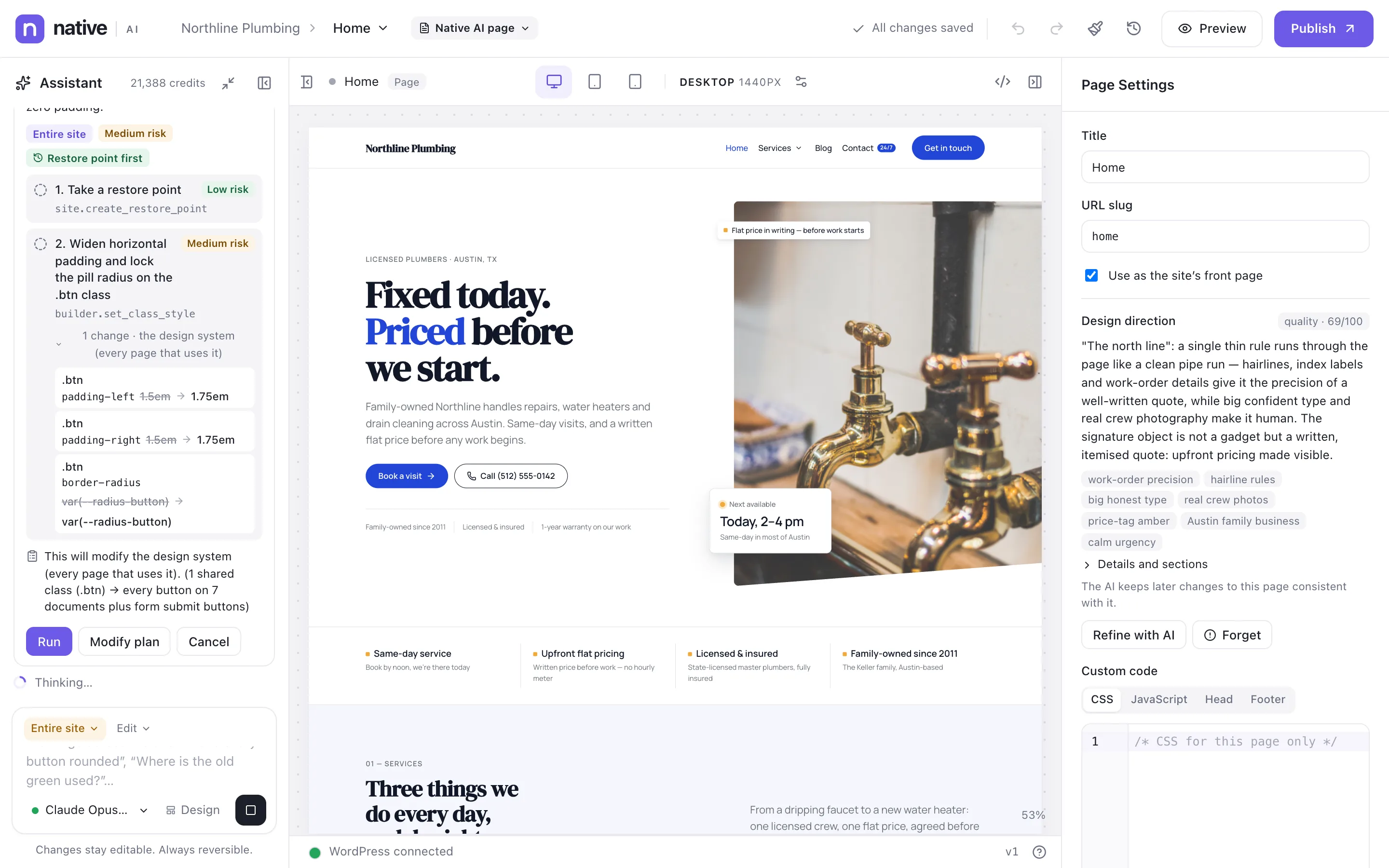
- Run carries out the plan as approved.
- Modify plan — describe what to change (“only the pages under Services”) and a revised plan replaces it.
- Cancel — nothing happens.
For broad design changes the assistant may instead show a change plan of separate items: Apply all, Review individually (tick the ones you want), or Cancel.
Restore point, checks and report#
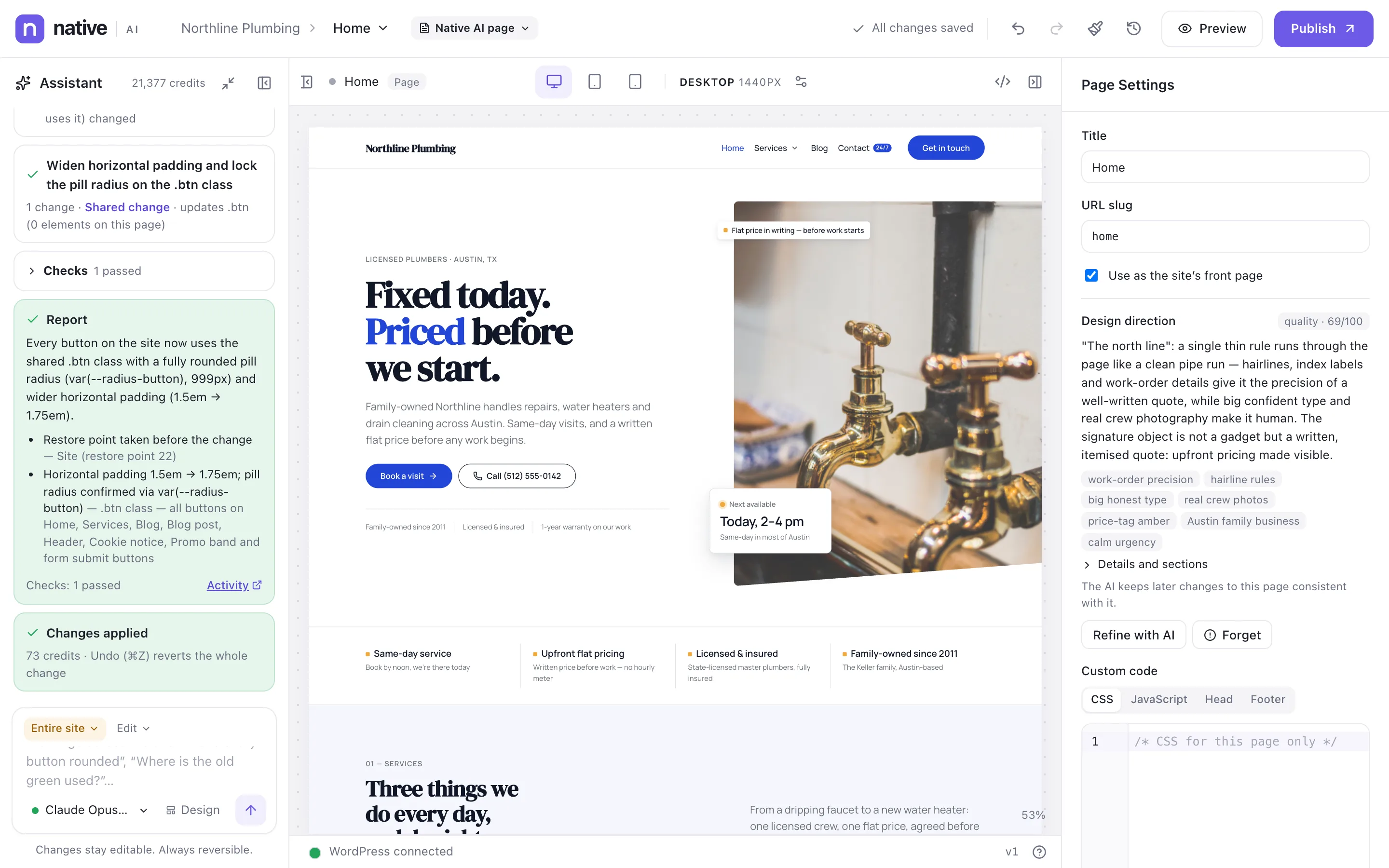
- Before high-risk and site-wide changes, the agent takes a restore point — a snapshot of the whole site you can go back to from Native AI → Site.
- After changing things it checks them: each planned change read back (“all 4 changes are in place”), layout at every breakpoint, responsive and contrast rules on every changed page. It gets two attempts to fix problems by default, then stops and tells you what’s left.
- It reports what changed, where, and how it checked it. If something fails midway, it rolls back what it did and says everything was put back.
Undo#
A global change is one step: Undo global change in the assistant reverts it even after other edits, as long as nothing since touched the same things. The assistant’s header lists the session’s major AI changes with their undo, and Native AI → AI keeps every task with an Undo button. See AI activity and undo.
More than the builder#
The agent can use the site’s registered capabilities — reading analytics and reports, managing templates, menus, forms, popups and code snippets, finding posts — within your own WordPress permissions. High-risk actions always ask first, and code it writes is saved as a draft for a person to activate. See the agent capability reference.
Your rules#
Settings → Agent decides when a plan is shown first (for bigger tasks, or before any change), when restore points are taken, whether results are checked, how many attempts it gets to fix problems, and how long AI activity is kept. Settings → AI Assistant → Apply site-wide AI changes without asking lets small site-wide changes apply without the Accept step (undo still reverts them).
Related articles
On the features pages
Still have a question? Email us at support.