DocsCRM
Automations
Follow up with contacts by themselves: choose what starts an automation, then draw its steps on the canvas — emails, waits, if/else, tags, scores, team notifications — or start from a recipe or ask the AI.
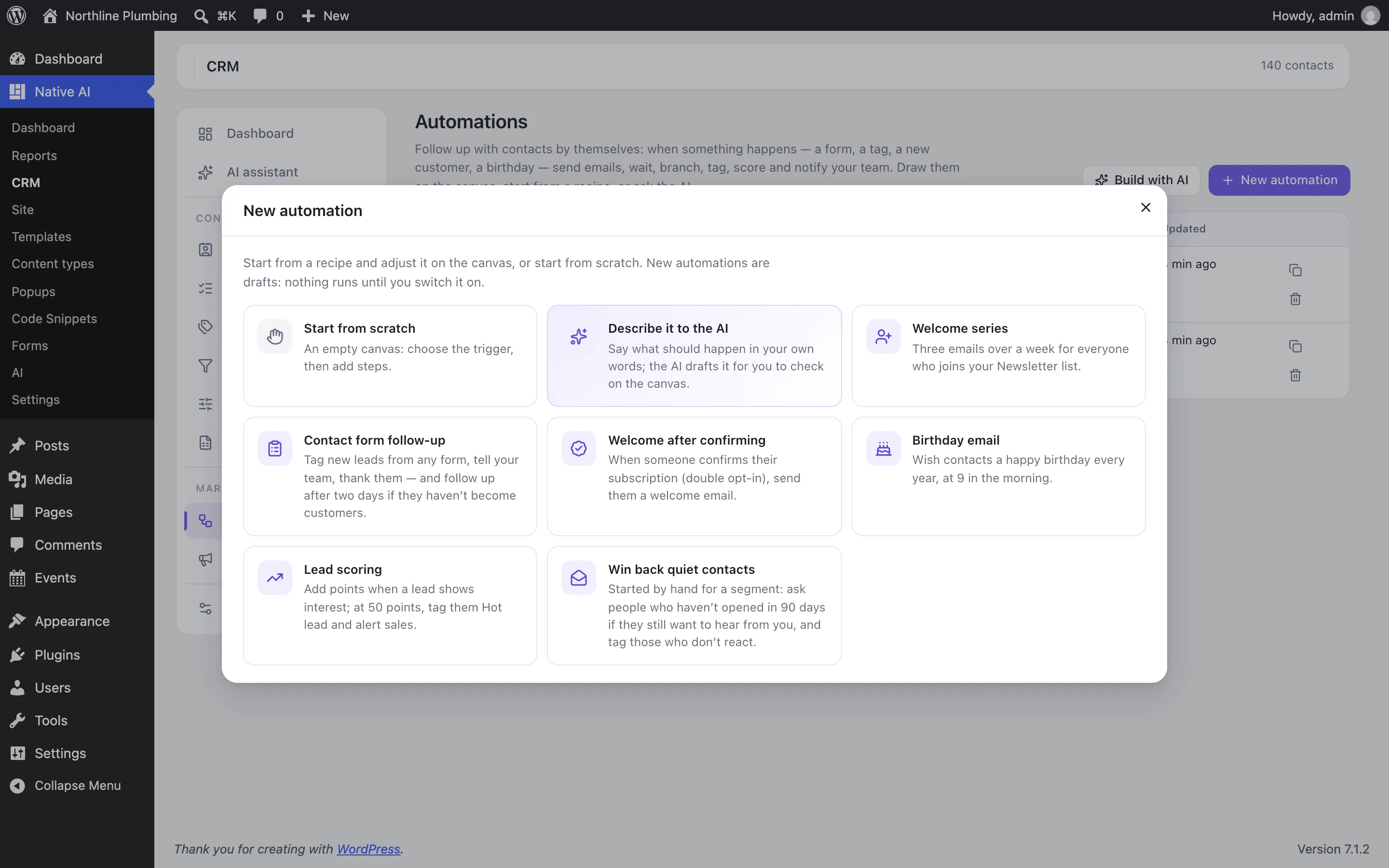
Native AI → CRM → Automations → New automation starts from a recipe (welcome series, contact form follow-up, welcome after confirming, birthday email, lead scoring, win back quiet contacts, and new customer with WooCommerce), from scratch, or from a description the AI turns into a draft.
On the canvas#
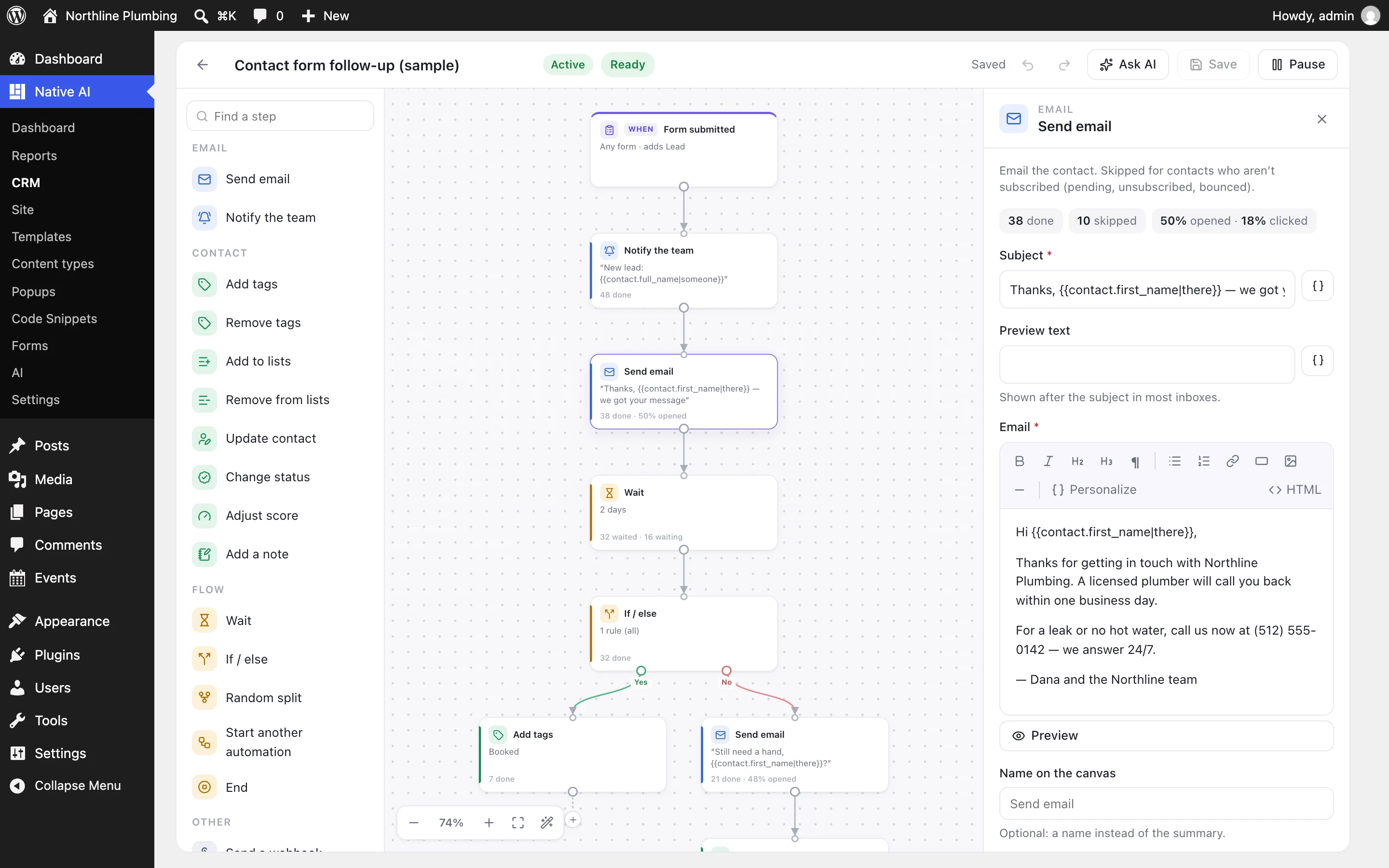
- Add a step: drag it from the left onto the canvas, click it to add it after the selected step, press + under a step, or hover a connection and press + to insert one there.
- Connect: drag from a step’s dot at the bottom onto another step. Drop on empty space to add a new step there. An If / else has a Yes and a No dot, a random split A and B.
- Change: click the trigger or a step; its settings open on the right. Steps that still need something are marked, and the top bar counts what’s left to fix.
- Move around: drag the background, scroll, or zoom with the buttons (or ⌘ + scroll). Tidy up arranges the steps; ⌘Z undoes, ⌘S saves.
Triggers#
| Trigger | Group | When it starts |
|---|---|---|
| Contact added | Contacts | A new contact is added to the CRM (from a form, an import, a new user, by hand or by the AI). |
| Tag added | Contacts | One of these tags is added to a contact. |
| Tag removed | Contacts | One of these tags is removed from a contact. |
| Added to a list | Contacts | A contact joins one of these lists. |
| Removed from a list | Contacts | A contact leaves one of these lists. |
| Status changed | Contacts | A contact’s status changes, for example when they confirm their subscription or unsubscribe. |
| Form submitted | Forms & users | Someone sends a Native AI form with an email field. They’re added to the CRM if they aren’t in it; the form’s answers can be used in emails as {{form.field_name}}. |
| User registered | Forms & users | A new WordPress user account is created. They’re added to the CRM if they aren’t in it. |
| Date arrives | Dates | A date on the contact comes round — their birthday, a renewal date — checked every morning. |
| Order paid | WooCommerce | A WooCommerce order is paid. The customer is added to the CRM as a customer; the order can be used in emails as {{order.number}} and {{order.total}}. (Shown when WooCommerce is active.) |
| Started by hand | Other | Contacts are added from the Contacts screen, by another automation or by the AI. |
Steps#
| Step | Group | What it does |
|---|---|---|
| Send email | Email the contact. Skipped for contacts who aren’t subscribed (pending, unsubscribed, bounced). | |
| Notify the team | Email someone on your team about this contact. | |
| Add tags | Contact | Add tags to the contact. |
| Remove tags | Contact | Remove tags from the contact. |
| Add to lists | Contact | Add the contact to lists. |
| Remove from lists | Contact | Remove the contact from lists. |
| Update contact | Contact | Set contact fields (type, company, custom fields…). Values can use merge tags. |
| Change status | Contact | Subscribe or unsubscribe the contact. |
| Adjust score | Contact | Add points to (or take them from) the contact’s score. |
| Add a note | Contact | Write a note on the contact’s profile. |
| Wait | Flow | Pause before the next step: for a while, or until a time of day. |
| If / else | Flow | Go one way when the contact matches the rules (has a tag, is in a list, a field’s value…), another when they don’t. |
| Random split | Flow | Send contacts down path A or B at random — to test two emails against each other. |
| Start another automation | Flow | Add the contact to another active automation. |
| End | Flow | Stop here. (A step with nothing after it also ends the automation.) |
| Send a webhook | Other | POST the contact (and what started the automation) as JSON to a URL — Zapier, Make, n8n or your own app. |
| Create a WordPress user | Other | Give the contact a WordPress account (WordPress emails them a link to set a password). Skipped when they already have one. |
Switching it on#
New automations are drafts: nothing runs until you press Switch on, which first checks that every step is complete. From then on, each contact the trigger matches starts it, and goes step by step until a wait. Pause keeps contacts where they are until you switch it on again. On the Automation tab you choose whether contacts go through it once or more than once, and whether only subscribed contacts start it.
Waits last a while (minutes to weeks) or until a time of day on chosen weekdays, in your site’s time zone. Emails only go to subscribed contacts: pending, unsubscribed and bounced ones skip them, and unsubscribing takes someone out of every automation.
Results#
Each step shows how many contacts it ran for, who is waiting there and — for emails — how many were opened and clicked. The Contacts tab lists everyone in the automation, where they are and what each step did; add contacts to it by hand from there (by list, tag, segment or email) or from the Contacts screen.
With the AI#
Describe what should happen — “when someone sends the contact form, tag them Lead, thank them, and remind me after two days if they haven’t booked” — in CRM → AI assistant or Ask AI on the canvas. The AI drafts the automation with the right trigger, steps and emails and links to it on the canvas; switching it on is always your decision.
Related articles
On the features pages
Still have a question? Email us at support.