DocsCRM
Contacts, lists, tags and segments
Find and filter contacts, see everything about one person, organize them with lists, tags, custom fields and segments, act on many at once, and import or export CSV.
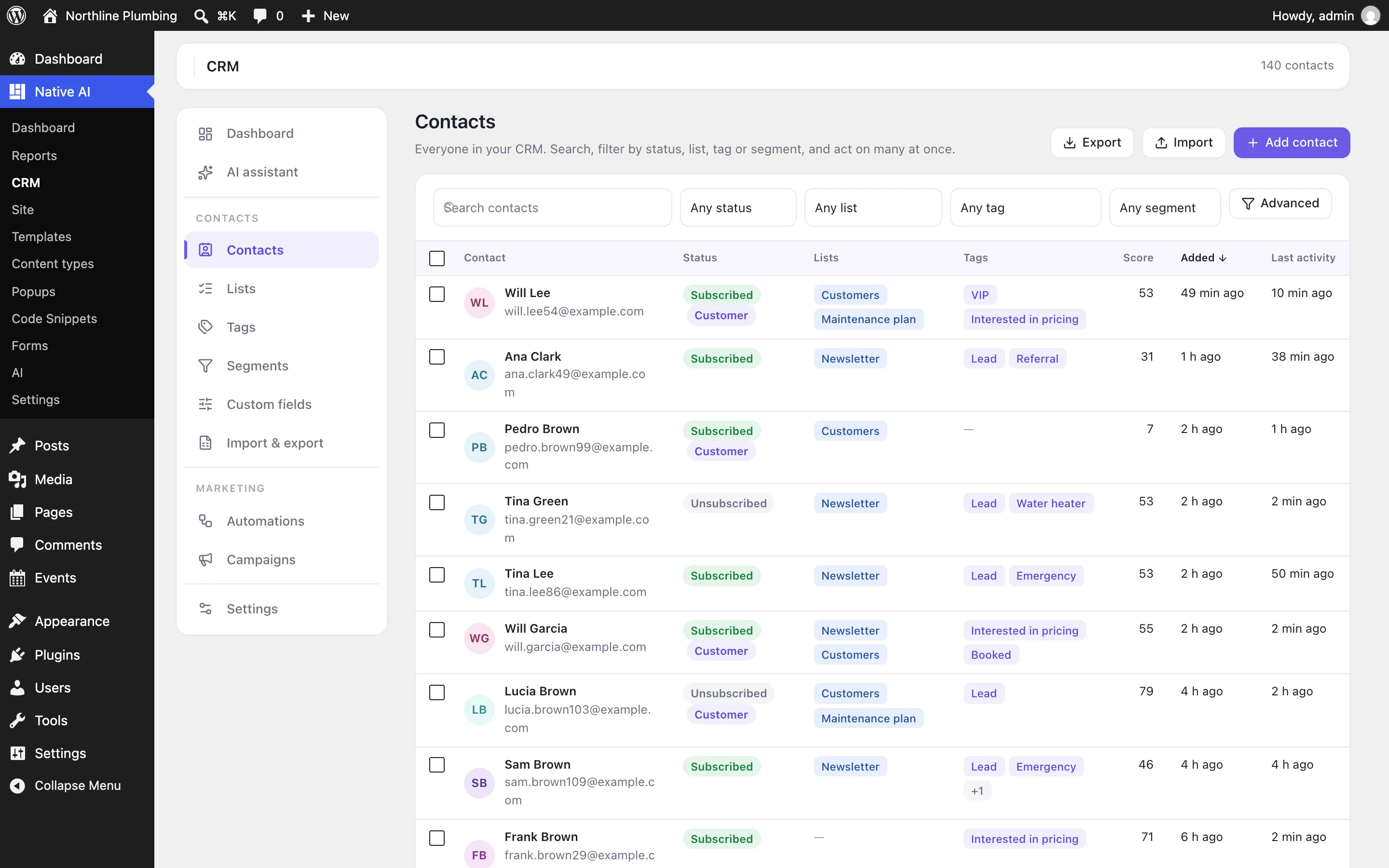
Statuses#
| Status | Means |
|---|---|
| Subscribed | Gets campaigns and automation emails. |
| Pending | Hasn’t confirmed yet (double opt-in): gets only the confirmation email. |
| Unsubscribed | Asked not to get marketing email. Automations they were in stop. |
| Bounced | Their address doesn’t accept mail. |
| Complained | Marked an email as spam. |
Each contact is also a lead or a customer, has a source (form, import, WordPress user, WooCommerce, by hand, the AI) and a score that automations can raise or lower.
One contact#
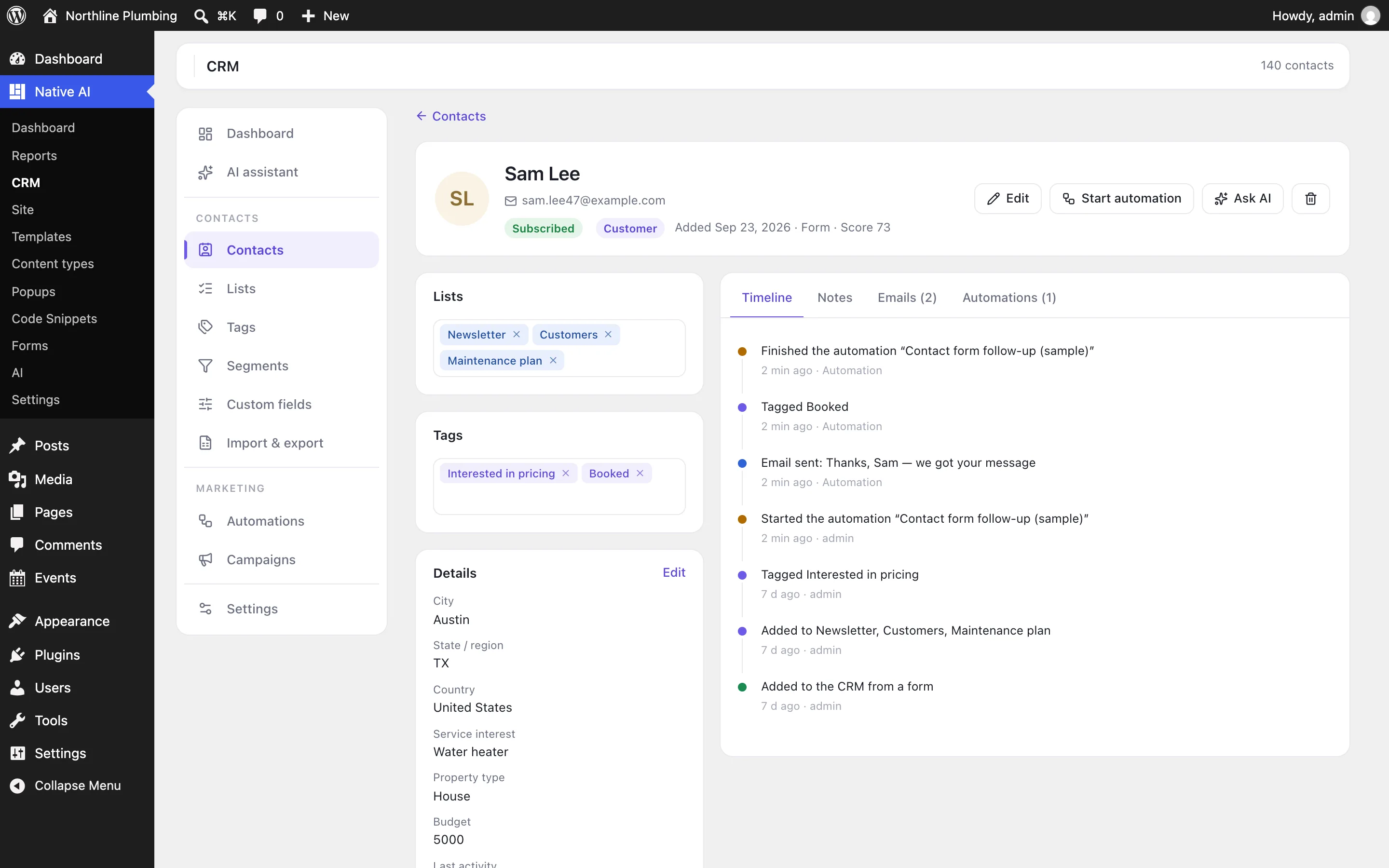
Click a contact to see their lists and tags (edit them in place), their details and custom fields, and tabs for the timeline (added, changed, tagged, forms sent, emails sent, opened and clicked, automations started and finished — and who or what did it), notes (a note, call, email, meeting or task), the emails they got, and the automations they’re in, with a way to take them out.
Lists and tags#
- Lists are what people signed up for — Newsletter, Customers. A public list appears on the email preferences page, where people join and leave it themselves.
- Tags are what you know about someone — Interested in pricing, VIP. Adding or removing one can start an automation.
- Type a new name wherever lists or tags are chosen and it’s created. Renaming one later doesn’t break automations that use it.
Segments#
A segment is everyone who matches rules — all or any of them — and it keeps itself up to date. Rules can test any contact field, custom fields, tags and lists (has any, all or none), and the last email opened or clicked (“in the last 30 days”). The number of matching contacts updates as you build the rules. Use segments to filter contacts, choose a campaign’s recipients, and in an automation’s If / else.
Custom fields#
Custom fields adds details your business keeps: text, long text, number, date, dropdown, multiple choice, yes/no, link, email or phone. They show on every contact, in imports and exports, in segment rules, and in emails as {{contact.key}}. Removing a field keeps the values people have.
Many contacts at once#
Select contacts (or Select all that match the filters) to add or remove tags and lists, change their status or type, start them in an automation, or delete them.
Import and export#
- Choose a CSVImport & export → Import a CSV. The first row names the columns; exports from Mailchimp, FluentCRM, HubSpot, Kit or any spreadsheet work.
- Match the columnsEach column is matched to a contact field (email, names, phone, company, address, tags, lists, custom fields…) — adjust what was guessed.
- Choose what happensLists and tags for everyone, the status of new contacts, whether to update people already in the CRM (empty cells never erase anything), and whether automations may start for them (off by default, so an old list doesn’t get a welcome series).
Export downloads every contact, or — from the Contacts screen — the ones your filters show, as CSV with all fields, lists and tags.
Related articles
On the features pages
Still have a question? Email us at support.