DocsEmail delivery
Read the email log
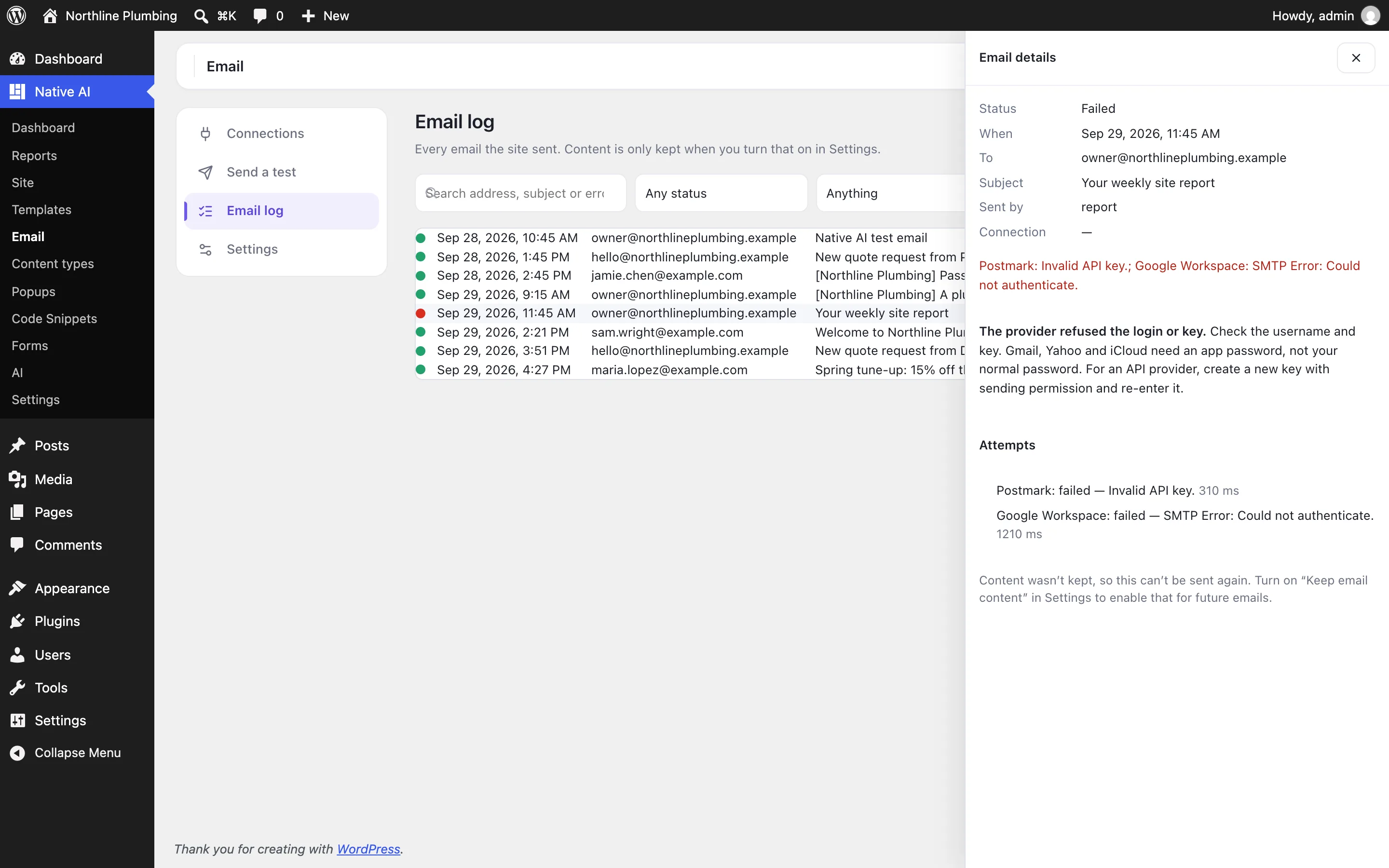
The Email log lists every email the site sent: when, to whom, which feature sent it, which connection delivered it and, when it failed, why.
Native AI → Email → Email log records each email as it is handed to a provider. Search by address, subject or error, and filter by status, by what sent it, and by date.
| Column | What it shows |
|---|---|
| Status | Green: the provider accepted it. Red: it failed. |
| Sent by | The part of the site that sent it: crm, form, report, notification, test (from the Email screen) or other (WordPress itself and other plugins). |
| Connection | The connection that delivered it. “WordPress default” means it went out WordPress’s own way (no connection was set up). |
Open a row to see every attempt — which connection was tried, how long it took and what it answered — so a failover to a backup is visible. For a failed email the screen also explains the error in plain words and says what to do about it.
What is kept#
- Always: the time, recipients, subject, the feature that sent it, the attempts, the provider’s message id and any error.
- Only when Keep email content in the log is on (Email → Settings): the message itself. It can contain personal data, so it is off by default. With it on you can read a logged email and send it again.
- Never: API keys or passwords.
- Entries older than Keep the log for days (30 by default; 0 keeps everything) are deleted every day.
Export CSV downloads the entries that match the current filters, and Clear deletes the whole log.
Related articles
On the features pages
Still have a question? Email us at support.