DocsEmail delivery
Send your site’s email through SMTP or an email service
Email delivery sends everything your site emails — forms, the CRM, reports, WordPress itself — through your own SMTP account or an email service’s API, with a backup if the first fails.
Many hosts limit or block the mail WordPress sends on its own, and inboxes often treat it as spam. Email delivery is an optional feature that sends the site’s email through an account you own instead — Gmail, Microsoft 365, Zoho or any SMTP server, or an email service’s API such as SendGrid, Mailgun, Postmark, Amazon SES, Brevo, Resend, SparkPost, Mailjet or Mailtrap. Native AI forms, the CRM, reports and notifications use it automatically, and so does any other plugin that sends mail through WordPress.
- Switch it onGo to Native AI → Settings → Features and switch on Email delivery. A new Email screen appears in the Native AI menu.
- Add a connectionEmail → Connections → Add connection. Choose SMTP (and a service such as Gmail to fill in the host and port) or one of the API providers, enter the from address and name, and paste the password or key. It is saved encrypted and never shown again.
- Send a testEmail → Send a test sends a short email to the address you give and shows what happened, including each connection that was tried.
- Add a backupAdd a second connection, ideally with a different provider. The first is the primary; if it fails, each backup is tried in turn.
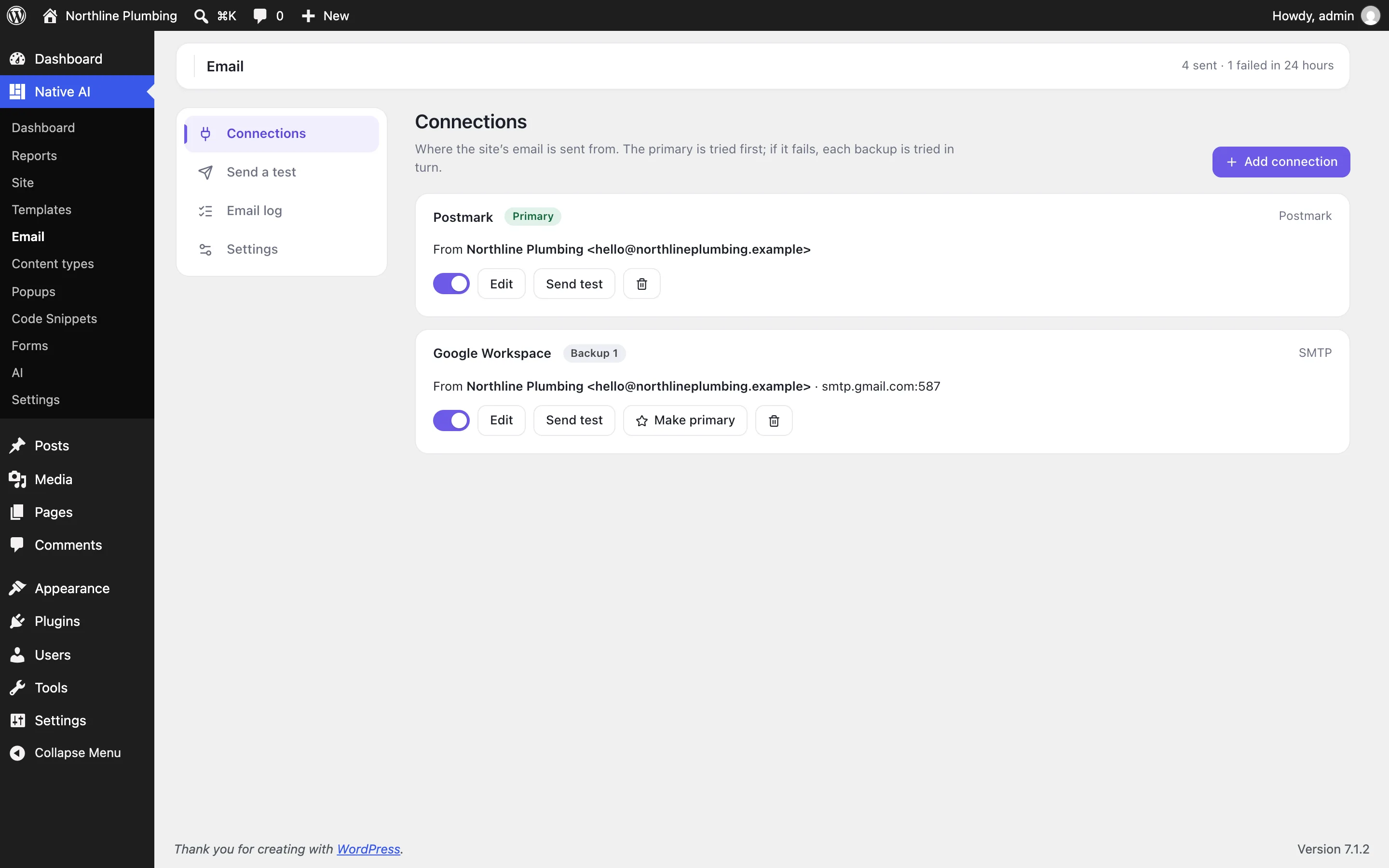
Choosing a provider#
| Provider | What you need | Good to know |
|---|---|---|
| SMTP presets (Gmail / Google Workspace, Microsoft 365, Zoho, Yahoo, iCloud, Fastmail, Namecheap, GoDaddy, IONOS) | The account’s address and an app password (or password) | Gmail, Yahoo and iCloud need an app password, not your normal one. Personal mailboxes have daily sending limits. |
| SendGrid, Mailgun, Postmark, Brevo, Resend, SparkPost, Mailjet, Mailtrap, Amazon SES | An API key (Mailgun: sending domain and region; SES: region and access key ID; Mailjet: API key and secret key) | APIs work over ordinary HTTPS, so they work on hosts that block SMTP ports. Verify your sender address or domain with the provider first. |
| Any other SMTP server | Host, port, encryption, username and password | Port 587 goes with TLS, port 465 with SSL. |
From addresses#
Providers only send from addresses they have verified, so each connection has its own from address and name. If an email names a different sender on another domain — a contact form copying the visitor’s address, say — it is sent from the connection’s address and replies still go to that person. Always send from the connection’s address in Email → Settings applies the connection’s address to every email.
If the site’s security keys change#
Saved keys are encrypted with the site’s WordPress security keys (the salts in wp-config.php). If those are replaced — some hosts and security plugins do — the saved keys can’t be read any more. The Email screen shows which connection needs its key again; edit it and enter the key.
Switching it off#
Switching Email delivery off stops it completely: mail goes out the way WordPress sends it and nothing is logged. Nothing is deleted — your connections and the log are there when you switch it back on.
Related articles
On the features pages
Still have a question? Email us at support.