DocsWooCommerce store
Run your WooCommerce store from Native AI
The WooCommerce Storekeeper adds a Store screen — sales, orders, products, stock, customers, coupons, sales and price changes, shipping and store health — and lets the AI help run the store. WooCommerce stays in charge of your data.
The WooCommerce Storekeeper is an optional feature for sites that sell with WooCommerce. It doesn’t replace WooCommerce or copy your data: everything you see on the Store screen is read from WooCommerce, and every change is saved through WooCommerce — so its emails, stock rules, payment gateways and other plugins behave exactly as they would from WooCommerce’s own screens.
- Install WooCommerceThe Storekeeper needs WooCommerce installed and active.
- Switch it onGo to Native AI → Settings → Features and switch on WooCommerce Storekeeper. A Store screen appears in the Native AI menu.
- Look aroundStore → Dashboard shows sales today, this week and this month against the period before, orders waiting to ship, a chart of the last 30 days, what needs attention, best sellers and stock.
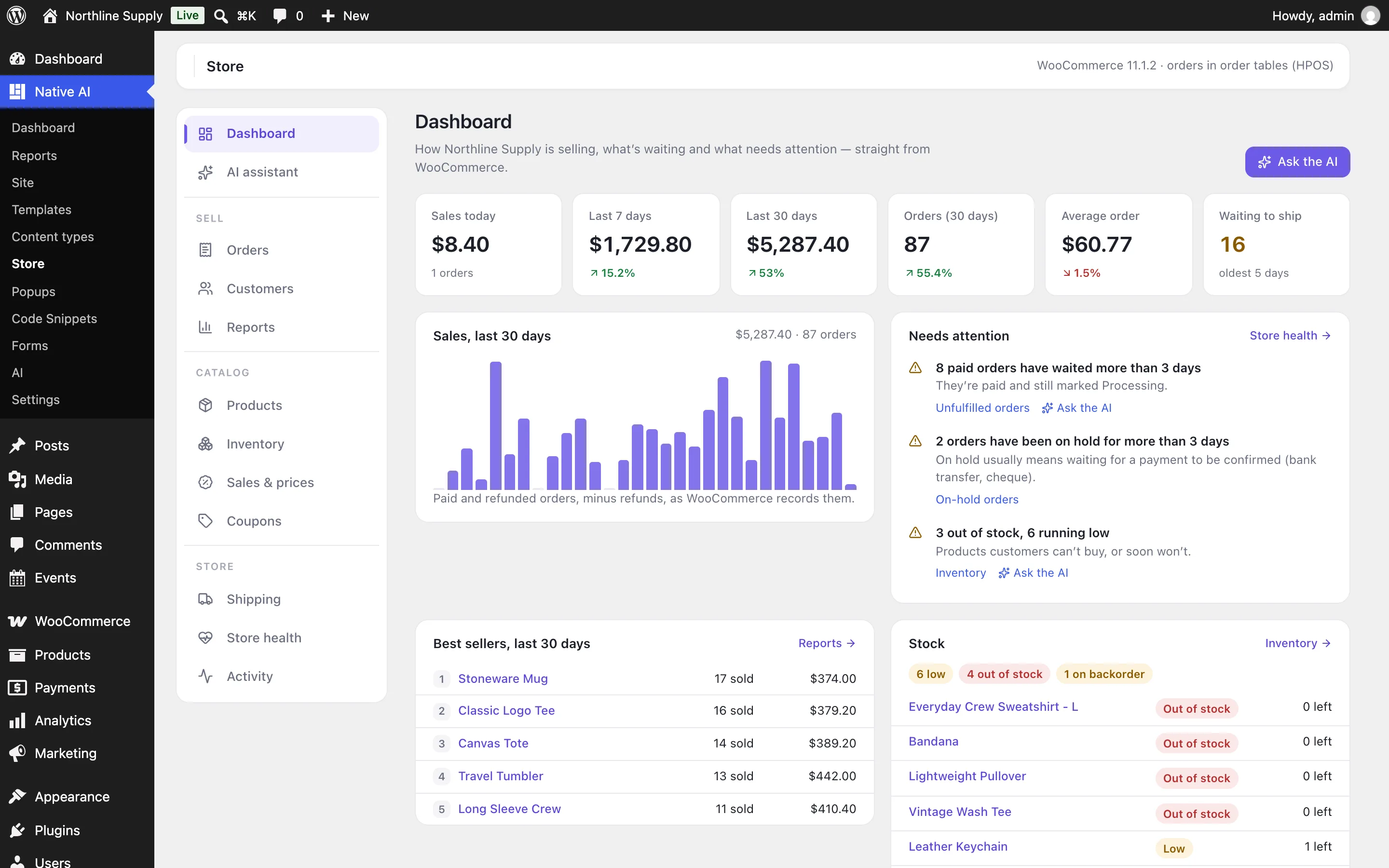
What’s on the Store screen#
| Section | What it does |
|---|---|
| Orders | Every order, filtered by status — Waiting to ship lists paid orders still marked Processing, oldest first. Open one to see its items, addresses and notes, change its status, write a note (private or to the customer) or refund it. |
| Customers | Registered customers with their orders and spend; open one for their recent orders. |
| Reports | Sales for a period against the one before: revenue, net sales, orders, items, average order, refunds, revenue per day, best sellers, top categories, customers and coupons. Export as CSV. |
| Products | Your catalog with prices, sales, stock and units sold. Edit a product’s prices, sale dates, stock, categories and description, or pick several and put them on sale or change their prices. |
| Inventory | Products and variations running low, out of stock and on backorder, with a quick way to add stock. |
| Sales & prices | Sales and bulk price changes, each with every product’s price before and after, so a sale can be ended early and a price change undone exactly. |
| Coupons | WooCommerce coupons: what they give, usage, limits and expiry. |
| Shipping | Zones and their methods: switch them on and off, change a flat rate or when shipping is free. |
| Store health | What stops customers buying or needs doing, each with where to fix it. |
| Activity | Everything changed here — by you or the AI — with what it was before. |
| AI assistant | Ask for things in plain words (see Ask the AI about your store). |
Who can do what#
The Storekeeper uses WooCommerce’s own permissions, so a Shop Manager can run the store without being an administrator:
| WooCommerce permission | Allows on the Store screen |
|---|---|
| View WooCommerce reports | The dashboard, reports, store health and activity |
| Edit products | Products, stock, sales and price changes |
| Edit orders | Orders, notes, refunds and customers |
| Edit coupons | Coupons |
| Manage WooCommerce | Shipping |
Using the AI assistant also needs Native AI’s Use AI permission.
Orders in WooCommerce’s order tables (HPOS)#
Native AI reads and writes orders only through WooCommerce’s order functions, never the database directly, so it works whether your orders are stored as posts or in WooCommerce’s High-Performance Order Storage tables — and it declares itself compatible, so WooCommerce lets you switch HPOS on.
Related articles
On the features pages
Still have a question? Email us at support.