DocsAutomations
Runs, testing and troubleshooting
Every time an automation runs it’s logged with the event that started it and what each step did. Test with sample or captured events, stop waiting runs, and find out why something didn’t happen.
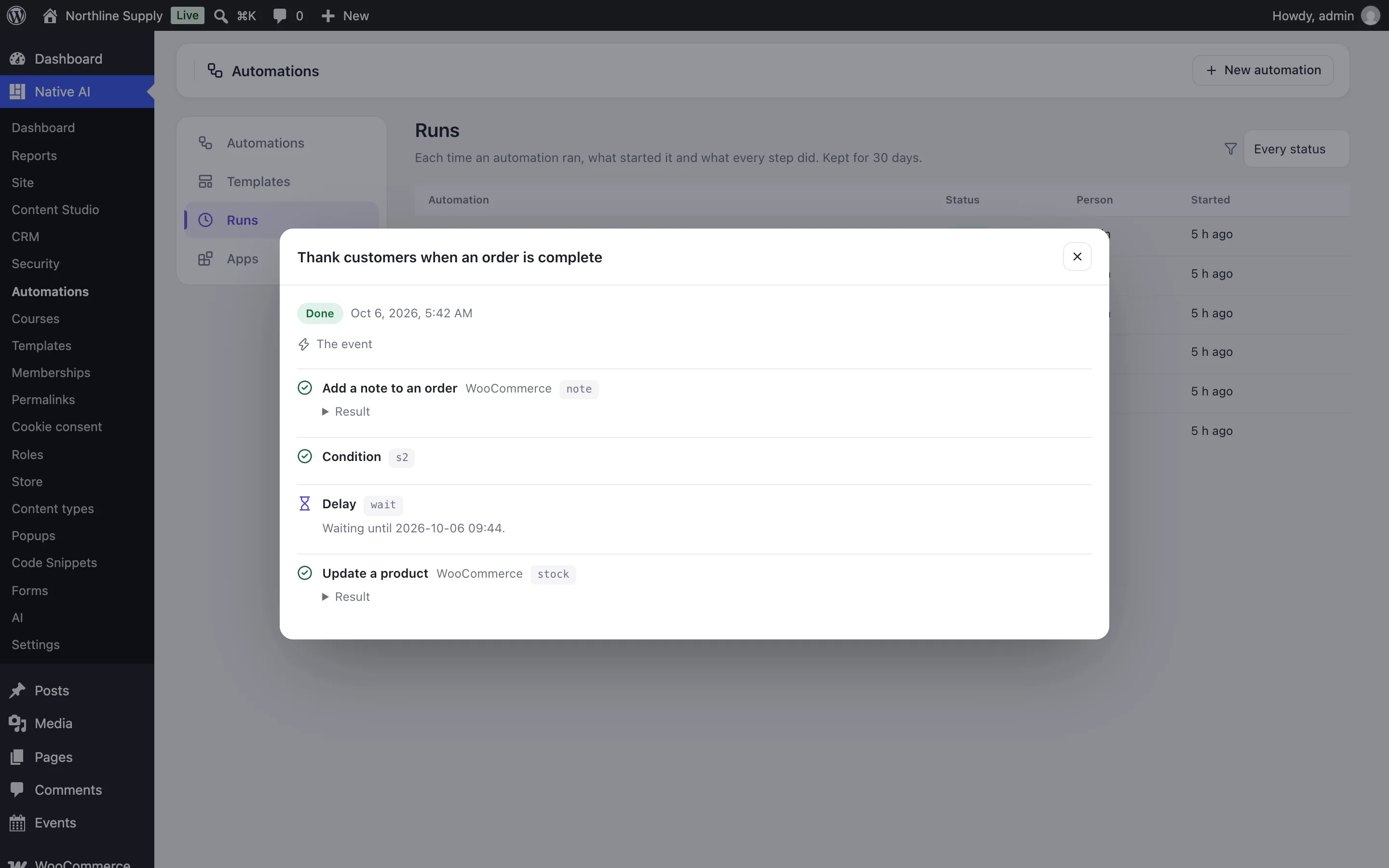
Automations → Runs lists every run, newest first: the automation, its status — running, waiting (with when it continues), done, failed or stopped — the person and when it started. Open one to see the event and each step’s result, or why it failed. Stop a waiting run with Stop.
When something didn’t run#
- Is the automation On? Drafts and paused automations don’t run.
- Do the trigger’s choices match? A product, course or form chosen on the trigger narrows it.
- Once for each person and Only once, ever skip people (or runs) that already happened.
- A condition that wasn’t met stops the run — the run shows which.
- Is the plugin or app still there? Steps whose app isn’t available fail with what they need.
- Automations that start each other stop after three levels, and an automation never starts itself.
Timing#
Runs start right after the page is sent, so visitors never wait. Delays and schedules continue in the background with WordPress’s scheduled tasks; on a quiet site they run on the next visit, so a server cron calling wp-cron.php every few minutes makes them punctual.
Failures#
A failed run sends a notification (in Native AI’s notifications) with a link to it. Runs are kept for 30 days.
Do test runs count?
They’re in the log, marked Test, but don’t count toward runs, “once” settings or failures.
Can I re-run a failed run?
Fix what failed, then Test the automation with the same event: its last captured event, or ask the agent to test it with that run’s event.
Are runs limited?
No. Automations run on your site, so there’s no task count; only the AI step uses AI credits.
Related articles
On the features pages
Still have a question? Email us at support.