DocsCourses
Create and sell courses
Courses is an optional feature for teaching online: build a course from sections, lessons, topics and quizzes, choose who can take it — free, bought with WooCommerce, a membership or closed — open lessons step by step or on a schedule, and publish. The AI can write the whole course.
- Switch it onGo to Native AI → Settings → Features and switch on Courses. A Courses screen appears in the Native AI menu, with a Classic certificate design to start from.
- Create a courseIn Courses, click New course and give it a title — or Write a course with AI: say what it teaches, for whom, how many lessons and whether it has quizzes, and the AI writes the outline, every lesson’s text, topics and quizzes as drafts.
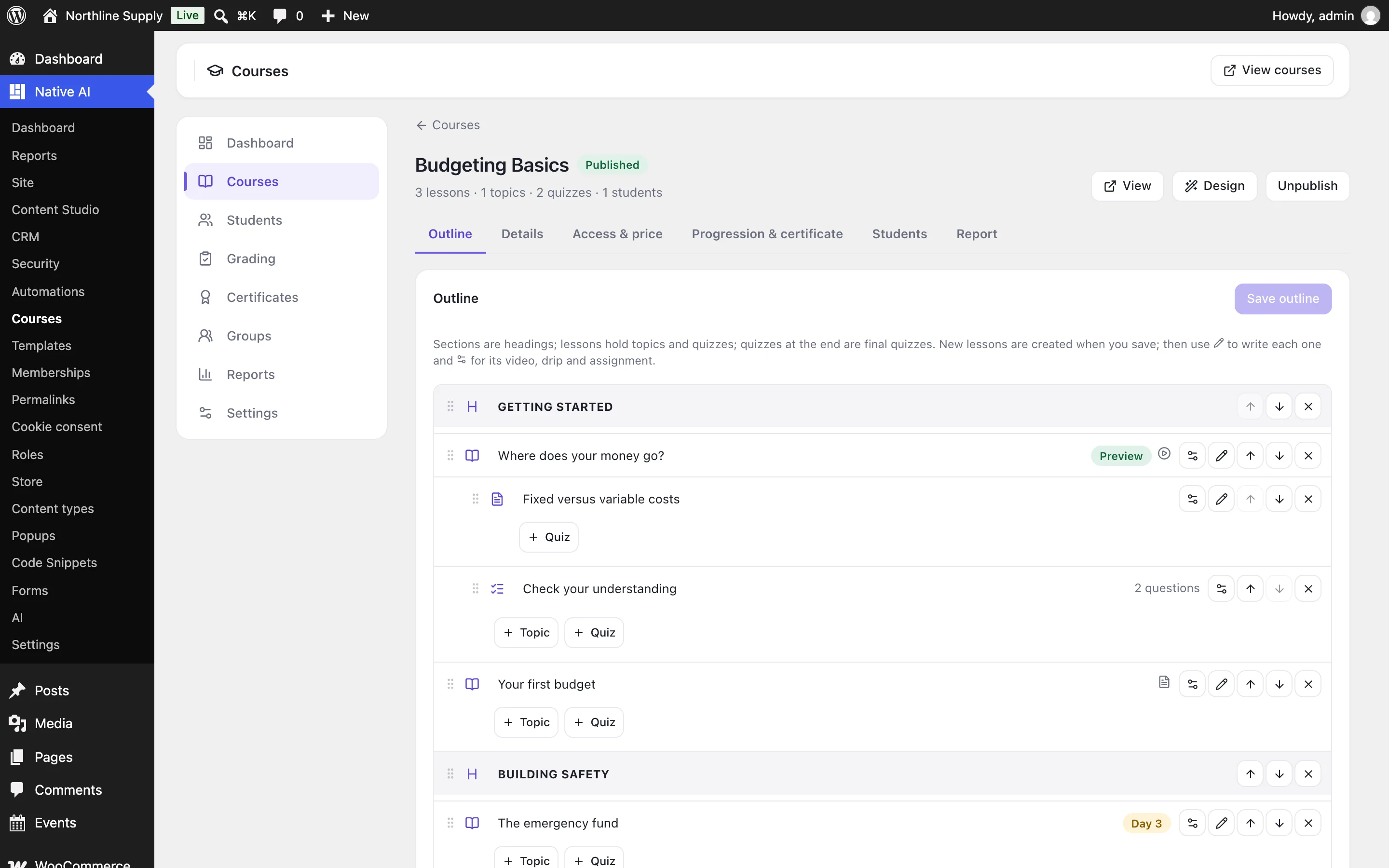
- Build the outlineOn the Outline tab, add sections (headings), lessons, topics inside lessons and quizzes (after a lesson, inside it, or at the end). Rename and reorder them, then Save outline: new lessons are created as drafts.
- Write the lessonsUse the pencil beside a lesson to write it in the WordPress editor (or Design it in the builder), and the gear for its video, drip, timer and assignment.
- Choose access and publishSet Access & price, then Publish — publishing a course publishes its lessons too.
Who can take it#
| Access | What it means |
|---|---|
| Free | Anyone with an account enrolls with one click (Enroll now). |
| Bought | WooCommerce products sell it: a paid order enrolls the buyer, a refund takes them out. A WooCommerce Subscriptions product gives access while the subscription is active (paused while it’s on hold). One product in several courses sells them as a bundle. Products that sell courses require an account at checkout. |
| Open | Everyone can read every lesson, even signed out; signed-in visitors’ progress is saved. |
| Closed | Only people you enroll, groups, membership plans and products — with an optional price and a button to your own sales page. |
Any course can also go to the members of chosen Memberships plans: they’re enrolled when they first open it and leave when their membership ends.
Conditions#
- Finish these courses first: prerequisites (all of them, or any one).
- Course points needed: points students earn by finishing courses and passing quizzes.
- Seats: a limit on people who enroll themselves (purchases and groups always get in).
- Starts and Enrollment closes dates, and Access lasts a number of days (optionally starting over when it ends).
Progression and drip#
On Progression & certificate, choose Step by step (students finish each lesson to open the next) or Any order. In a lesson’s settings:
| Setting | What it does |
|---|---|
| Free preview | Anyone can open it before enrolling. |
| When it opens | Straight away, a number of days after enrolling, or on a date. Students are emailed when it opens. |
| Video | YouTube, Vimeo, Wistia or a video file, above or below the text. With Watch it to the end, the lesson can’t be completed until the video ends (YouTube, Vimeo and files); or it completes itself when the video ends. |
| Minimum time | Students can mark it complete after this long. |
| Assignment | A file (or written answer) to hand in, approved by you or automatically, with points; it can be required to complete the lesson. |
| Materials | Downloads and links for the lesson. |
What students see#
- The course page: the price and Enroll or Buy button — or their progress, Continue and their certificate — what they’ll learn, the outline with what’s done, open or locked, announcements, materials, the teachers and reviews.
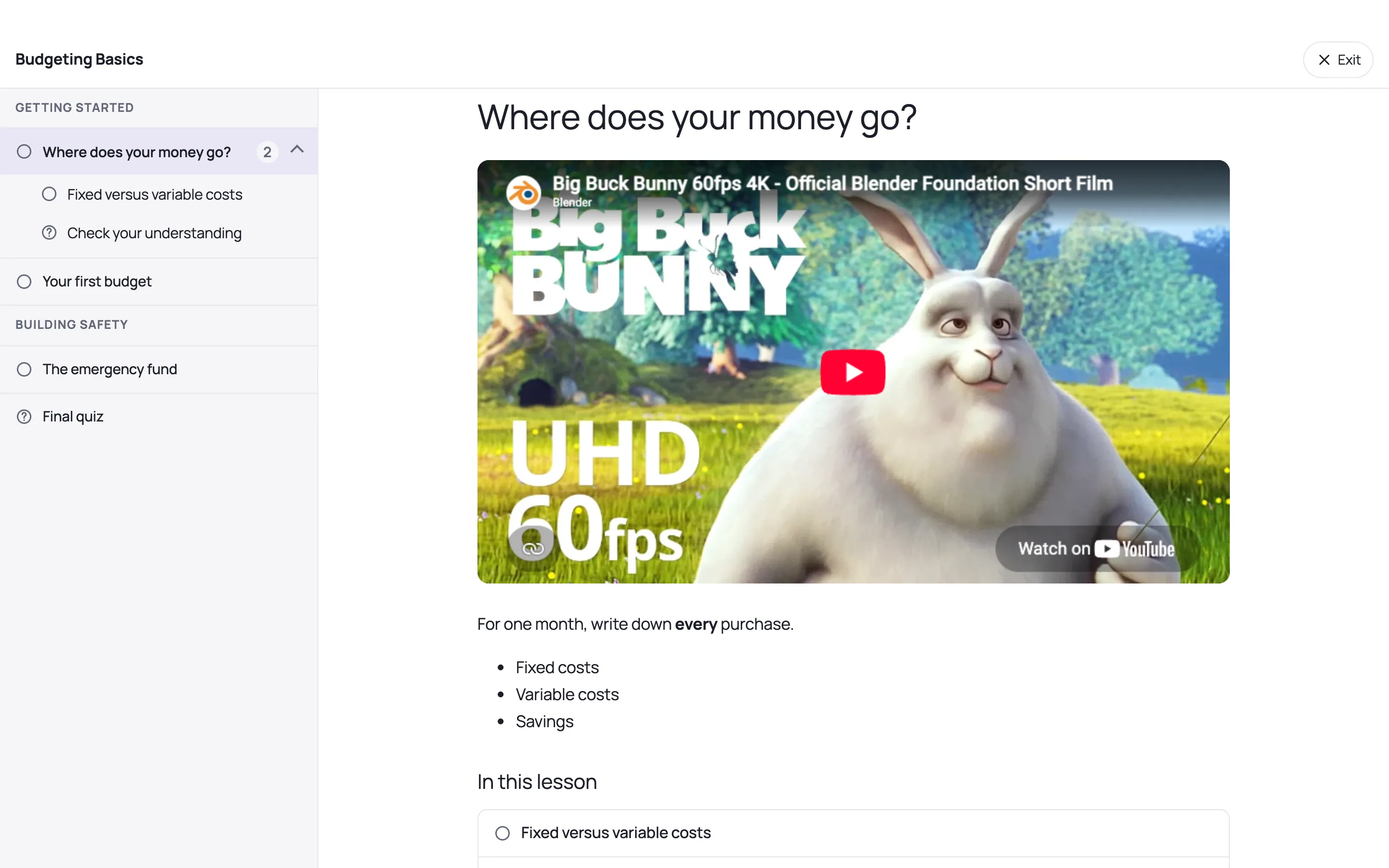
- Lessons in focus mode: full screen, with the outline and progress beside them, previous and next, Mark complete, and private notes. Switch focus mode off in Settings to show lessons with your theme.
- The student dashboard: their courses, progress, certificates, points and groups — on a page with [nai_student_dashboard], the Student dashboard element, or the Courses tab of WooCommerce’s My Account.
In the builder#
Design course pages and lesson templates like any page: the Courses elements (Enroll box, Outline, Progress, Lesson content, Student dashboard, Course cards, Certificate check), the Course dynamic data ({course_price}, {course_lessons}, {course_progress}, {course_button_url}…) in a Query Loop on courses, and the conditions Visitor is enrolled in a course and Visitor finished a course.
Related articles
On the features pages
Still have a question? Email us at support.