DocsCookie consent
Scan for cookies and choose their categories
The scan finds the services, scripts and cookies your pages use, puts the ones Native AI knows in their category, and lists the rest for you to categorise.
Native AI → Cookie consent → Cookies & scripts → Scan the site. WordPress reads up to 20 of your pages the way a visitor would — the home page, then the newest of each kind of content — and looks at every script and embed. Then your browser opens the home page with everything allowed, to see the cookies those scripts set. It takes up to half a minute.
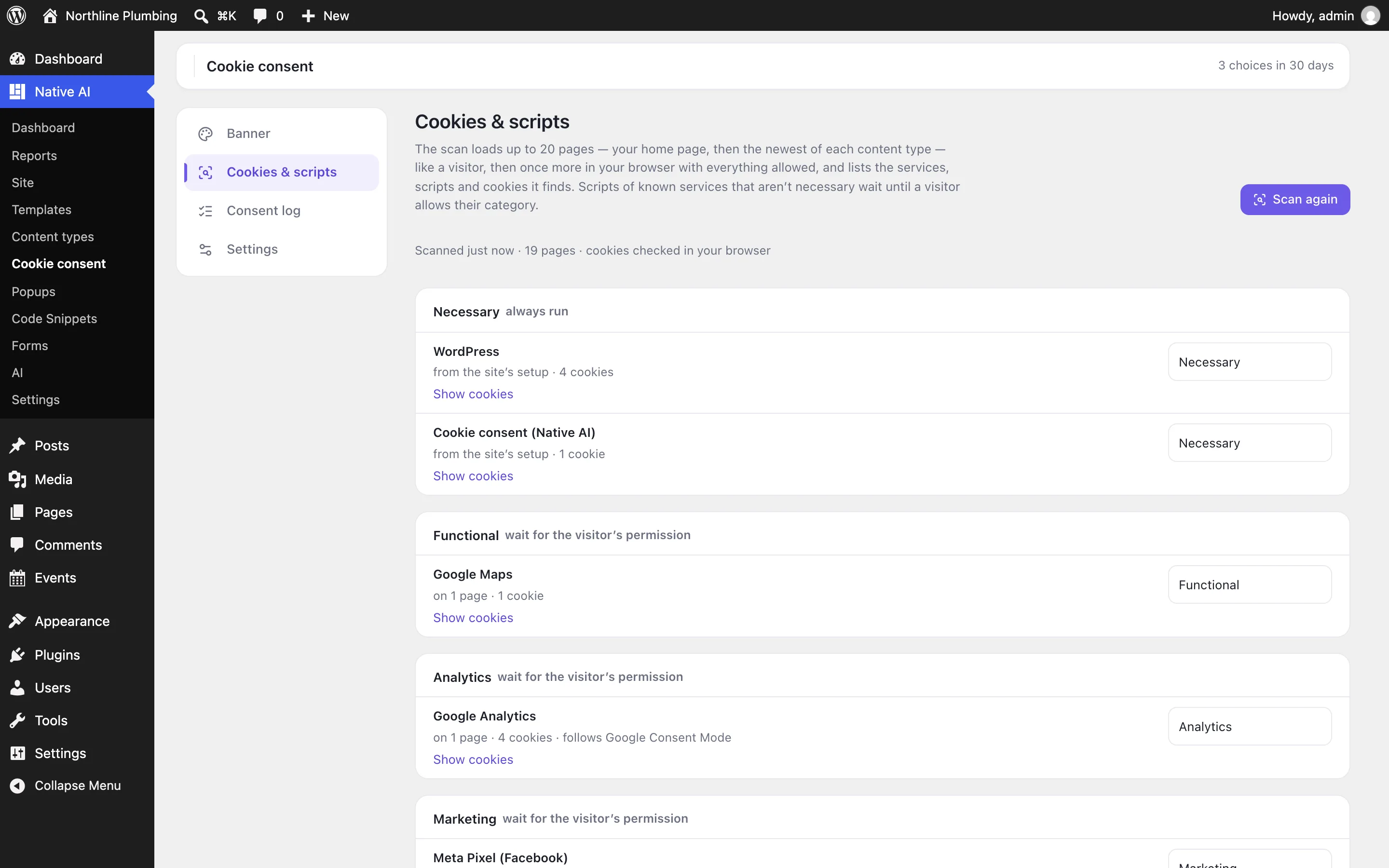
| Part of the screen | What to do |
|---|---|
| Services by category | Each service Native AI recognised, where it was found and its cookies (how long each lasts and what it’s for). Change a category if the service does something else on your site. |
| Scripts and embeds Native AI doesn’t recognise | Scripts from other sites it doesn’t know. They run as normal until you choose a category — choose one so they wait for permission too. |
| Other cookies | Cookies the scan saw that no service claims. Give each a category so it’s listed on your cookie policy. |
| Your rules | For a script the scan can’t see — added only after a click, or on a page it didn’t read: some text from its address or code, and its category. |
Your cookie policy#
Settings → Create a draft policy makes a Cookie Policy page with two shortcodes: [nativeai_cookie_list], a table of every cookie by category that updates itself after each scan, and [nativeai_cookie_settings], a link that reopens the visitor’s choices. You can put either on any page.
Related articles
On the features pages
Still have a question? Email us at support.