DocsSecurity
Scan for malware, harden the site and block spam
The scan compares your files with WordPress.org’s originals and looks for malware, updates, closed plugins and injected content — with one-click restore, quarantine, delete or ignore. Plus the hardening checklist, spam blocking, the security log and alerts.
Go to Native AI → Security → Scan and click Scan now. It runs in the background (a few minutes on most sites) and by itself every day.
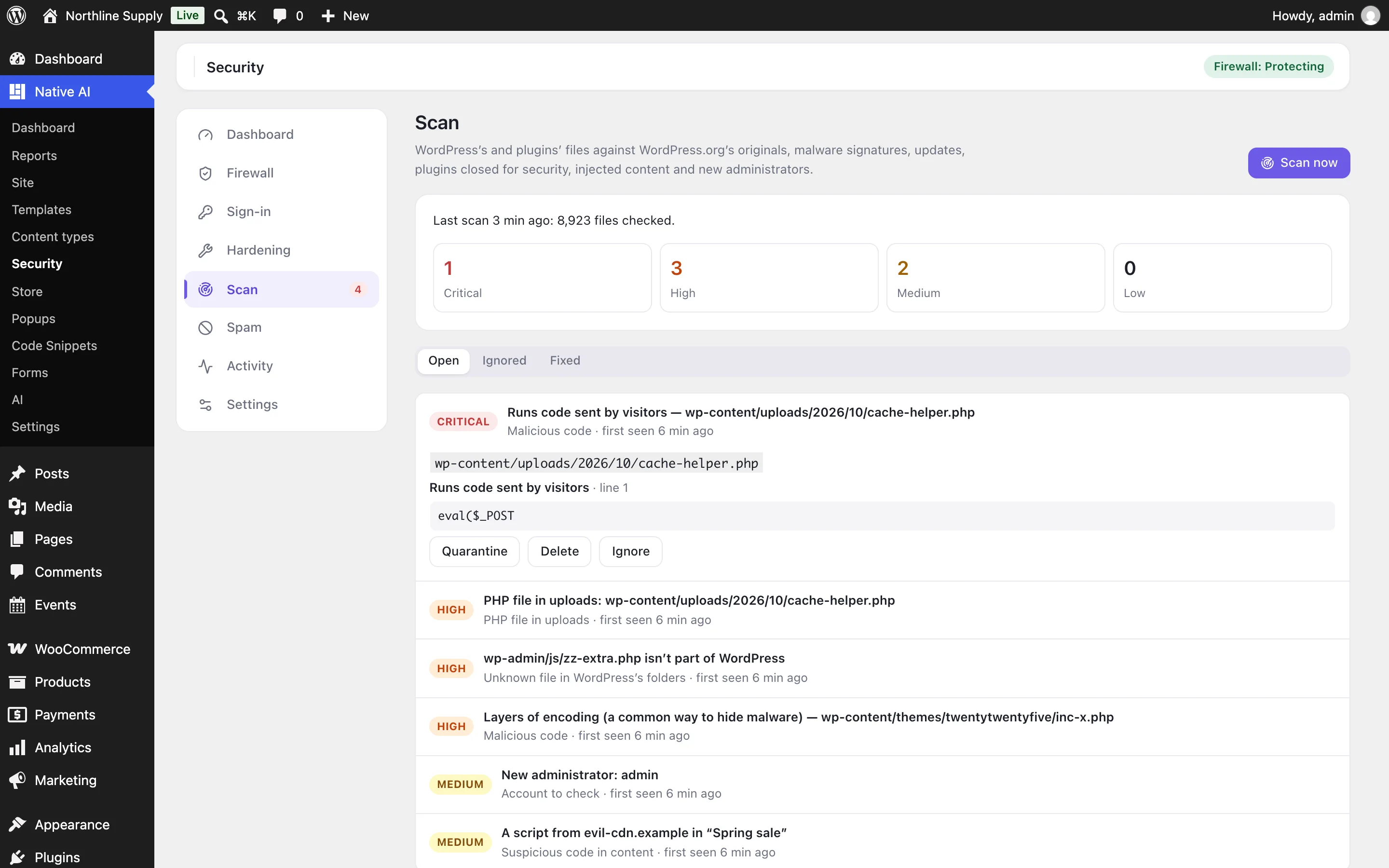
What it checks#
| Check | How |
|---|---|
| WordPress’s own files | Against WordPress.org’s checksums for your version and language: changed, missing, and unknown files among WordPress’s. |
| WordPress.org plugins | Every file against the plugin’s published checksums for your version. Files that match are trusted and not scanned further. |
| Everything else | Themes, other plugins, mu-plugins, the site’s root and uploads, against malware signatures: code run from encoded text or from what visitors send, web shells, disguised includes, code hidden in images, injected scripts, hidden frames, crypto miners, search-engine spam and redirects. |
| Uploads | PHP files where only media belongs. |
| Changes | Code files that changed since the last scan while their plugin or theme stayed the same version. |
| Updates and closed plugins | Updates waiting, and plugins WordPress.org closed (with why — often a security problem). |
| Known vulnerabilities | With a free WPScan API key (Scan settings), your plugins’ known vulnerabilities and whether your version is fixed. |
| Content and accounts | Scripts from unknown domains and hidden code in posts and settings; administrators added in the last week. |
Fixing what it finds#
- Restore original: a changed WordPress or WordPress.org plugin file is replaced by WordPress.org’s copy for your version — only if it matches the published checksum. The old file is kept in quarantine.
- Quarantine: the file moves somewhere visitors can’t reach. Put back returns it.
- Delete: removes the file.
- Ignore: hides it while it stays the same; if it changes, it comes back.
Hardening#
Hardening has switches for the file editor, hiding the WordPress version, username lookups (?author=1, the REST API’s user list), security headers, HSTS, pingbacks, PHP in uploads and folder listings — and the full checklist with the security score: updates, unused plugins, PHP version, HTTPS, an account called “admin”, the role sign-ups get, two-factor for administrators, wp-config.php permissions, security keys and more.
Spam#
Spam blocks bots in comments and registrations (WordPress’s and WooCommerce’s): a hidden field only bots fill, a minimum time to fill the form, a link limit (held for approval), StopForumSpam’s list of known spammers’ addresses and emails, and throwaway email domains. The same StopForumSpam and throwaway-email checks are added to Native AI forms.
Activity and alerts#
- Activity lists everything blocked or noticed — firewall hits, blocked addresses and countries, failed sign-ins and lockouts, missing-page probes, spam, failed two-factor codes, fake bots — with the address, country, path and browser. Block an address from any row; export as CSV.
- Settings → Alerts emails you (or the site’s admin) about lockouts (an hourly summary), attack spikes, serious scan results and administrators signing in from a new device.
- Site Reports include a Security section: attacks blocked, lockouts, failed sign-ins, spam, the score and open issues.
Related articles
On the features pages
Still have a question? Email us at support.