DocsAutomations
Build an automation
Automations is an optional feature for “when this happens, do that”: choose what starts it — a form, an order, a course, a membership, a sign-in, a schedule, a webhook — then add actions, conditions and delays, test it and switch it on.
- Switch it onGo to Native AI → Settings → Features and switch on Automations. An Automations screen appears in the Native AI menu.
- Choose what starts itClick New automation, then Choose what starts it: search (“order paid”, “enrolled”, “form”) or pick an app, then a trigger. Its choices narrow it — a product, a course, a form — and an empty choice means any.
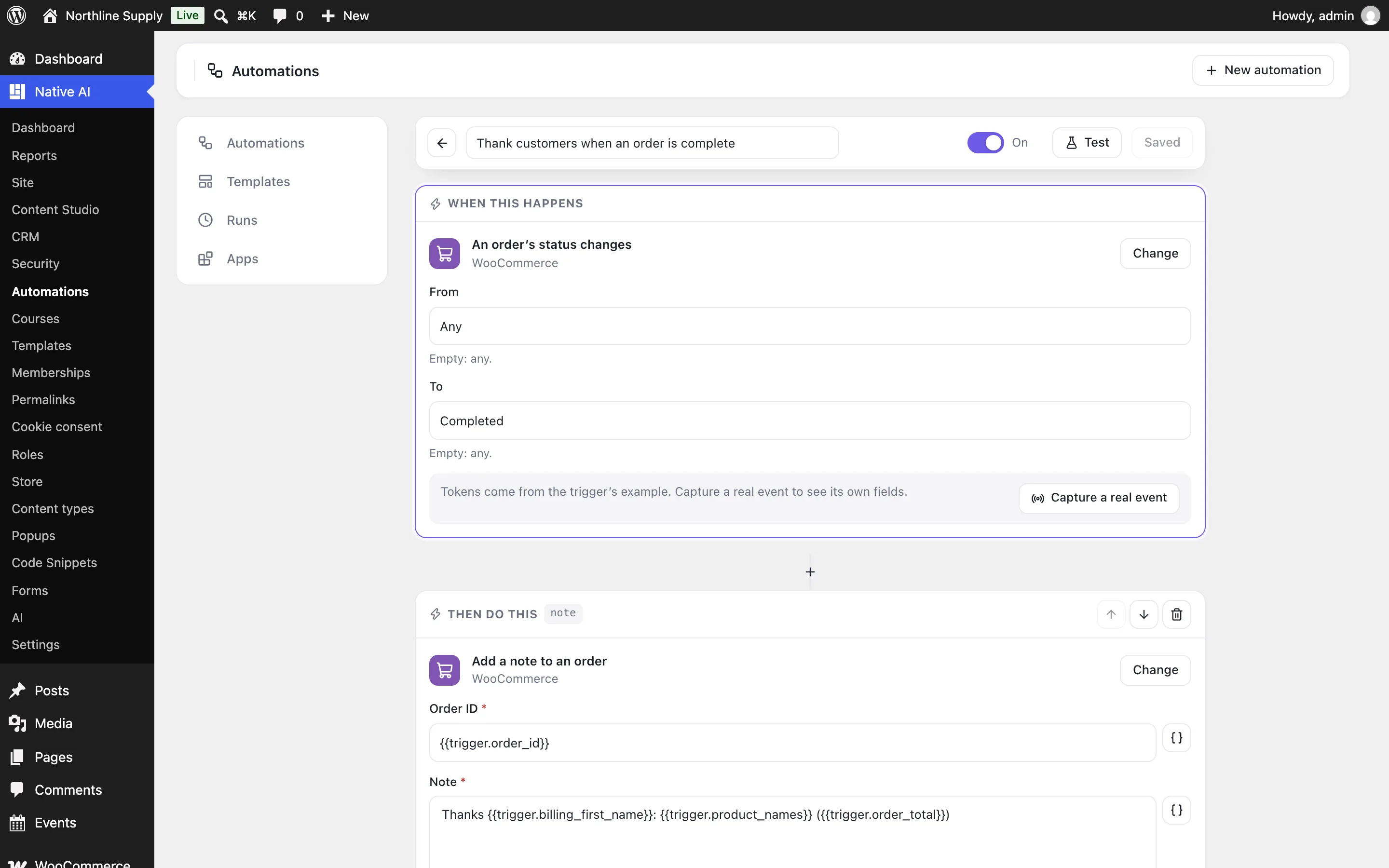
- Add stepsClick Add a step for an Action (send an email, make a coupon, enroll in a course…), a Condition (only continue if…) or a Delay. Fill the action’s fields; the { } button beside a field inserts a token like the customer’s email or the order total.
- Test itTest runs it once with a sample event and shows what each step did. Its actions run for real — emails are sent — and delays are skipped.
- Switch it onSave, then switch it On. It runs every time the event happens from now on. Anything still missing is listed at the top.
Tokens#
Fields take tokens in double braces, filled when the automation runs:
| Token | What it is |
|---|---|
| {{trigger.…}} | What the event gave: {{trigger.order_total}}, {{trigger.user_email}}, {{trigger.course_title}}, a form’s fields by name or label. |
| {{steps.ID.…}} | What an earlier step gave: {{steps.coupon.code}}, {{steps.ai.text}}. Each step shows its ID in its corner. |
| {{user.…}} | The person the event is about: email, first_name, last_name, name, login, id, roles. |
| {{site.…}} | name, url, admin_url and admin_email. |
| {{date.…}} | today, now, time, timestamp and iso, in the site’s time zone. |
Add a fallback after a bar for when a token is empty: Hi {{trigger.first_name|there}}. To see an event’s exact fields, click Capture a real event and make it happen on the site within 15 minutes (send the form, place an order): its fields become tokens.
Conditions and delays#
- Condition steps stop the run when they aren’t met: compare a token with a value — is, is not, contains, starts or ends with, is greater or less than, is empty, is one of, matches a pattern, is true or false — with all or any of the rules.
- Only do this if… on an action skips just that action.
- Delay steps wait for minutes, hours, days or weeks, or until a date and time (tokens allowed). The run continues in the background.
- Keep going if it fails lets later steps run when an app is down.
How often#
In Settings at the bottom: Every time it happens, Once for each person (by the user the event is about) or Only once, ever.
Templates#
Automations → Templates has ready-made automations — welcome emails, AI-sorted form messages, a thank-you coupon, buyers enrolled in a course, Slack messages for paid orders, security alerts, a weekly AI blog post and more. Each becomes a draft to finish and switch on.
Related articles
On the features pages
Still have a question? Email us at support.