DocsLanguages
Design the language switcher and banner
The switcher floats in a corner, sits in your menus or goes anywhere with the Language Switcher element; the banner offers visitors the language their browser prefers.
The switcher#
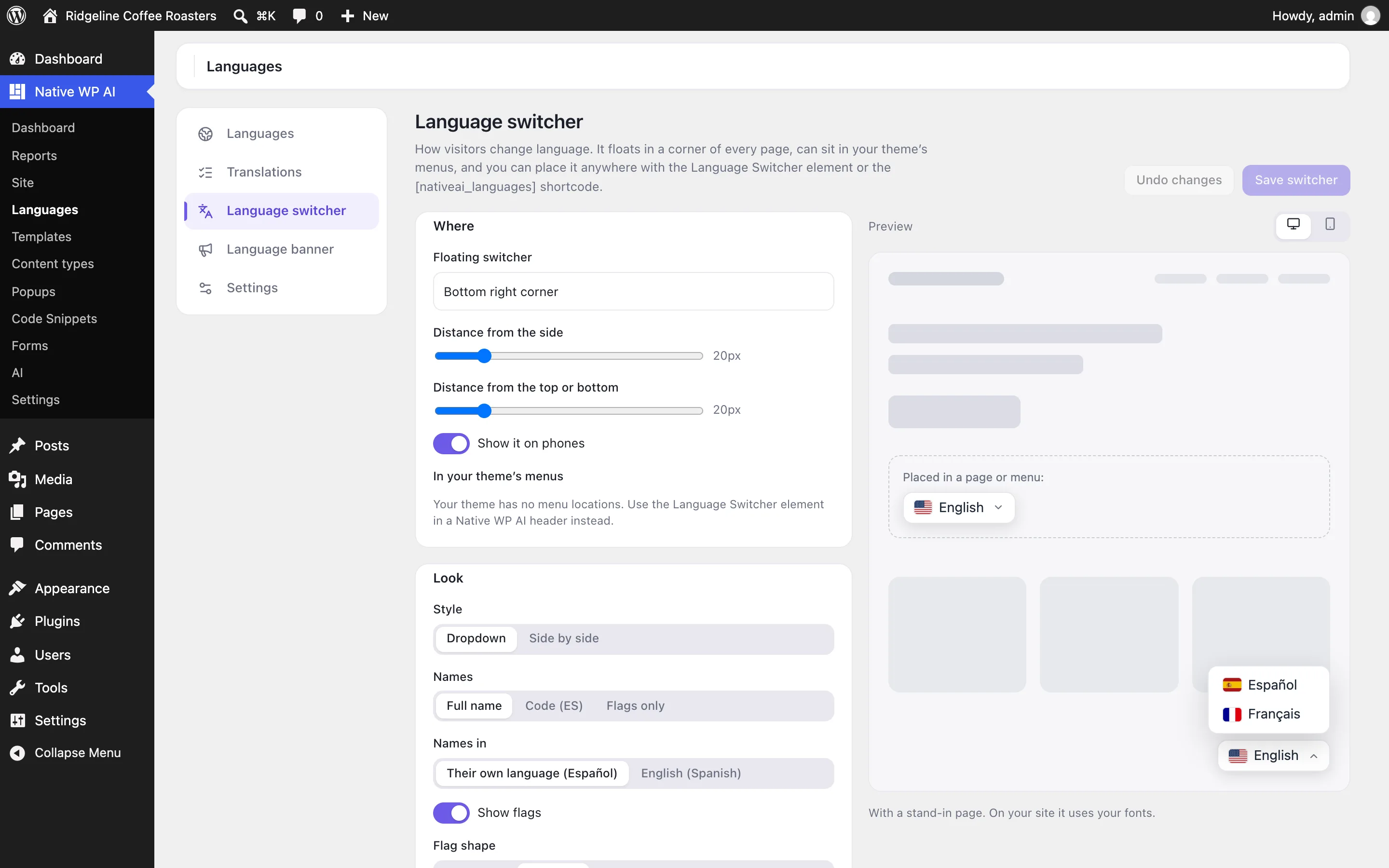
Native WP AI → Languages → Language switcher shows every change in a live preview:
| Setting | Choices |
|---|---|
| Floating switcher | Bottom right, bottom left, top right, top left — with its distance from the edges and whether phones show it — or none. |
| In your theme’s menus | Adds the switcher as the last item of the menus you tick. |
| Style | A dropdown, or the languages side by side (optionally without the current one). |
| Names | Full names in their own language (Español) or in English (Spanish), codes (ES), or flags only. |
| Flags | On or off; rectangle, rounded, square or round. Choose each language’s flag on the Languages screen. |
| Look | Text size, background, text, hover and border colors, corners, shadow, and custom CSS. |
Anywhere else#
- The Language Switcher element (Add panel → Site) in a header, footer or page, with its own style, flags and names.
- The
[nativeai_languages]shortcode, withstyle="list",flags="no"ornames="code".
A visitor’s choice is remembered for a year.
The language banner#
Languages → Language banner: when a visitor’s browser prefers one of your other languages, Show the banner offers it to them — “This page is available in Español”, in Spanish — or Redirect takes them there on their first visit. It never shows again once they’ve picked a language. Choose its position, words and colors; {language} is the language offered and {current} the page’s. Its words are translated into every language for you.
On the features pages
Still have a question? Email us at support.