DocsLanguages
Translate your site into other languages
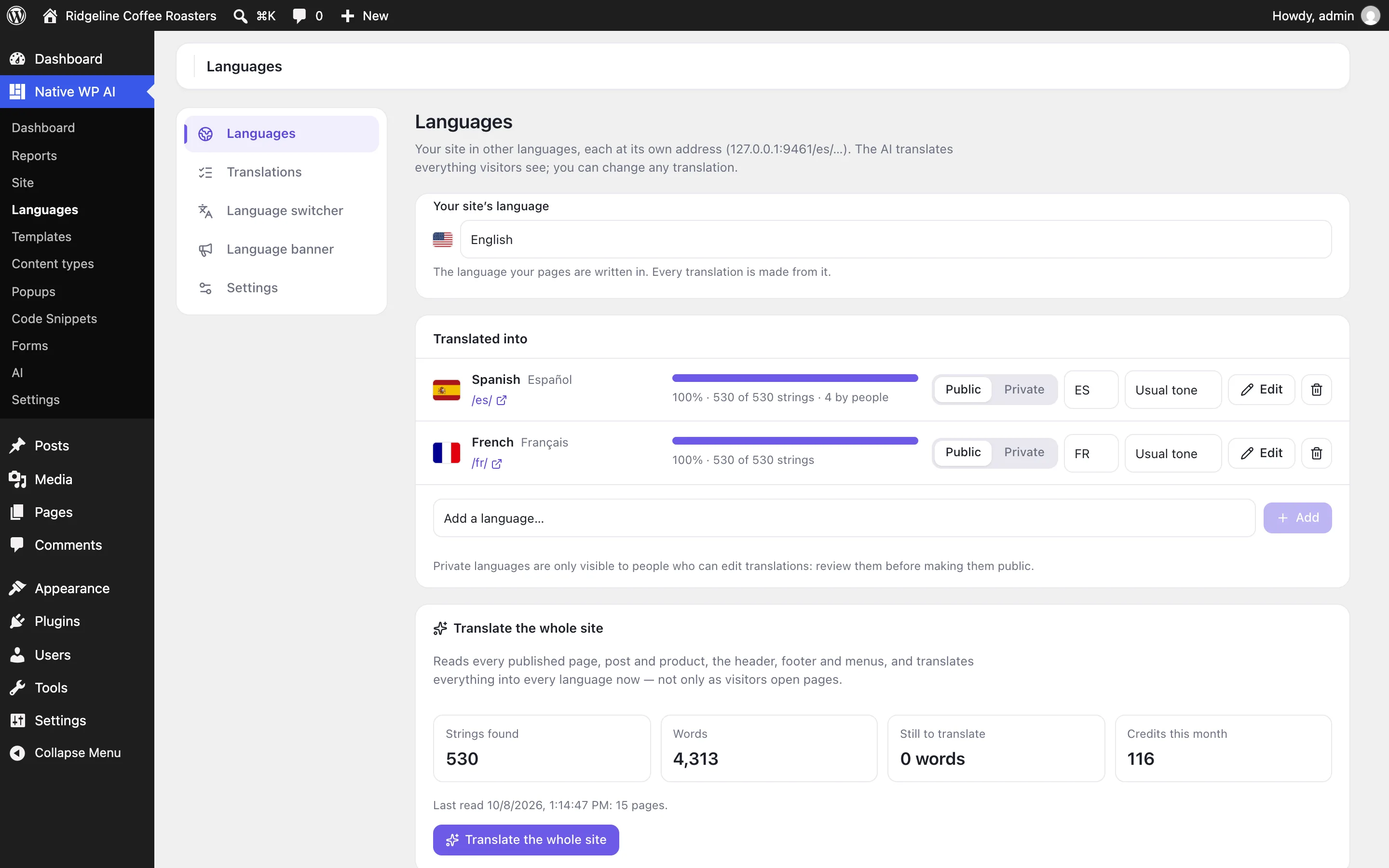
The Translator puts your whole site in other languages at their own addresses (/es/, /fr/), translated by the AI — every page, menu, form, product and SEO tag — with a switcher for visitors.
The Translator is an optional feature that does what Weglot does, inside Native WP AI. Add a language and your site is there at its own address — yoursite.com/es/ for Spanish — translated by the AI.
- Switch it onGo to Native WP AI → Settings → Features and switch on Translator. A Languages screen appears in the Native WP AI menu.
- Add a languageLanguages → Add a language…, then Add. Its pages exist right away; choose Private while you review it (only people who edit translations see it) and Public when it’s ready.
- TranslateOpen a page in the new language: what you see is translated before the page opens. For everything at once, Translate the whole site reads every published page, post and product and translates it all in the background — it shows the credits first.
- Check itRead the pages in the new language. Change anything in Translations, or click it on the page (see Edit translations).
What’s translated#
The Translator translates the page WordPress sends, whatever made it — Native WP AI pages and templates, your theme, WooCommerce, other plugins:
- Headings, paragraphs, lists, buttons, menus and links — whole sentences at a time, with their links and bold words in the right place
- Form labels, placeholders, buttons and messages
- Image descriptions (alt text), tooltips and button labels
- The page title, the meta description and the social sharing title and description
Links inside the site stay in the visitor’s language, the page’s lang (and dir for right-to-left languages) changes, and search engines get hreflang links to every public language and a sitemap of translated pages in WordPress’s sitemap.
New and changed text#
With Settings → Translate new text automatically on (the default), text that isn’t translated yet is translated in the background the first time a visitor sees it; it shows in your site’s language until then. For you and anyone who edits translations, it’s translated before the page opens. Turn it off to translate only when you choose (Translations → Translate what’s waiting).
Costs#
Translating uses AI credits, with the model set for writing in Settings → AI. A translation is kept: the same text is never translated twice, and text people edited is never translated again. Languages shows the credits used this month and roughly what translating the rest would cost. For example, a 15-page coffee roaster’s site (about 4,300 words) took about 60 credits per language with Claude Opus 5.5.
Leaving things untranslated#
| To keep… | Do this |
|---|---|
| A whole page, or every page under an address | Settings → Leave untranslated → Pages: /checkout/ for that page and everything under it, =/legal/ for one exact page. |
| Part of a page | In the builder, the element’s Advanced → Don’t translate. For other pages, a CSS selector in Settings → Leave untranslated → Parts of pages, or translate="no" / the notranslate class in your own HTML. |
| A word or name everywhere | Add it to the Glossary as Never translate. |
Showing something in one language only#
Every element has display conditions: Page language shows it only in some languages (or everywhere but some) — a Spanish-speaking phone number on the Spanish site, say.
Switching it off#
Switching the Translator off serves every page in your site’s language only, and the language addresses stop working. Nothing is deleted: every translation is there when you switch it back on.
Related articles
On the features pages
Still have a question? Email us at support.