DocsLanguages
Edit translations
Change any translation in the list of every string, or by clicking the text on the page; keep words in a glossary, choose the tone, and export or import translations.
In the list#
Native WP AI → Languages → Translations lists every piece of text found on the site next to its translation, one language at a time. Filter by Waiting, By AI or By people, search words, or pick a page to see only its text.
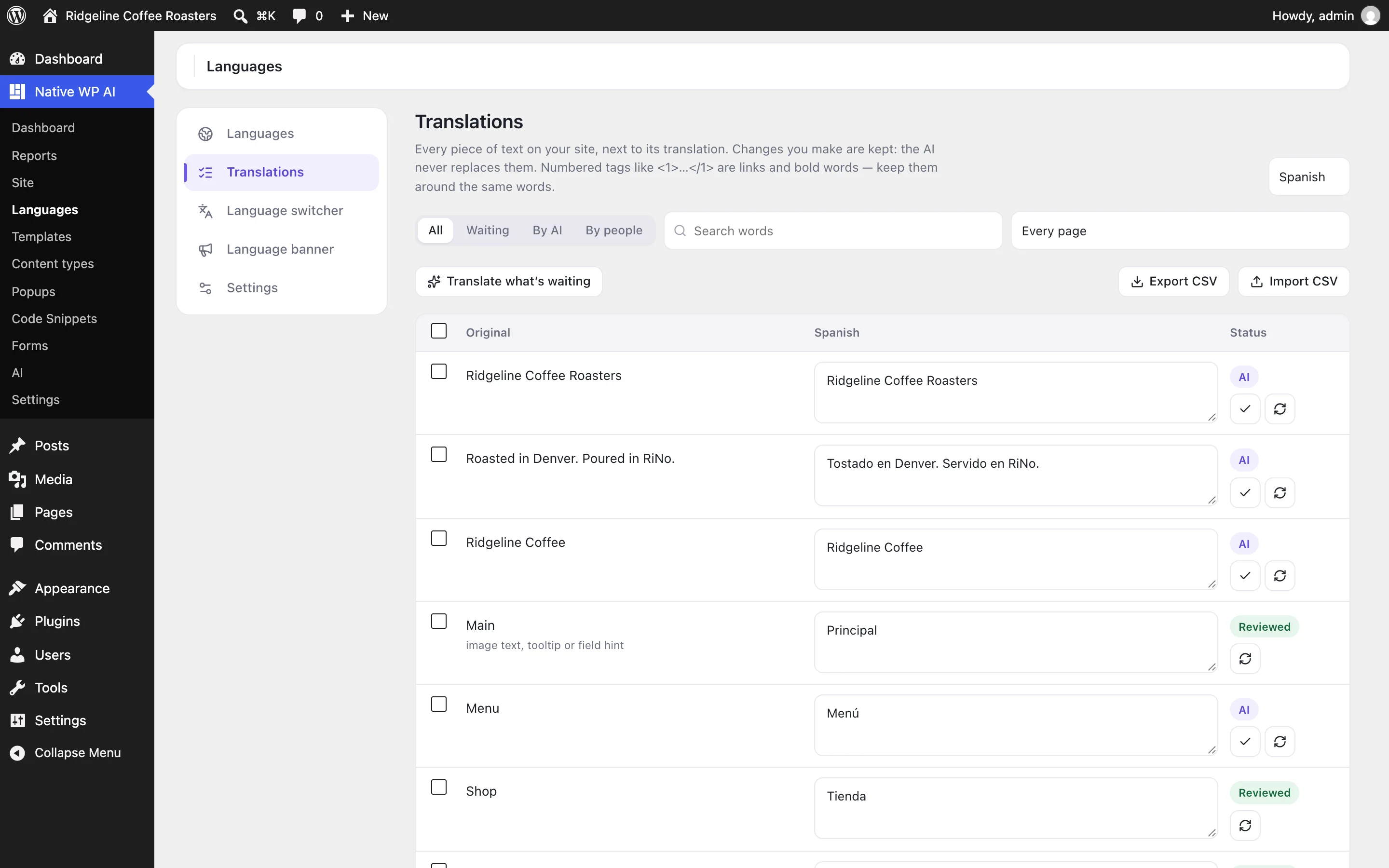
- Change a translation and Save (⌘↩ / Ctrl+↩): it’s marked Edited and the AI never replaces it.
- ✓ marks an AI translation Reviewed after you’ve checked it.
- ↻ translates it again with the AI — useful after a glossary change.
- Select several to review them, translate them again or forget them (a page that still shows one finds it again).
Numbered tags like <1>…</1> and <2/> are the links, bold words and line breaks of the original. Keep each one, around the same words: a translation without them isn’t saved.
On the page#
Open a page in its language and, in the admin bar, choose Language → Edit this page’s translations (or add ?nai_translate=edit to the address). Every translated text is outlined: click one to change it, or Translate with AI to get a new one.
Glossary and tone#
- Settings → Glossary: words the AI never translates (your brand, product names), or always translates one way in each language.
- Languages, next to each language: Formal or Informal — how the AI addresses visitors (usted or tú, vous or tu, Sie or du).
Both apply to new translations; translate again from Translations to update existing ones.
Export and import#
Export CSV downloads a language’s strings with their translations and status. Edit the translation column (or send it to a translator) and Import CSV: rows are matched by their original text, and imported translations are marked edited.
Related articles
On the features pages
Still have a question? Email us at support.