DocsChatbot
Add an AI chatbot that answers visitors from your site
The Chatbot puts a chat bubble on every page that answers visitors’ questions from your pages, posts and products and what you write for it — and takes their name and email when it can’t help.
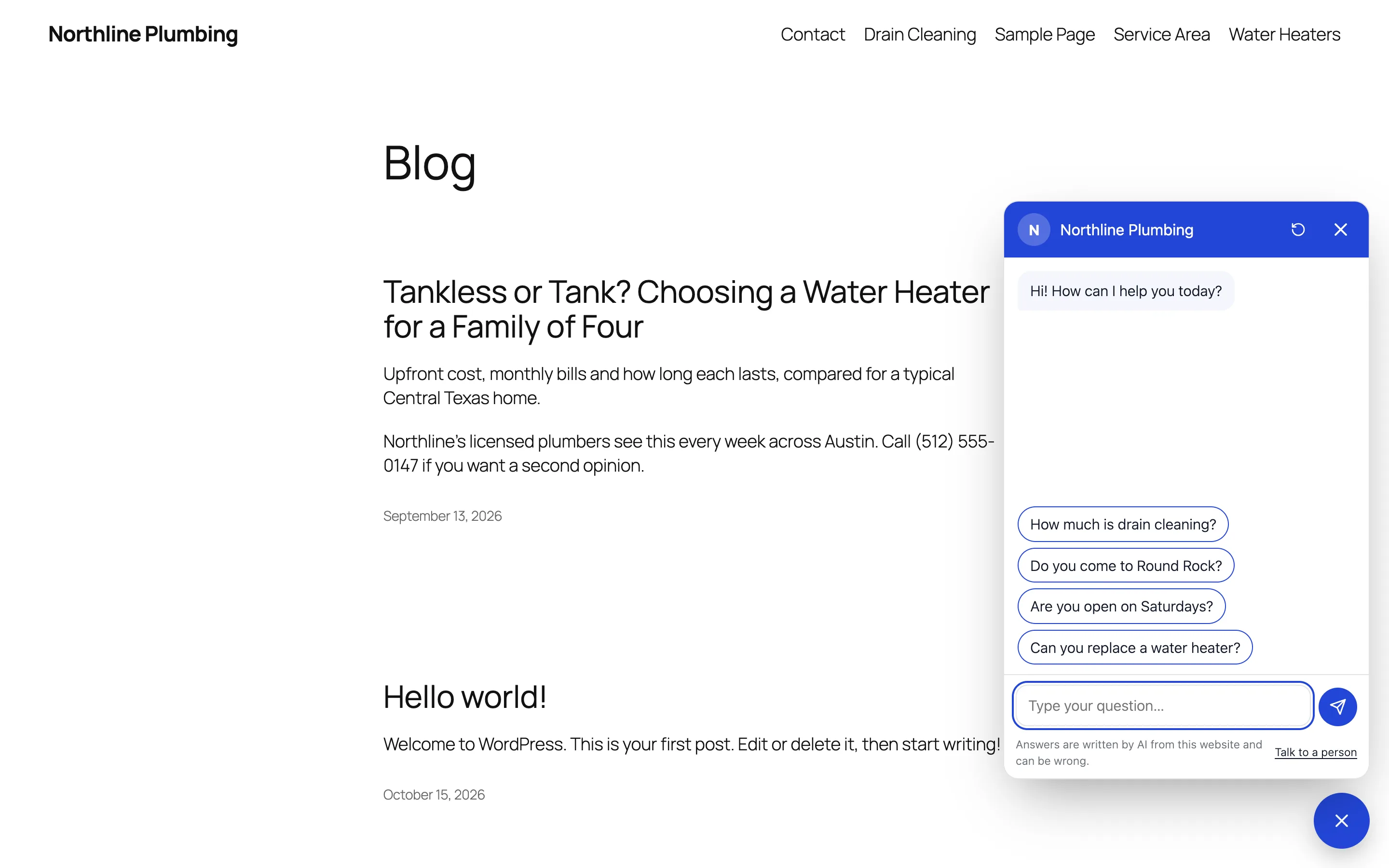
The Chatbot is an optional feature that answers your visitors like a helpful person at the front desk: what you offer, prices, opening hours, delivery, how to book or buy, where things are on the site. It answers from your own website and what you write for it, in the visitor’s language, with a link to the page that answers. When it doesn’t know, it says so and offers to take the visitor’s details for you.
- Switch it onGo to Native WP AI → Settings → Features and switch on Chatbot. The bubble appears on your site straight away, and a Chatbot screen appears in the Native WP AI menu. To try it on your own first, choose Settings → Show the chat bubble to → Only managers.
- Tell it what your pages don’t sayChatbot → Knowledge: write questions and answers, policies, opening hours, delivery areas — anything visitors ask that isn’t on your pages — and how it should answer (its tone, what to suggest, what never to say).
- Make it yoursChatbot → Look & words: its name, its first message, up to four suggested questions, and its color (your design system’s primary color unless you choose one) and side.
- Try itAsk questions in Try it on the same screen. Each answer shows the pages it read, the model that wrote it and the credits it used. These conversations are kept apart from visitors’.
What it knows#
| It reads | It never reads |
|---|---|
| Your published pages, posts and products (choose the content types in Knowledge), with product prices, stock, SKUs, categories and attributes | Drafts, private or password-protected pages, and content kept for members |
| What you write in Knowledge — all of it, for every question | Orders, customers, form entries or anything else in WordPress’s database |
| Your site’s name, description and main pages, and the page the visitor is on | Pages you leave out in Knowledge |
For each question it searches your content for the question’s words and reads the few passages that match best. Under Knowledge → Check what it finds, ask a question to see those passages — free, no AI — and Leave out any page it shouldn’t use.
When it can’t help#
With Offer a person on (Settings), the chatbot offers a short form for the visitor’s name, email and question when it can’t answer or they ask for a person; Talk to a person under the chat opens it any time. You get an email with the whole conversation — reply to it to answer them — at the address you choose (the site’s admin email unless you set one).
With the CRM on, they’re also added to it as a lead tagged Chatbot, with their question on their timeline. They’re not subscribed to your emails: they asked a question, not for your newsletter.
Choose its AI model#
Chatbot → Settings → Model chooses the AI model that answers visitors, from the same list as Settings → Models. A fast model such as Claude Haiku 5.5 answers sooner and uses fewer credits per answer, which suits a chat; a larger one such as Claude Sonnet 5.5 or Opus 5.5 writes more carefully but takes longer and costs more. Left on Same as Content writing, it uses your Content writing model. Try it shows the model under each answer.
Credits and limits#
Every answer uses AI credits, like any AI request; how many depends on the model. A failed answer gives its credits back.
- Answers a day (Settings, 300 to start): past it, visitors are offered the contact form until the next day. 0 means no limit.
- Each visitor’s network can send 40 messages an hour, and a conversation can have 40 questions.
- It answers only from your own site’s pages: other websites can’t use your chatbot.
Opening it from your pages#
Any link to #chat opens the chat — for a “Chat with us” button in your design. The chat follows visitors from page to page, and on phones it fills the screen.
Privacy#
Visitors talk to your WordPress site, which asks the AI service: your API keys never reach the browser. A conversation is kept in the visitor’s browser for a week so it follows them across pages, and on your site with an anonymised IP address for as long as you choose (Settings → Keep conversations, 90 days to start). Mention the chatbot in your privacy policy.
Switching it off#
Switching Chatbot off removes the bubble. Nothing is deleted — the settings, knowledge and conversations are there when you switch it back on.
Related articles
On the features pages
Still have a question? Email us at support.